
STEP-BY-STEP GUIDE: HOW TO APPLY FOR BBMP E-KHATA ONLINE To help property owners understand the complete BBMP e-Khata application process, we have created an in-depth video tutorial covering every stage—from gathering documents to downloading the final e-Khata.
Before we start, let me highlight the following information in the property tax receipt, which is important for filling out an eKhata application
- 10-digit application number
- BBMP Ward number & Name
- Owner Name
- Property Address
- Assessment Number
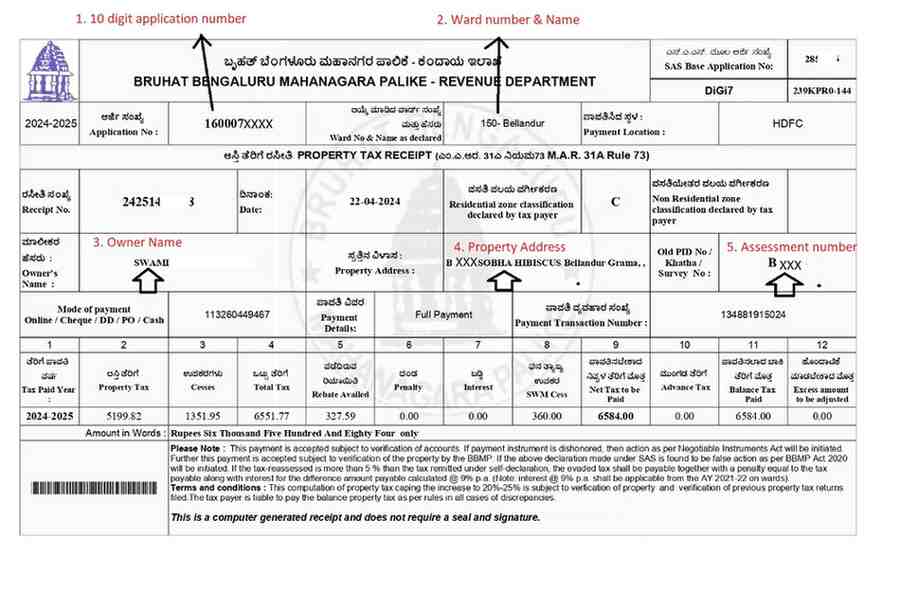 As per my above property tax receipt, my ward number & name are 150-Bellandur
Open the BBMP e-Aasthi website. Here is the link https://bbmpeaasthi.karnataka.gov.in/CitzLogin.aspx Enter your mobile number, OTP, and Captcha on the home page, and click on login. We highlighted in the image below
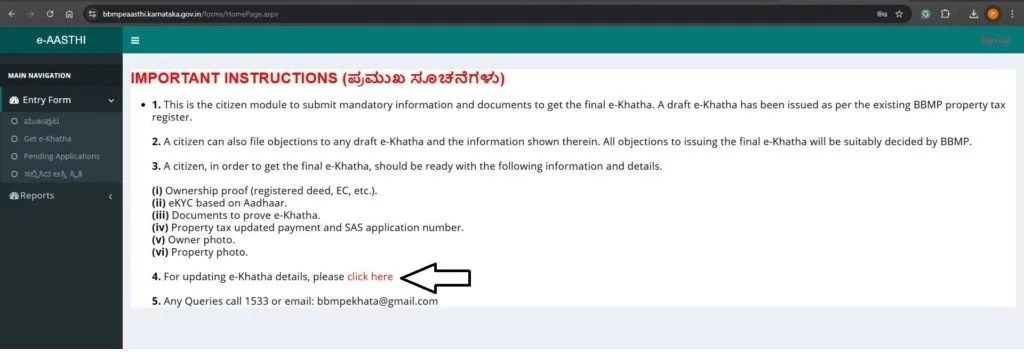
 After log-in, click on “For updating e-Khatha details”. Refer to image below
 As mentioned above, my BBMP ward number and name are 150 - Bellandur. entered my ward no.150 in the search bar to find my ward number on the screen. Refer to the image below
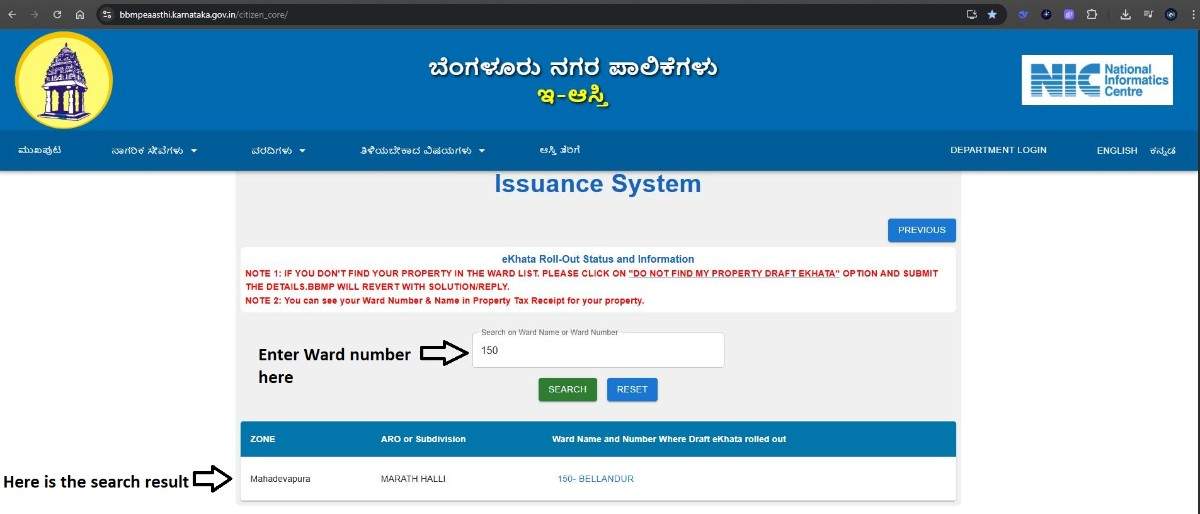 Clicked on my ward number and name
We can search property based on the following criteria:
- Property EPID
- Owner Name
- Assessment No.
- Property Address
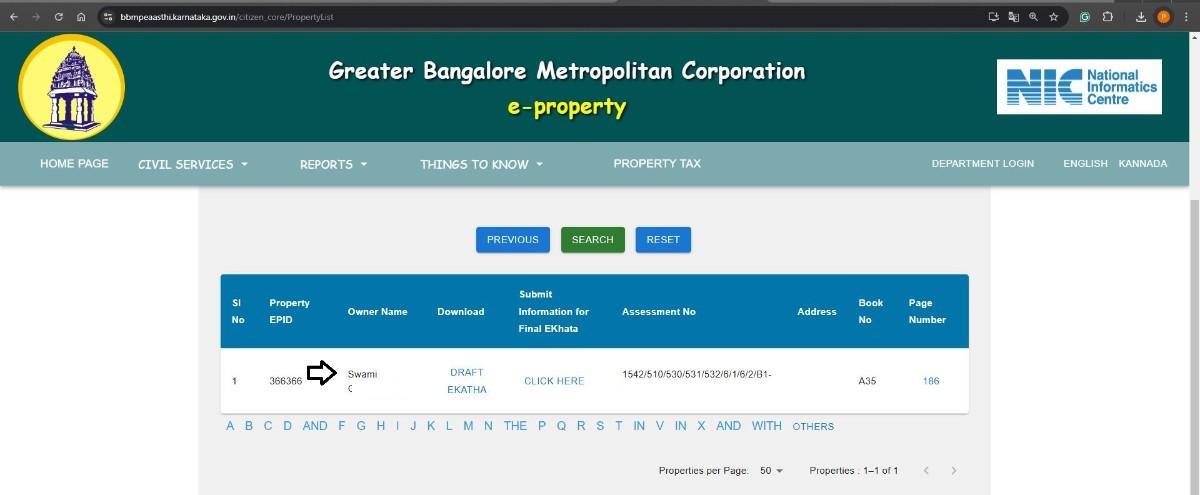
 We retried the search based on the Assessment number and we found our property. We highlighted the property search in screenshot below
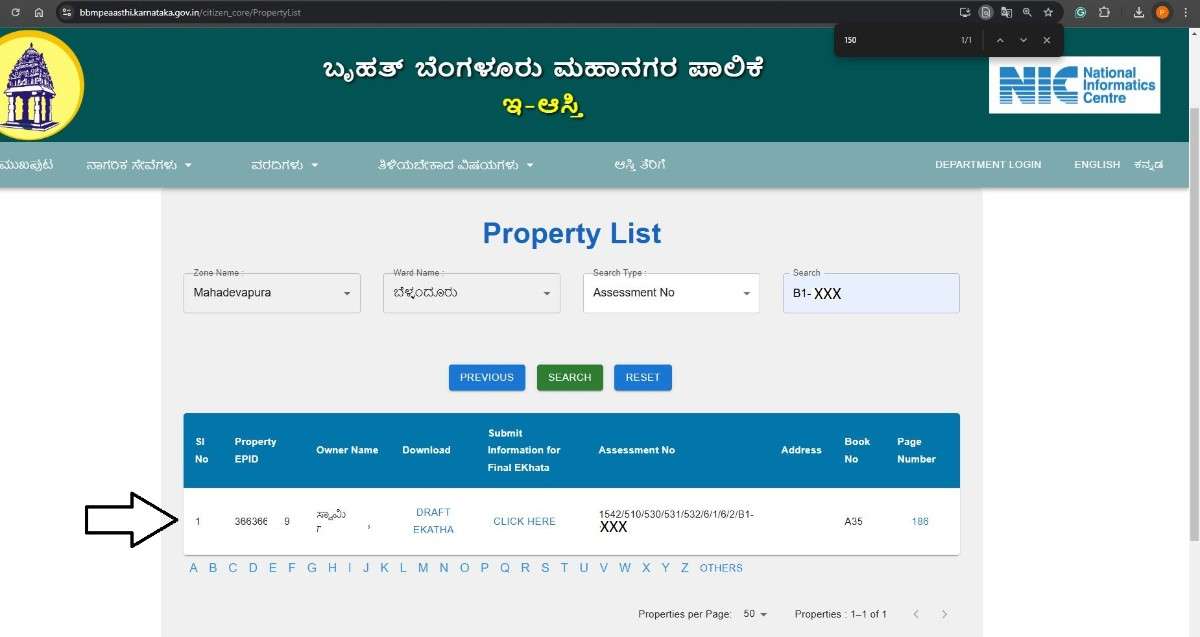 (I was not able to find my property based on name “SWAMI”. we tried based on the assessement number and found our property So, it's important to search the property in multiple criteria if you don’t find it in one criteria)
Also, we have the option to translate the language just by right-clicking your mouse button. In the image below, we highlighted our name SWAMI after the Google Translate.
(I was not able to find my property based on name “SWAMI”. we tried based on the assessement number and found our property So, it's important to search the property in multiple criteria if you don’t find it in one criteria)
Also, we have the option to translate the language just by right-clicking your mouse button. In the image below, we highlighted our name SWAMI after the Google Translate.
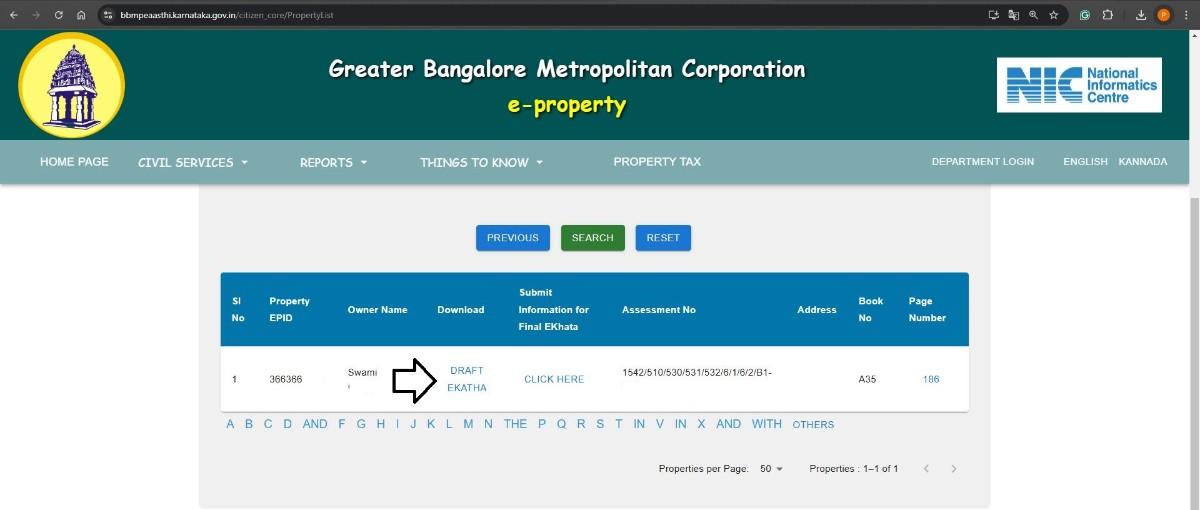
Clicked on “DRAFT EKHATA” to check my property information, refer to the below image
 Draft eKhata opened up in a pop-up window, refer to the image below
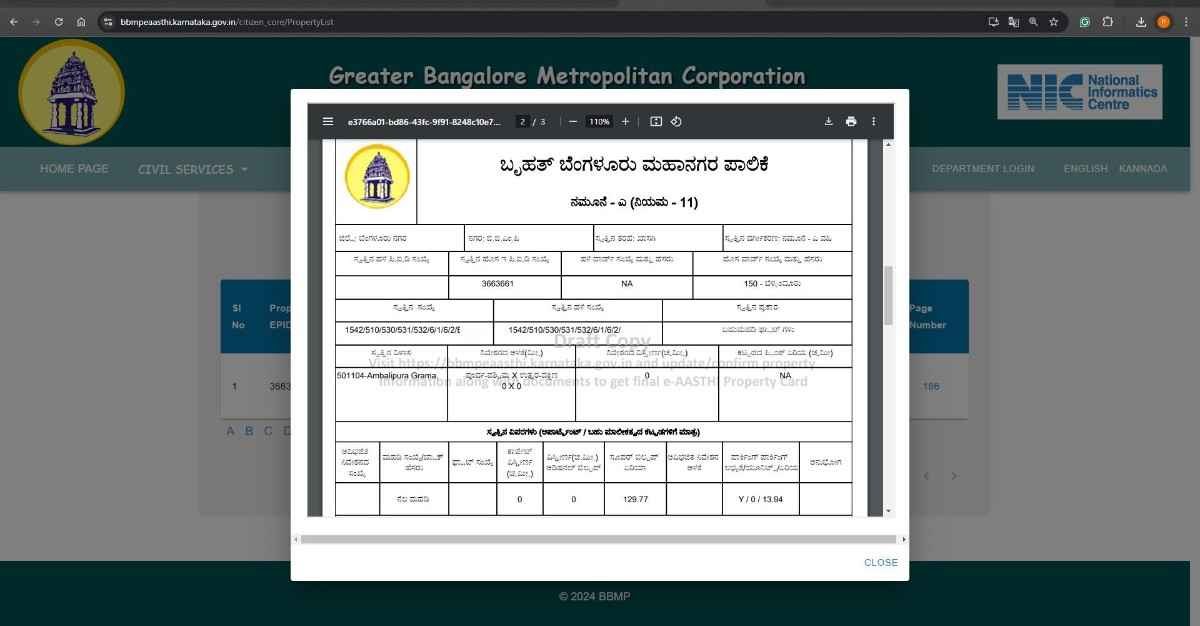 We gone through the eKhata draft and found that my property information is correct, including name, ward number, name, Assessment number, property address, and measurement.
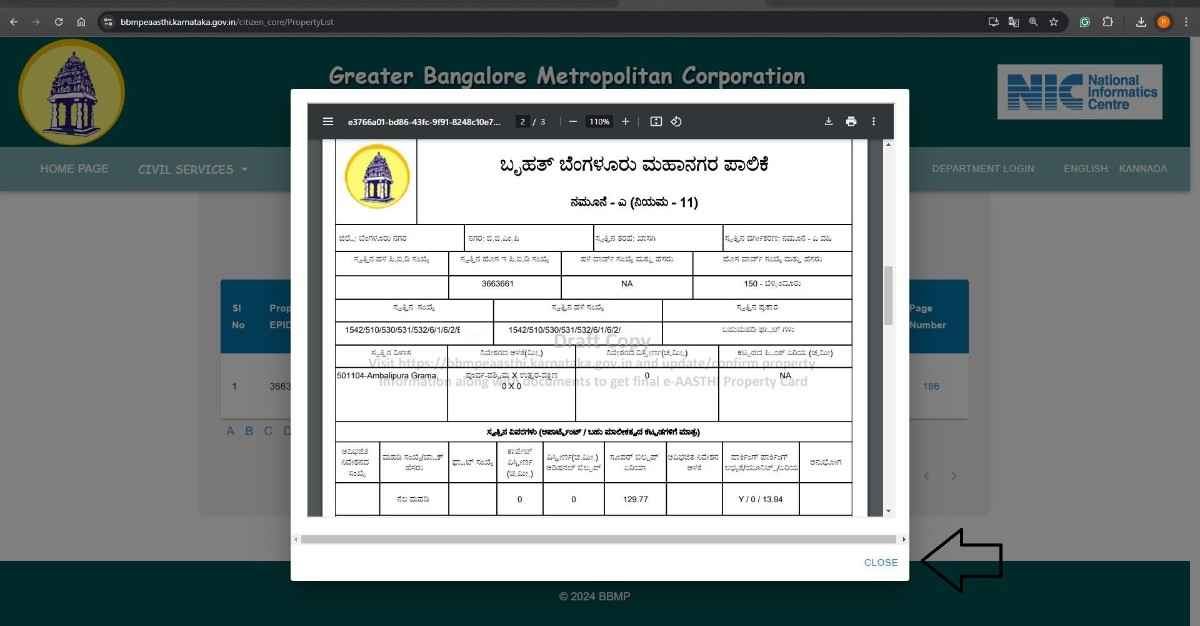
Close the Draft eKhata, we highlighted the close option in image below
We gone through the eKhata draft and found that my property information is correct, including name, ward number, name, Assessment number, property address, and measurement.
Close the Draft eKhata, we highlighted the close option in image below
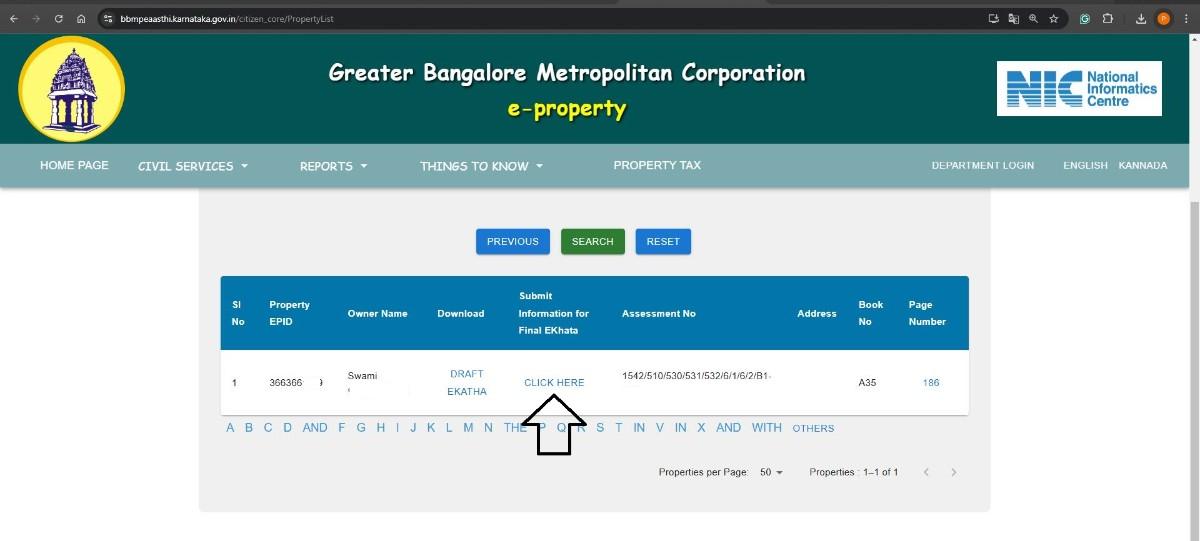
 Click on “Submit information for final EKhata”. Refer to the highlight in below image
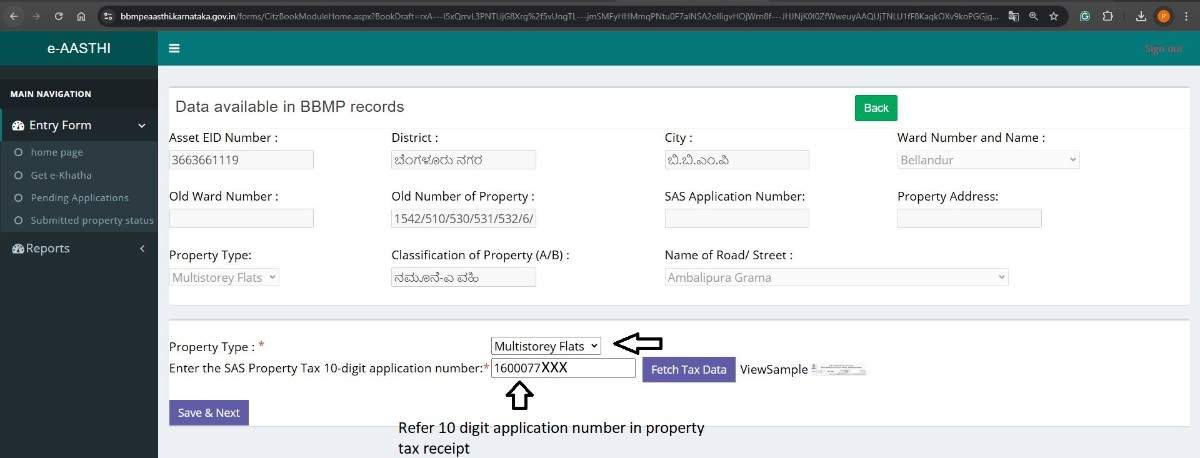
 My property is in an Apartment, I selected “Multistorey Flats” from the dropdown list in property type and entered my 10-digit application number from my property tax receipt. Refer to the image below
 Click on Fetch Tax Data. The information in the tax record is displayed. refer to image below
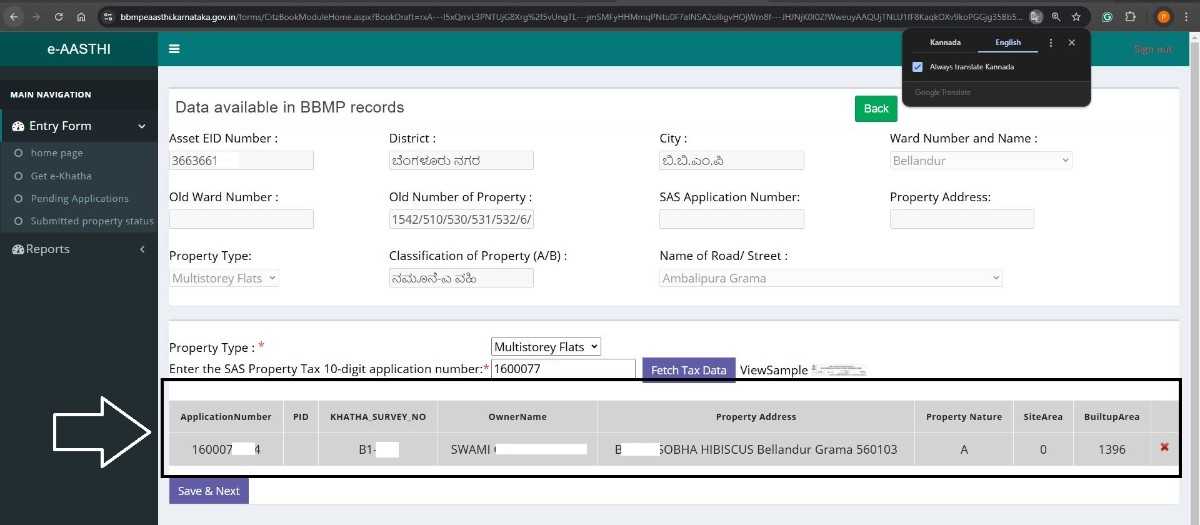 Click on Save & Next
Mr. Swami and his wife purchased a new flat from a builder and registered the Sale Deed on 21–06–2006, which means there is no previous transaction on the flat On 29–09–2022, the wife released her share to Mr. Swami by registering the Release Deed in the sub-registrar office, we highlighted the registration date and registration number in below Release Deed
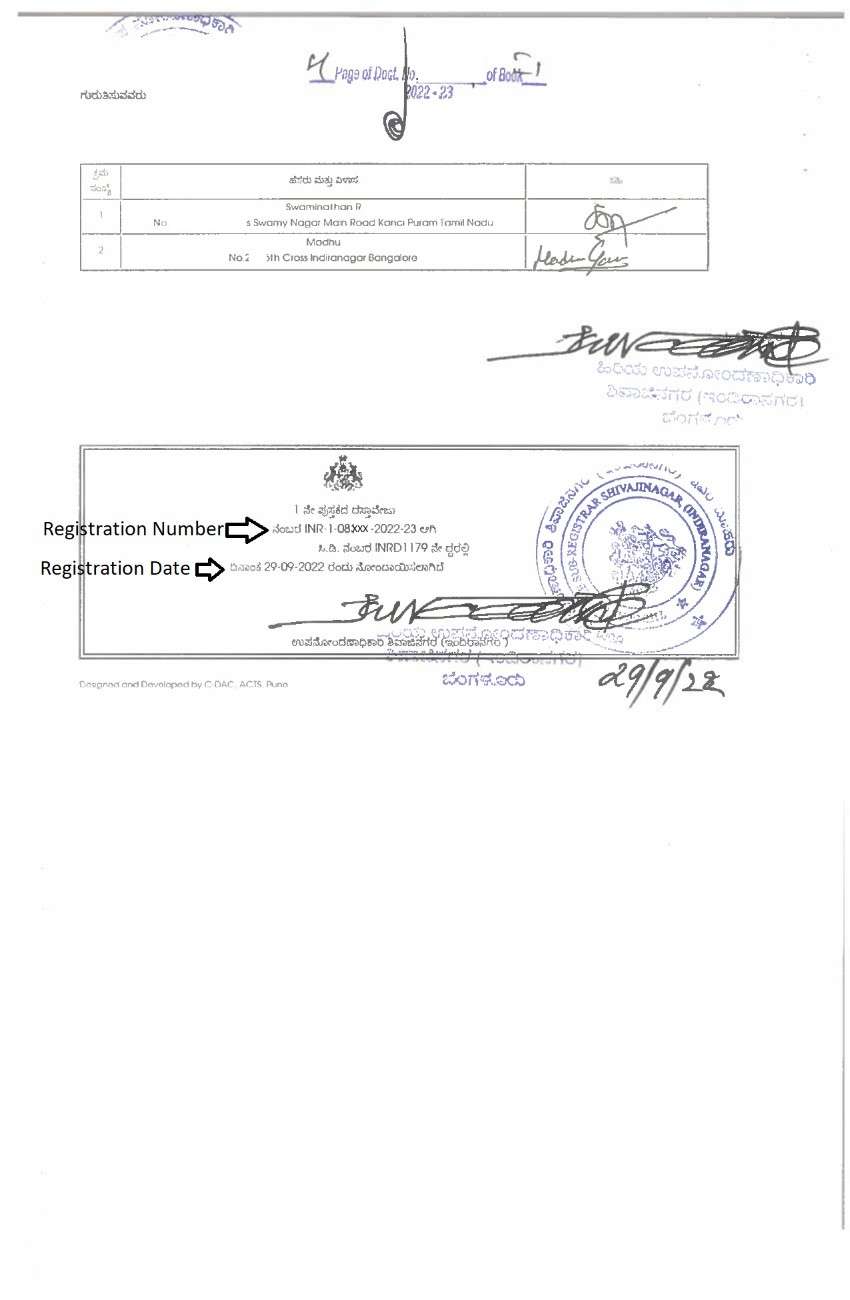 The above Release Deed is registered after 2004, we selected the option “If the registration is after 01.04.2004, enter the registration number.”
We entered the registration number mentioned in our above Release Deed. In the below image we highlighted where we need to enter the registration number
The above Release Deed is registered after 2004, we selected the option “If the registration is after 01.04.2004, enter the registration number.”
We entered the registration number mentioned in our above Release Deed. In the below image we highlighted where we need to enter the registration number
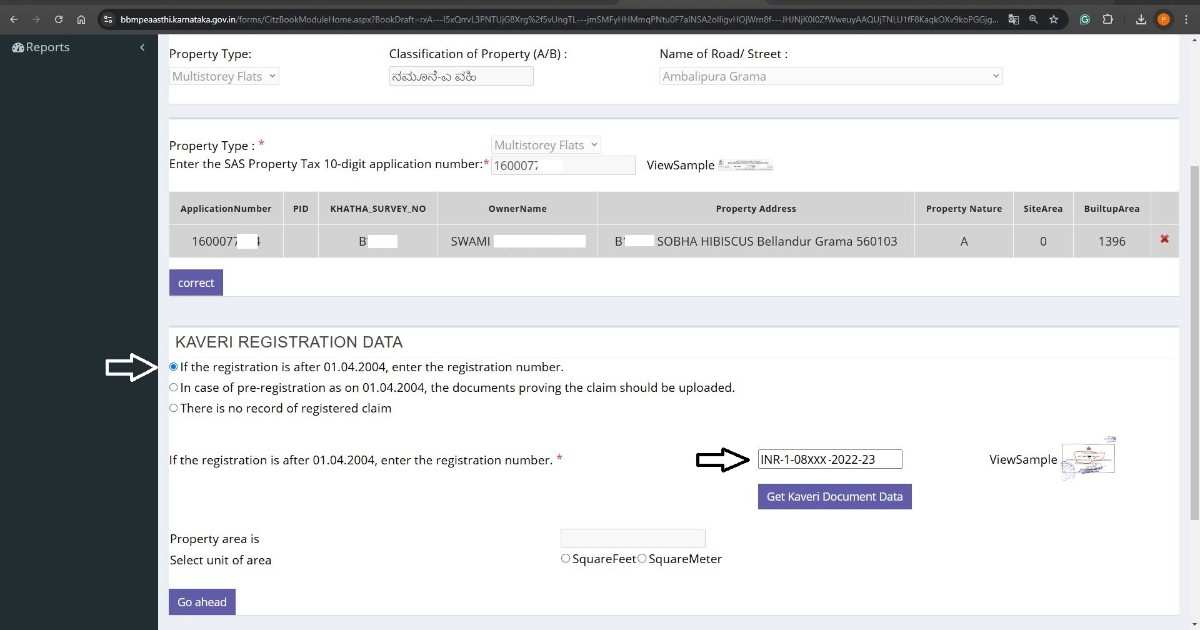 Click on “Get Kavery Document Data” which is mentioned just below the registration number in above image
Our property data from Kaveri is displayed below. Refer to the image below
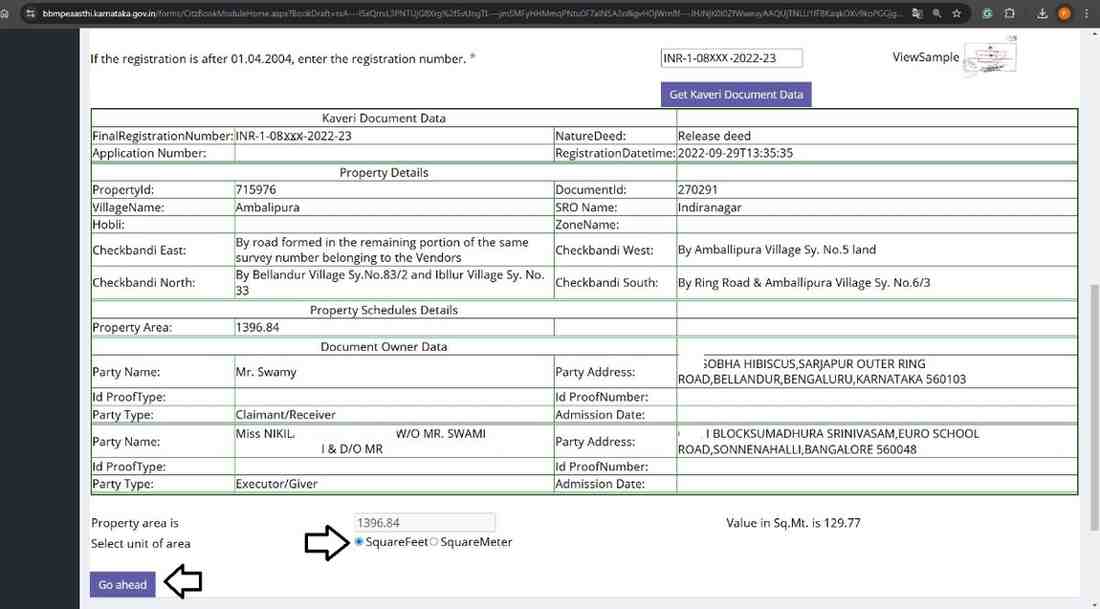
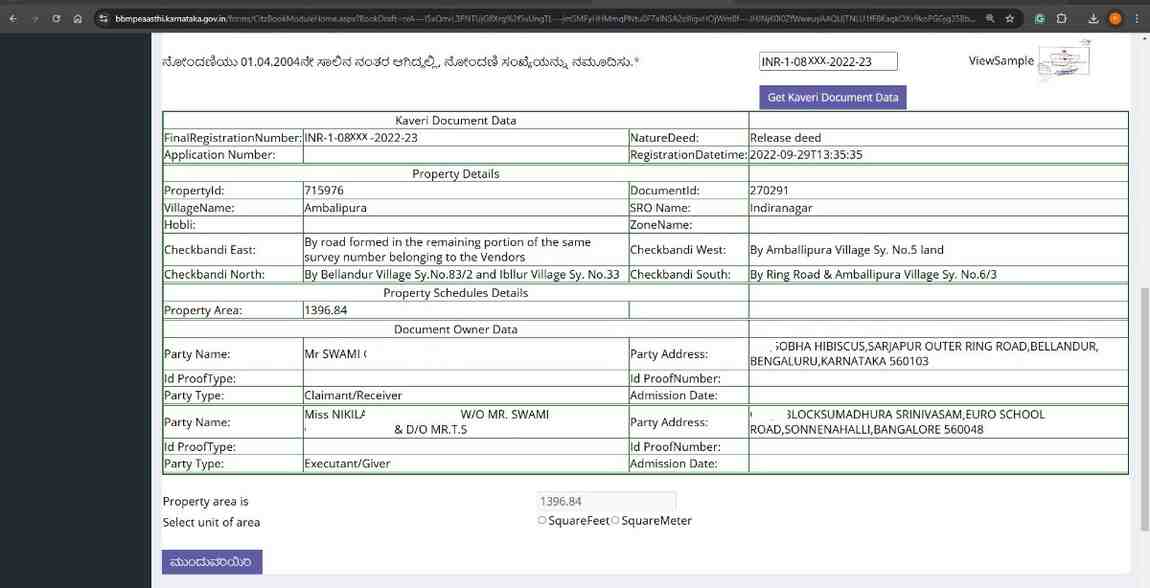 Select the “unit of area” and click on Go ahead. Refer to below image
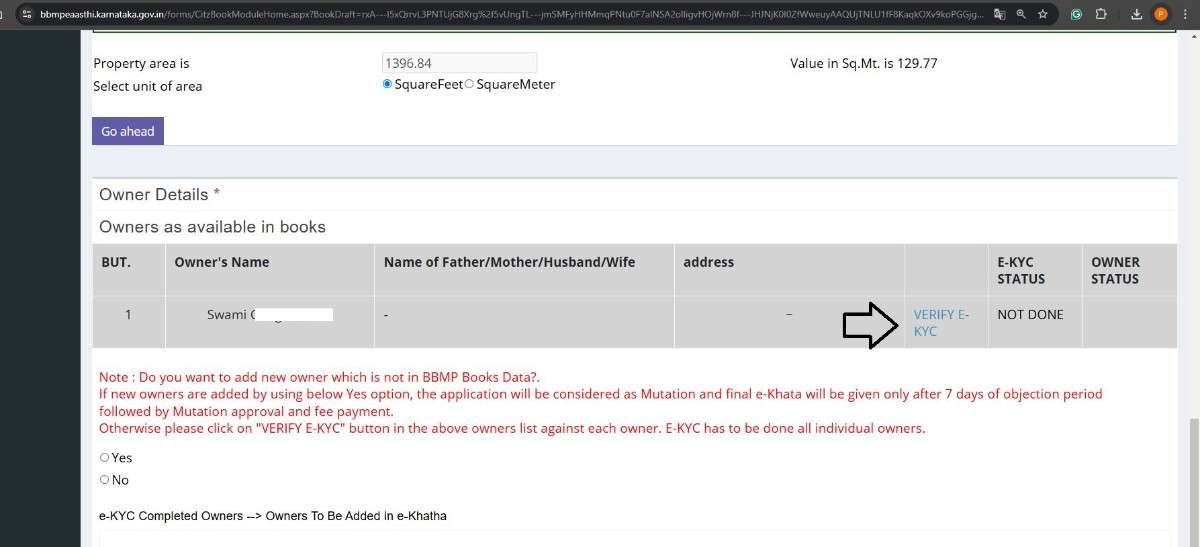
Click on VERIFY E-KYC, refer to image below
 Enter the Aadhaar number and generate an OTP
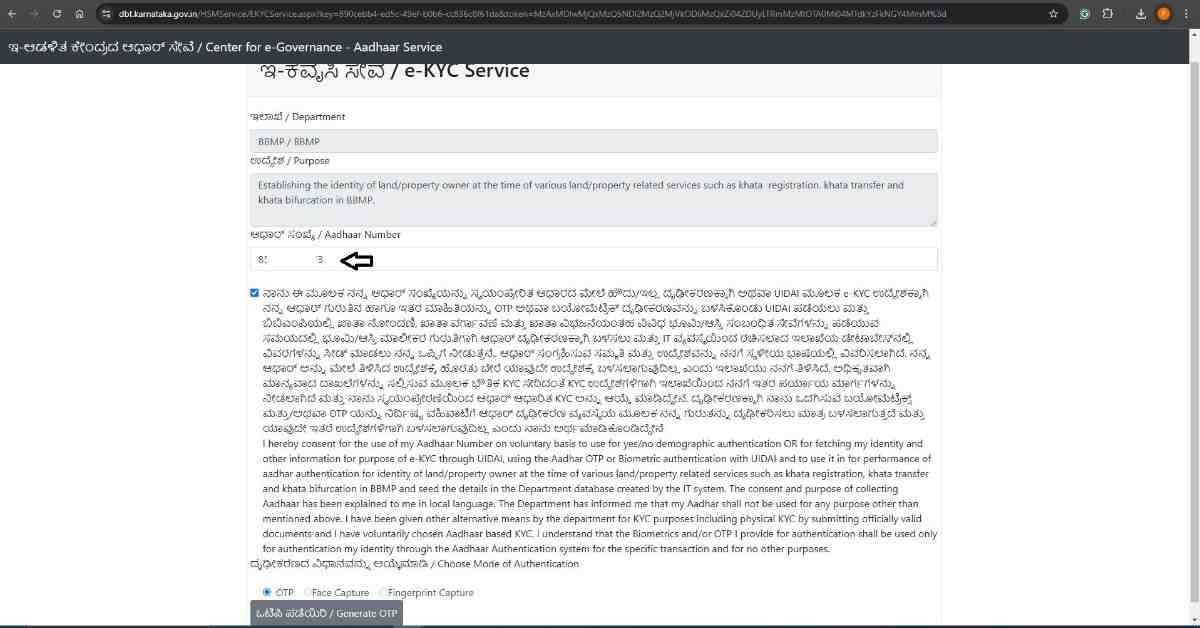 We complete the E-KYC and refer to the below success report
 Aadhaar data is displayed below. Refer to image below
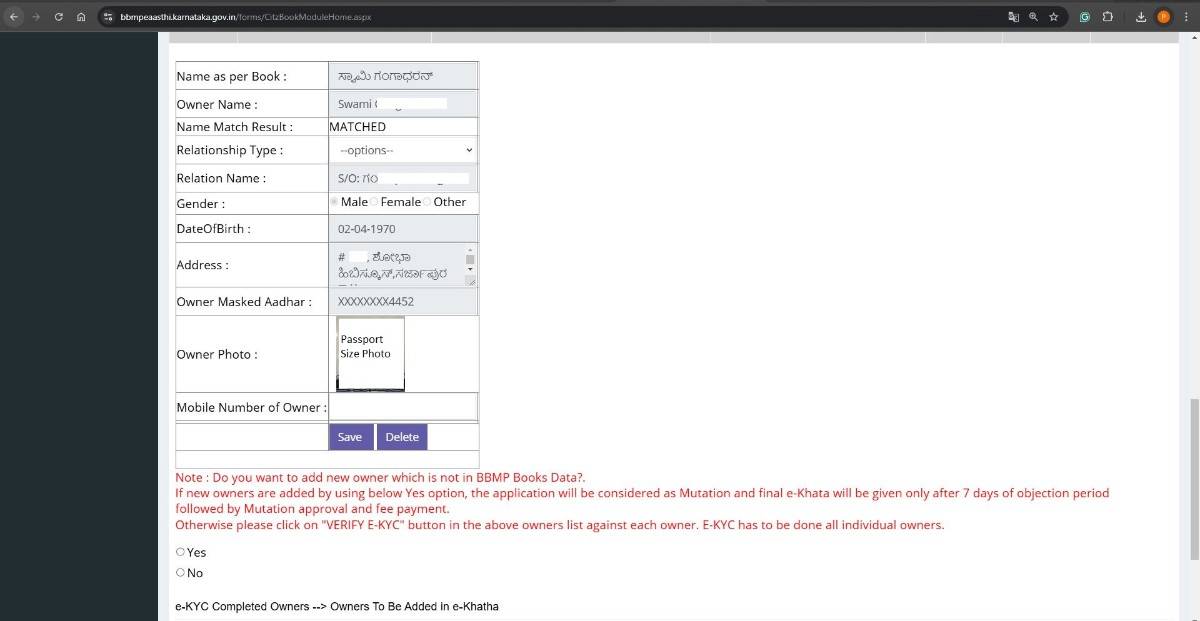 Enter your mobile number and verify OTP, refer to the highlight area in image below
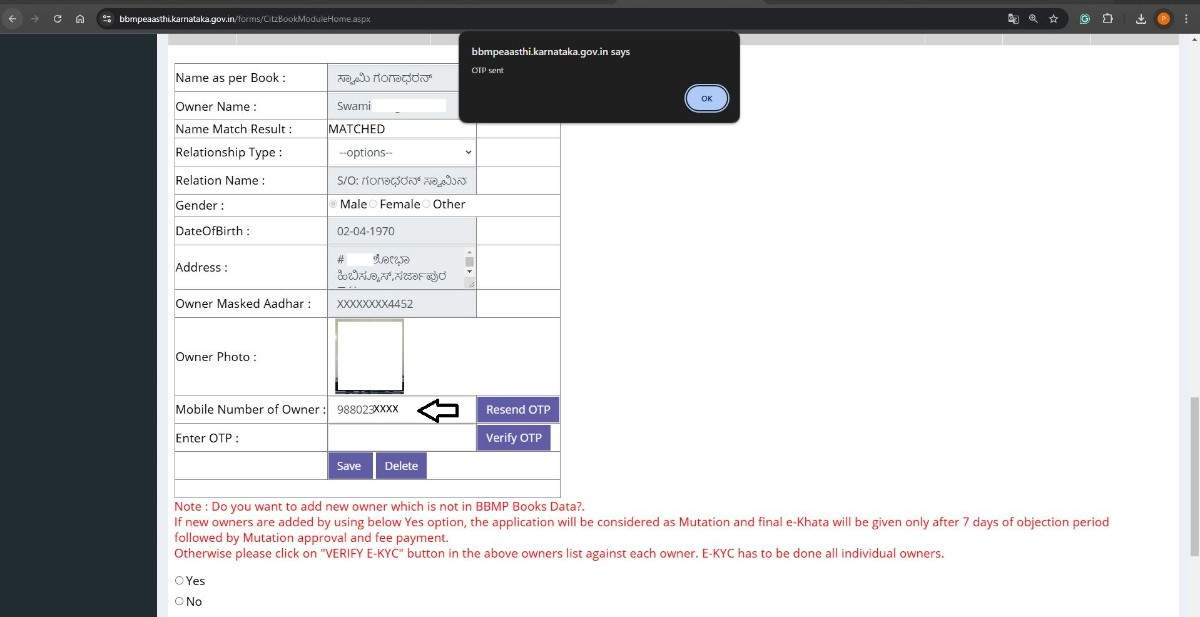 Click on Save
The owner's data is indexed below, refer to the image below
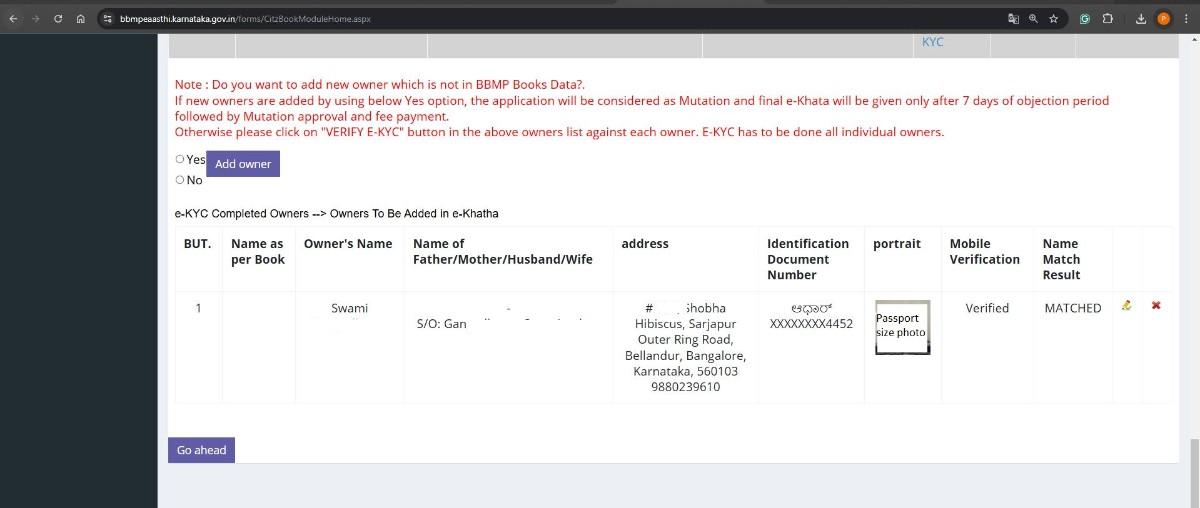 Click on Go ahead
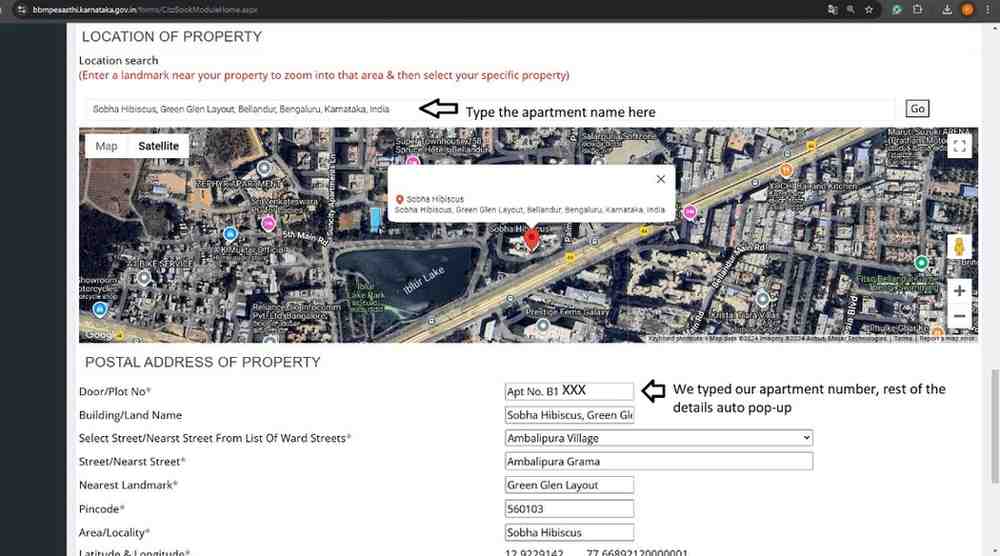
In the LOCATION OF PROPERTY, we typed apartment name in the search bar, and my apartment data popped up automatically for selection In the postal address, I just typed my apartment number, and the rest of the data automatically popped up. Refer to image below
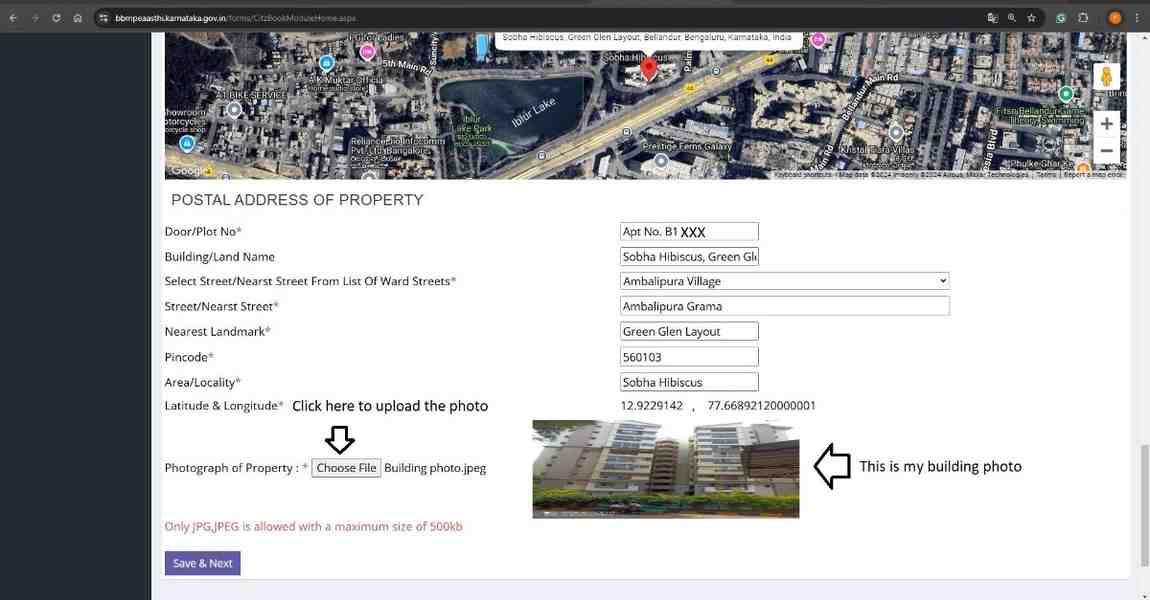
 We captured the building photo on my mobile phone and uploaded it, refer to the image below.
 Click on Save & Next
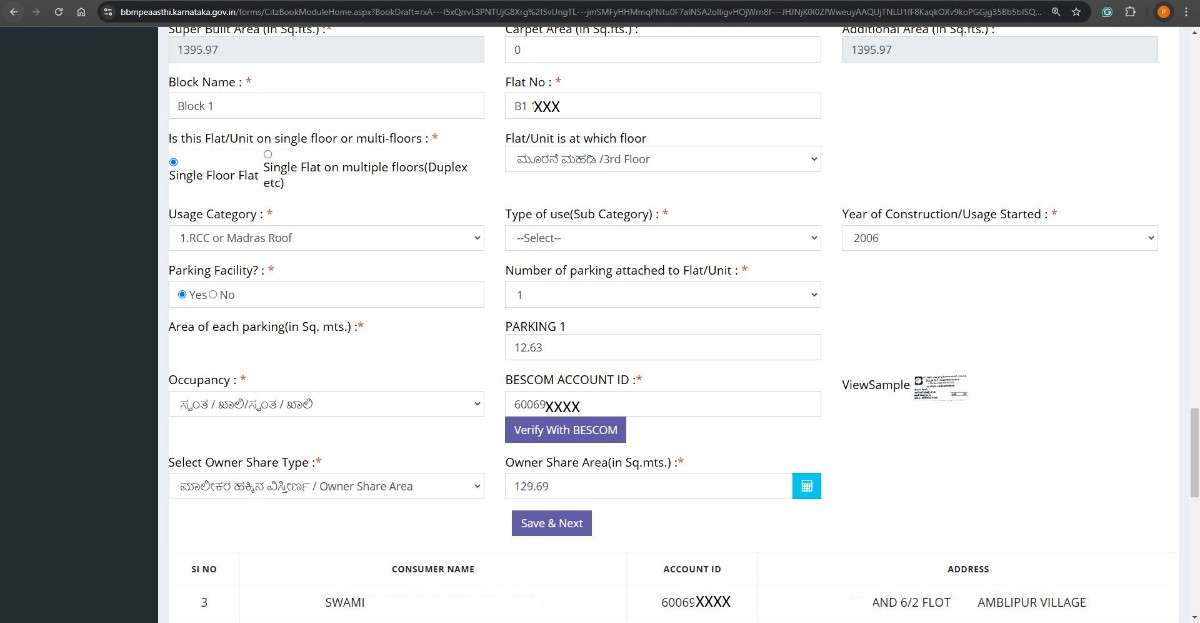
Provide the miscellaneous details of the flat such as Block name, floor number, number of parking, Bescom account ID, and ownership type. Refer to the image below.
 Click on Save & Next
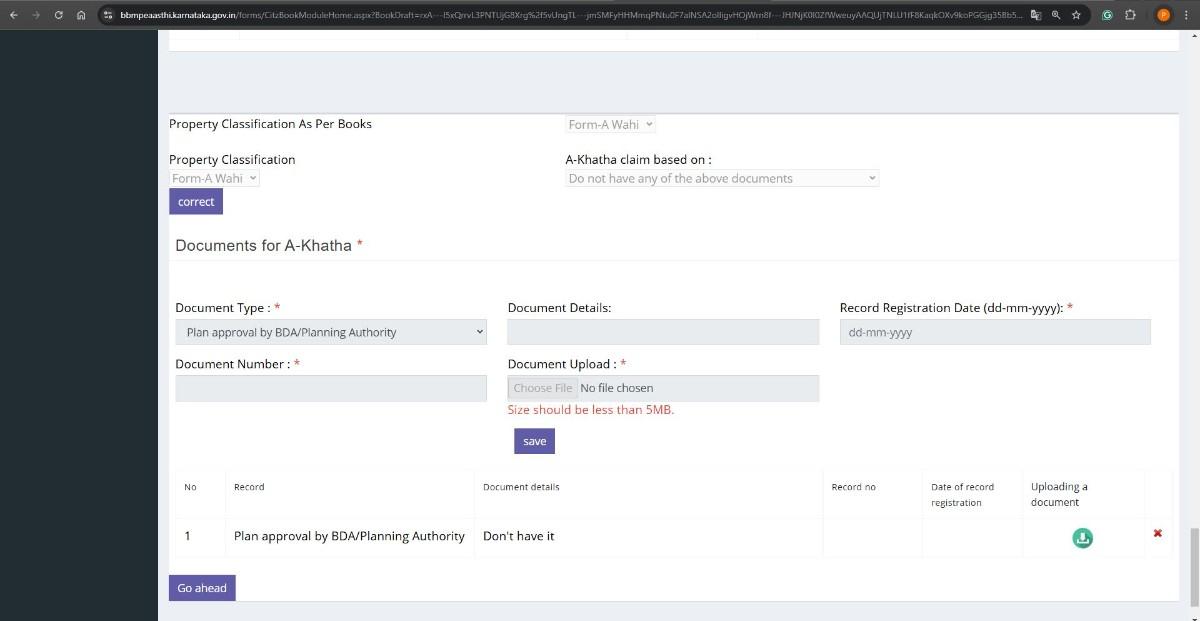
We can claim A-Khata based on multiple criteria such as an approved plan, allotment letter, converted land with betterment charge paid, e-swathu from gram panchayat etc... I already have manual A-Khata and I do not have any other documents like a plan approval copy. I chose “Do not have any of above documents” in property classification. Refer to image below
 Click on Save
 Click on Go ahead
My name matches the records of E-KYC, Kaveri and SAS Data. It is mandatory to match the name with all records. (If the name does not match, we will receive an automatic endorsement that the name is not match, you can highlight the reason for name mismatch and proceed with application.) Refer to image below
 I am not going for the immediate sale of my flat. I selected “No”. We highlighted the same in the arrow mark in the above image. (If you are going for the immediate sale of the property, select Yes)
Click on Proceed
I am not going for the immediate sale of my flat. I selected “No”. We highlighted the same in the arrow mark in the above image. (If you are going for the immediate sale of the property, select Yes)
Click on Proceed
Read the Declaration, refer to image below
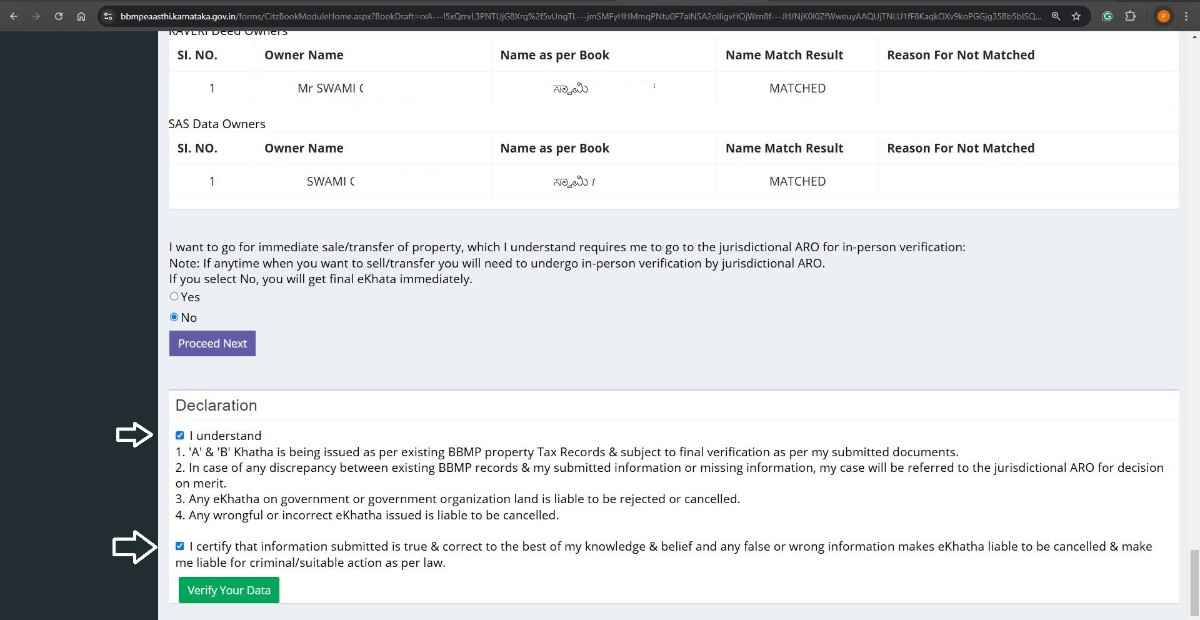 Click on Verify Your Data
Received our application Acknowledgement, refer to the image below
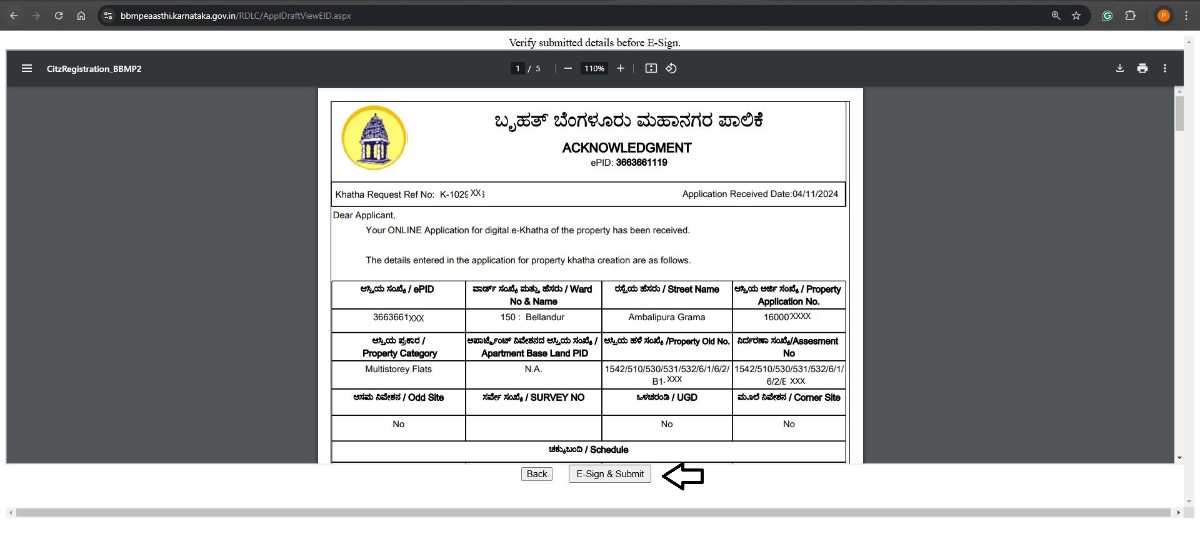 Click on E-Sign & Submit, refer to the arrow mark in the above image
Complete the Aadhaar-based OTP authentication. Refer to the below notification that our application has been submitted

We highlighted 10-digit ePID number from our ekhata acknowledgment. Refer to the below image
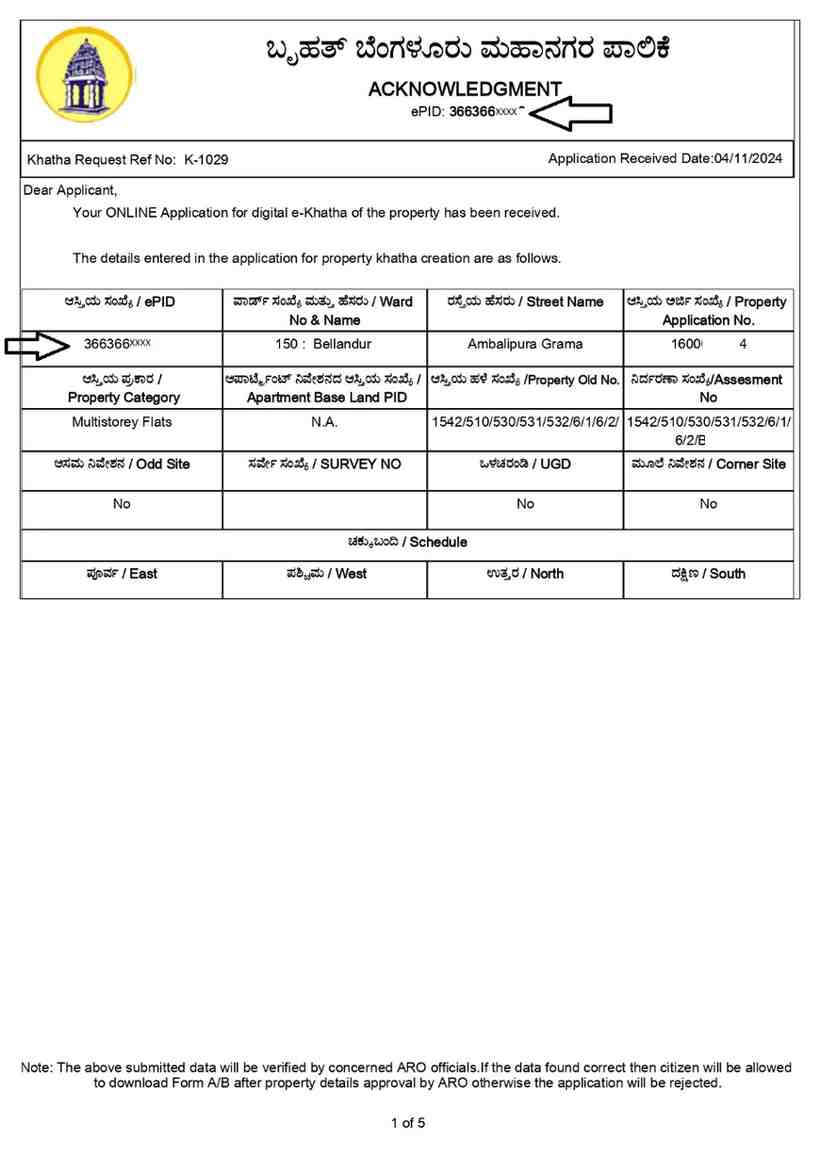 Open the ekhata download page. Here is the link https://bbmpeaasthi.karnataka.gov.in/office/frmKhathaDownload.aspx
Enter the 10-digit ePID number, refer to image below
Open the ekhata download page. Here is the link https://bbmpeaasthi.karnataka.gov.in/office/frmKhathaDownload.aspx
Enter the 10-digit ePID number, refer to image below
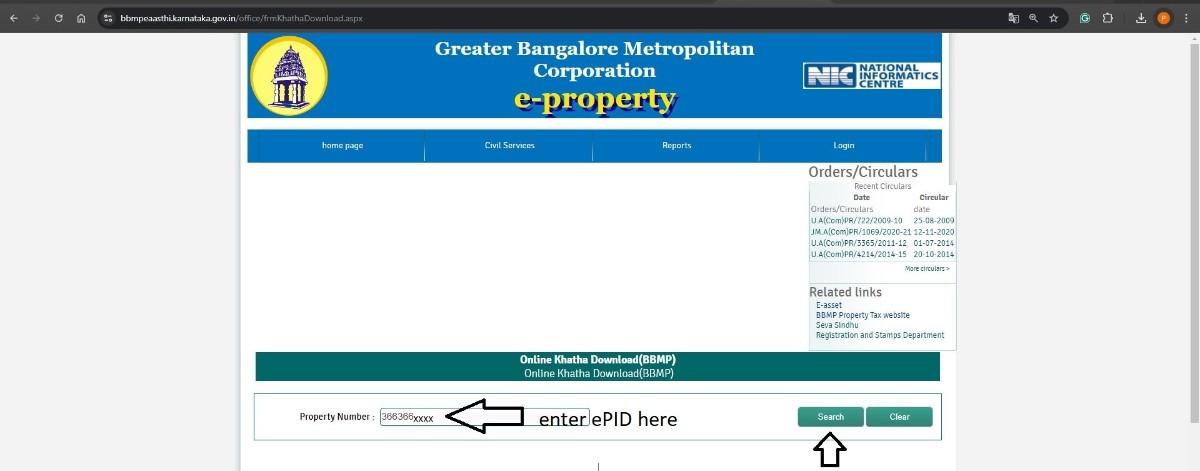 Click on Search
The Download fee is Rs. 125. Refer to below image
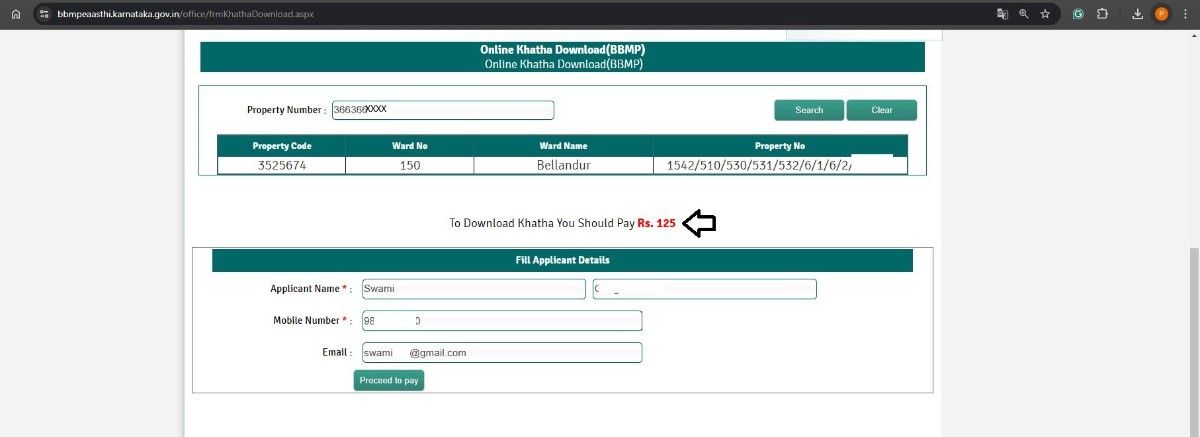 Click on Proceed to Pay
Select the payment method and click on Proceed. Refer to below image
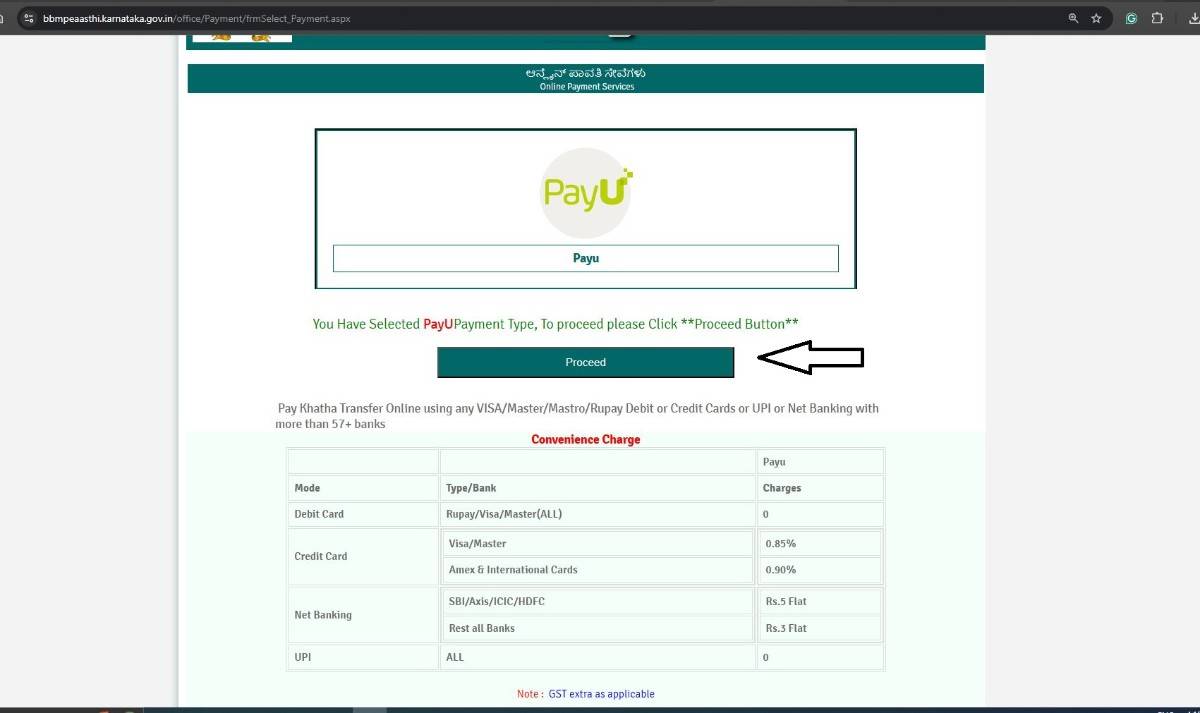 Made the payment of Rs. 125 using UPI
ePID number is the password to open ekhata. Refer to below image
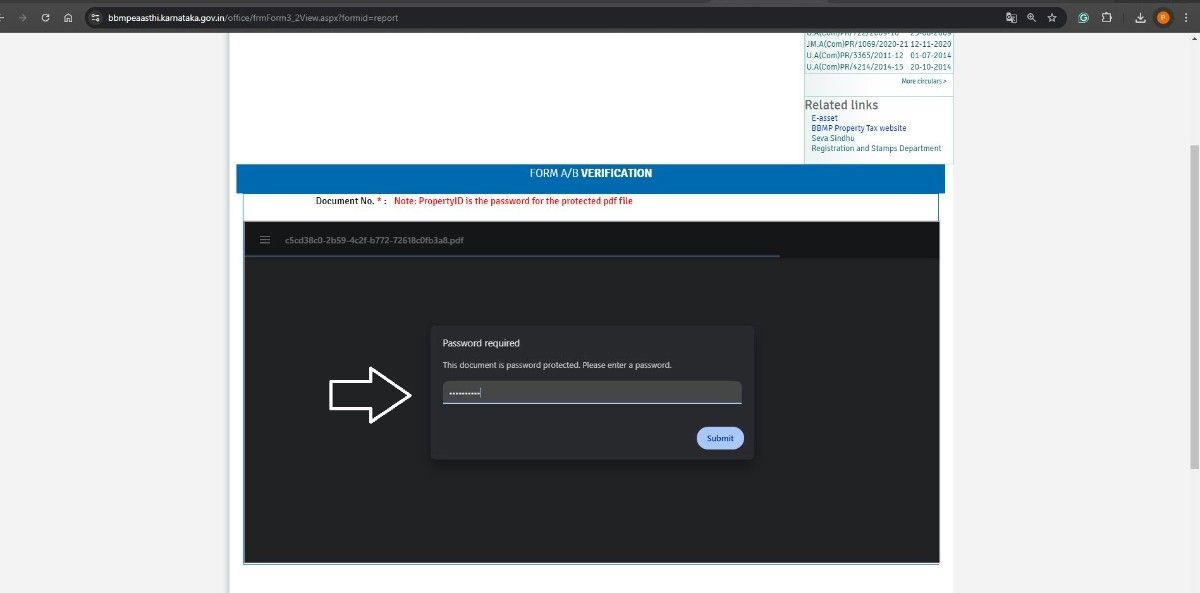 Click on Submit
Below is our eKhata, click on the download symbol to download the ekhata
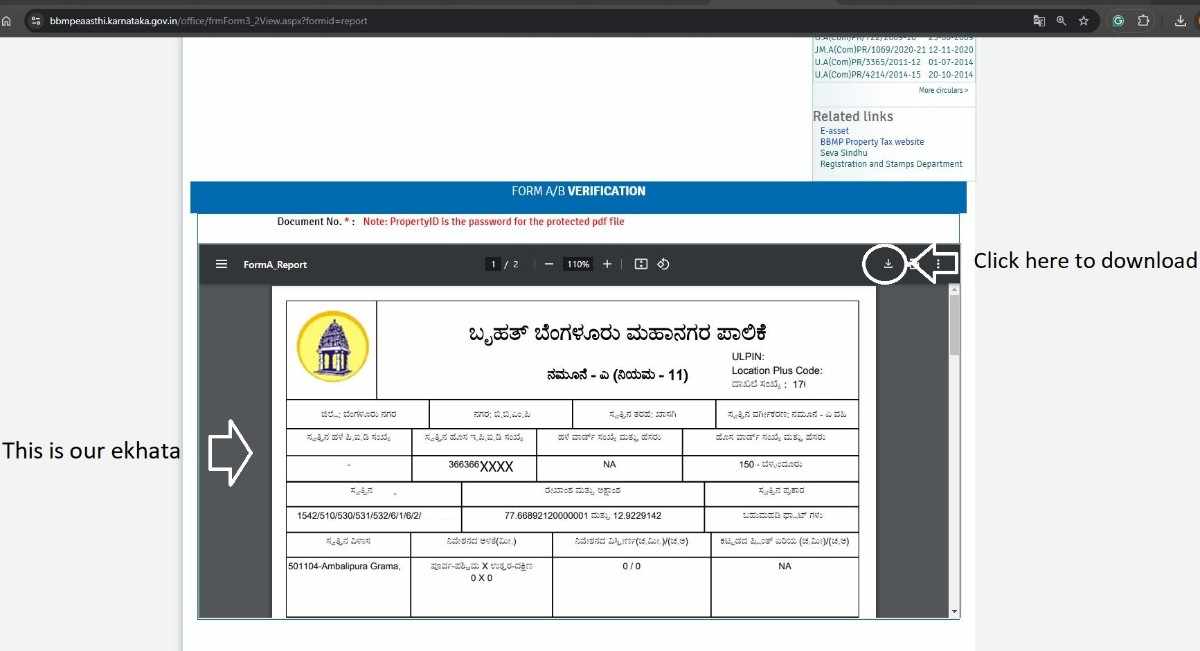 This completed the process
Note:
- If your name is not match with eAasthi, Tax receipt, or Aadhaar, still process your application and you have the option to select name mismatch in the application. You will receive the final ekhata in correct name