
An Encumbrance Certificate (EC) is a vital document that details the transaction history of a property. It is essential for verifying clear title ownership and is often required during property sales, purchases, or loans.
This step-by-step guide will walk you through the process of downloading a digitally signed EC from the Kaveri Online Services portal of the Karnataka government.
Step 1: Access the Kaveri Online Services Portal
Visit the Kaveri Online Services website using the link below: https://kaveri.karnataka.gov.in/landing-page

Step 2: Register on the Portal
To search and download an EC, you must first register on the portal.
- Click on “Register” on the homepage.

Fill in your name, address, mobile number, and email ID.

A system-generated password will be sent to your email and Your email ID serves as your username.
Step 3: Log in to Your Account
Log in using your registered email (username), the received password, and OTP authentication. The login page looks like below image

Step 4: Start a New Application
After successful login: Click on “Start a New Application and Select “ENCUMBRANCE CERTIFICATE – (ONLINE EC)” from the application options.

Read the prerequisites for EC and click on Continue. Refer to below image
Step 5: Search for the Property
You can search for the EC using either:
- Property Number, or
- Party Name (Seller, Purchaser, or Claimant)

If you do not know the property number, choose Search by Party Name. Refer to the below image

Example Input:
- District: Shivajinagar (for Bengaluru Urban, choose the correct jurisdiction)
- Taluka: Krishnarajapuram
- Hobli/Town: Krishnarajapuram
- Village: Pattanduru Agrahara
- Party Name: Satish XYZ
- Search Period: From 01/04/2003 to 16/06/2023
Refer to filled image
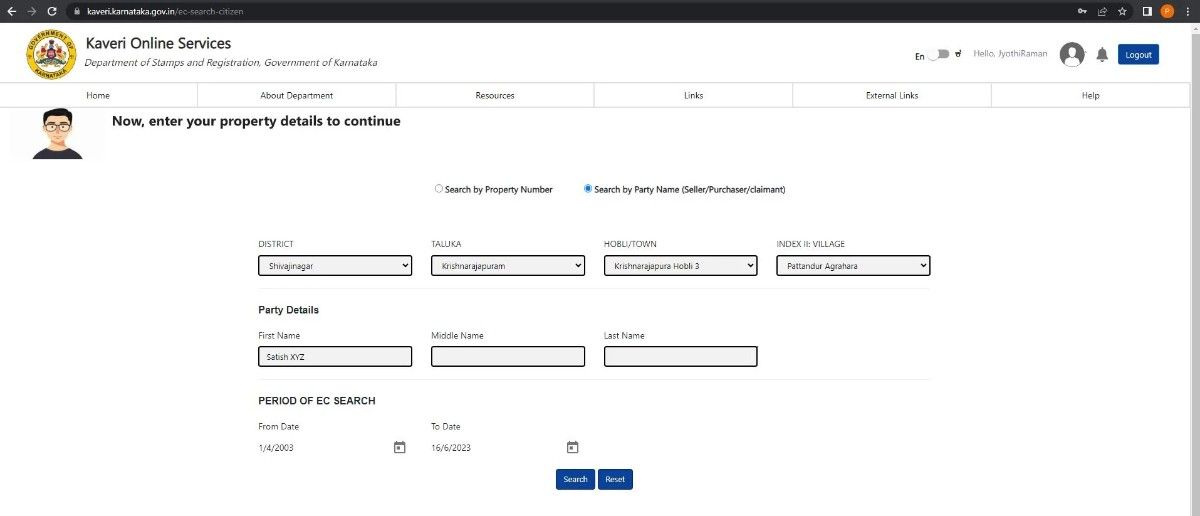
Click on Search to view search result. Refer to the below image

Step 6: Download the EC
- If you only require the Information Copy (non-signed version), click on the download icon. Refer to below image

The information copy looks like image below (it has a watermark)

Note: The information copy is free and includes a watermark.
Step 7: Request a Digitally Signed Copy
- Scroll down and click on “Declarations and Proceed.”
Refer to arrow marks mentioned in below image

- Choose your preferred payment method: Net Banking, Debit/Credit Card, UPI, or QR code.

- After payment, click on “Return to Application.”
Below is my payment screenshot

Step 8: E-Sign the Application
- Click on “E-Sign.”
Refer to below image

The page directs to the successful submission of the application. Refer to below image

After successful submission, the application status will appear as “Pending at SRO.”
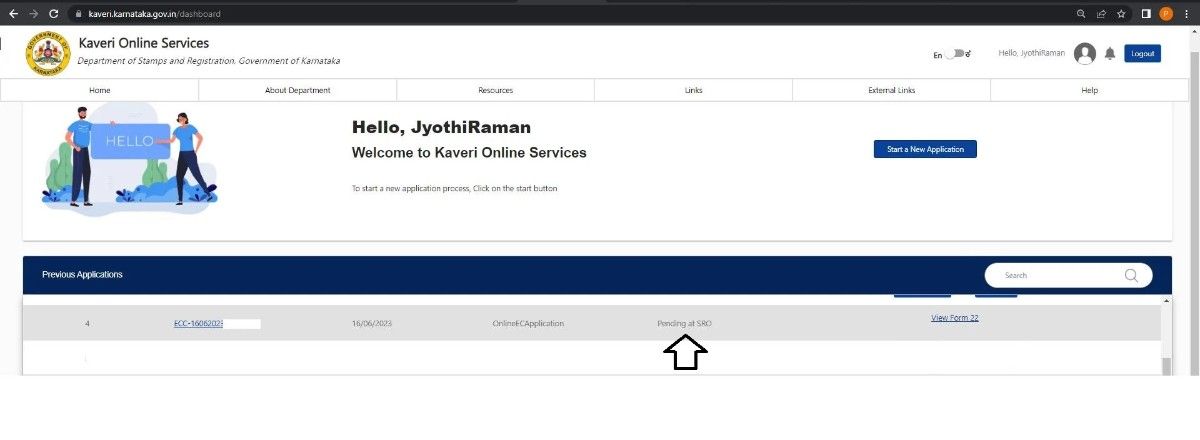
Within approximately 5 working days, it will update to “Application e-Signed by SRO.”

Step 9: Download the Digitally Signed EC
Once approved:
- Click on “Download Signed EC” to obtain your certified Encumbrance Certificate in PDF format.

The digitally signed EC includes:
- A QR code on every page for verification
- A digital signature from the Sub-Registrar on the final page


Need Help?
We provide assistance in EC extract, write to us:
- Email: pgnproperties@gmail.com
- WhatsApp: +91 97424 79020
WATCH: How to download Encumbrance Certificate (EC)