
The Greater Bengaluru Authority (GBA) eKhata application can be submitted online through the eAasthi 2.0 portal. This article explains the complete process, starting from login and document preparation to property search, application submission, status tracking, and downloading the eKhata.
WATCH OUR VIDEO GUIDE:
eAasthi 2.0 eKhata Portal
You can access the GBA eKhata application portal using the following link:
https://gbaeaasthi.karnataka.gov.in/citizen/login
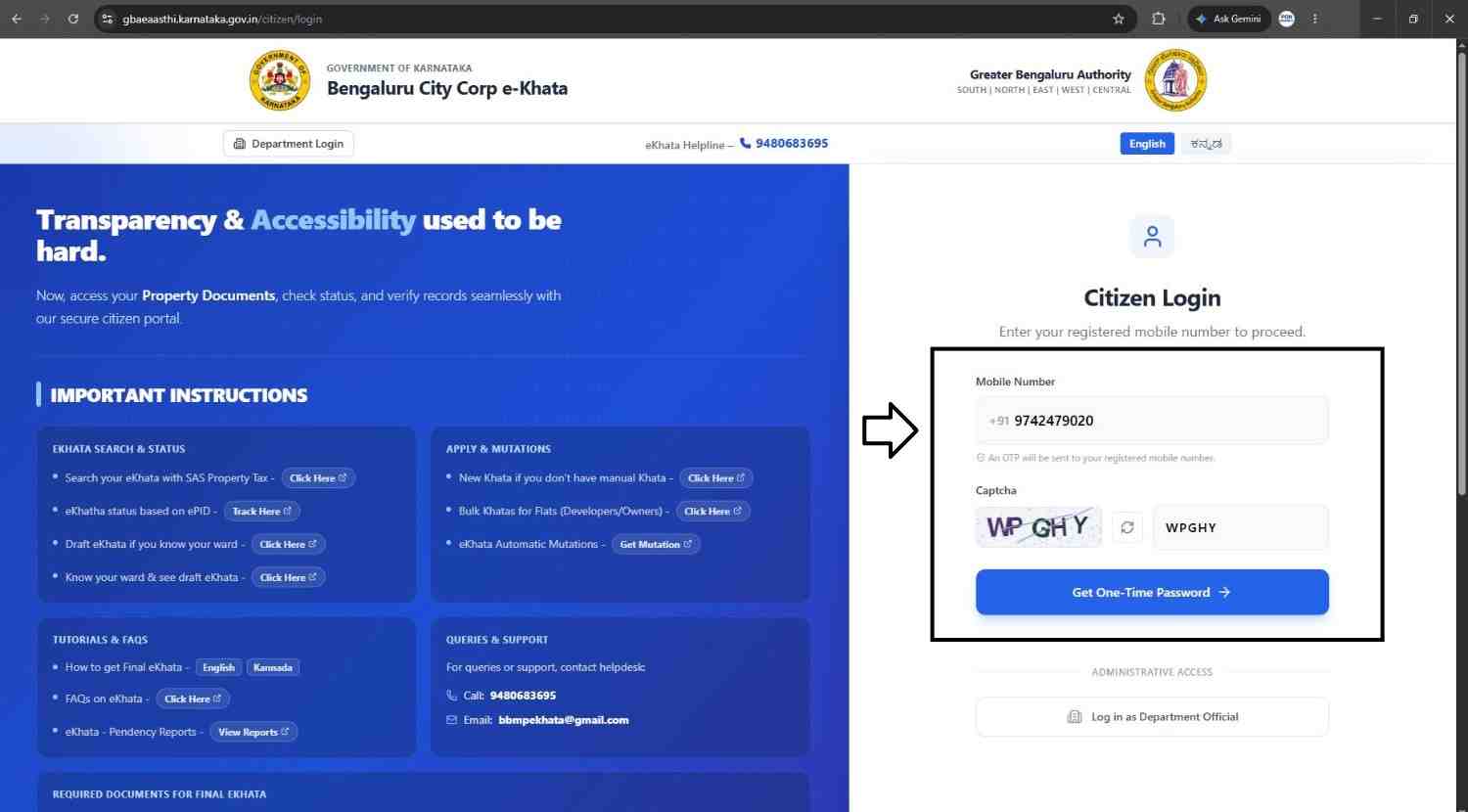
Step 1: Login to eAasthi 2.0
To access the portal, enter your mobile number and the Captcha displayed on the screen.
Refer to the screenshot below for the login page.
Documents Required for GBA eKhata
Before starting the application, keep the required documents ready.
The eAasthi portal displays the documents required for the eKhata application. Refer to the screenshot below for the document checklist.
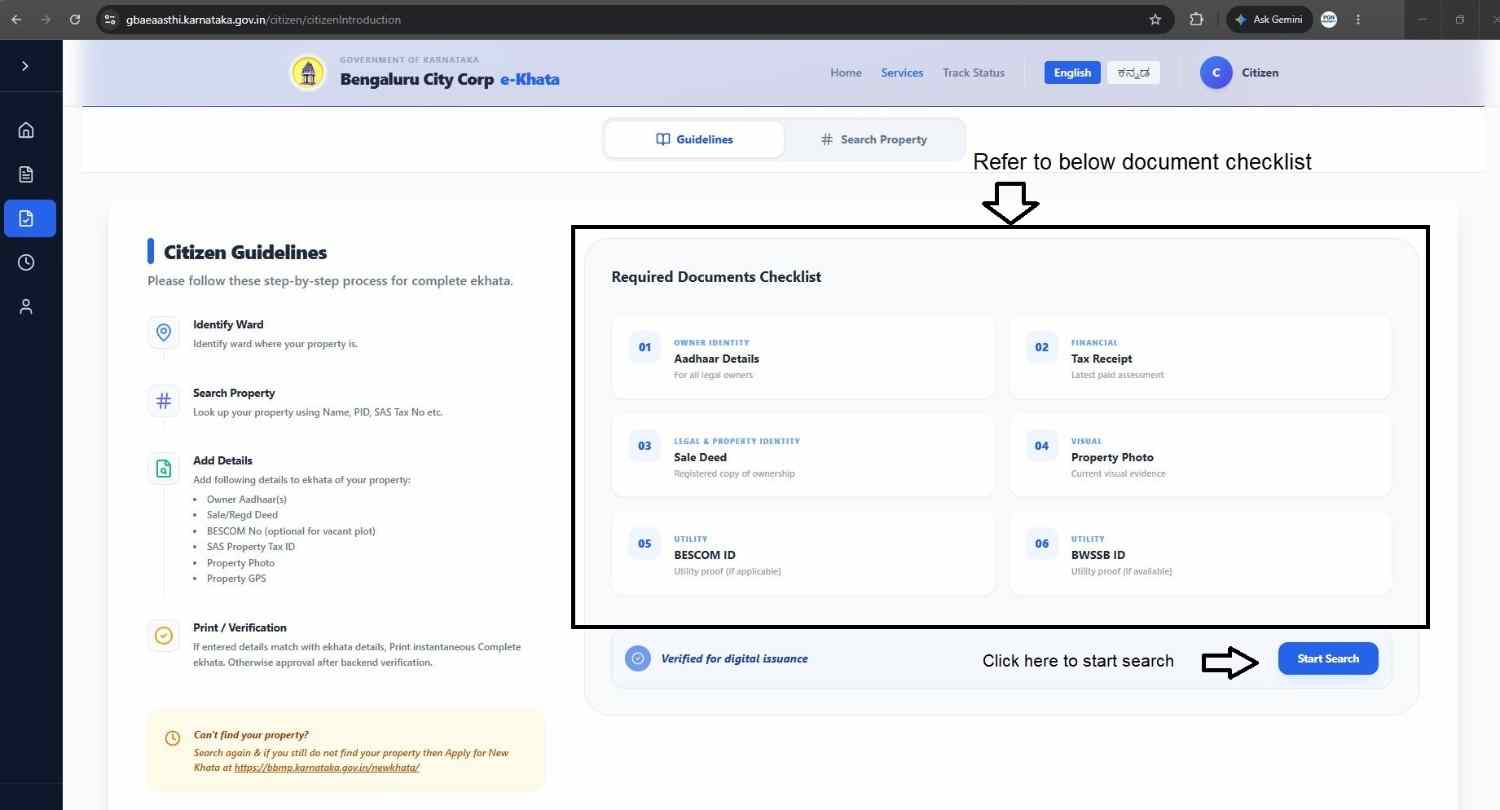
Based on the documents shown on the portal, the following documents are generally required:
- Aadhaar
- Property Tax Receipt
- Sale Deed
- Property Photographs
- BESCOM ID, where applicable
- BWSSB ID, where applicable
- Other supporting documents, depending on the property and application
The first four documents—Aadhaar, Property Tax Receipt, Sale Deed and Property Photographs—are generally required irrespective of whether the property is a building, flat or vacant site.
BESCOM and BWSSB details are applicable to properties where these utility connections exist, such as buildings and flats. These details are generally not applicable to vacant plots.
If you are applying for eKhata for an immediate property transfer, you may also need to provide the Encumbrance Certificate (EC) as part of the application.
Step 2: Search for Your Property
Once you have the required documents, log in to the portal and click “Start Search”.
The portal provides multiple options for searching your property:
- Ward Name or Ward Number
- Property ePID
- SAS Property Tax ID
Which option should you use?
If you are searching for your property on the eAasthi portal for the first time, searching through the SAS Property Tax ID can be convenient because the Property Tax ID is readily available on your property tax receipt.
You can find the Property Tax ID on your property tax receipt. We have highlighted the Property Tax ID in the sample tax receipt below for reference.
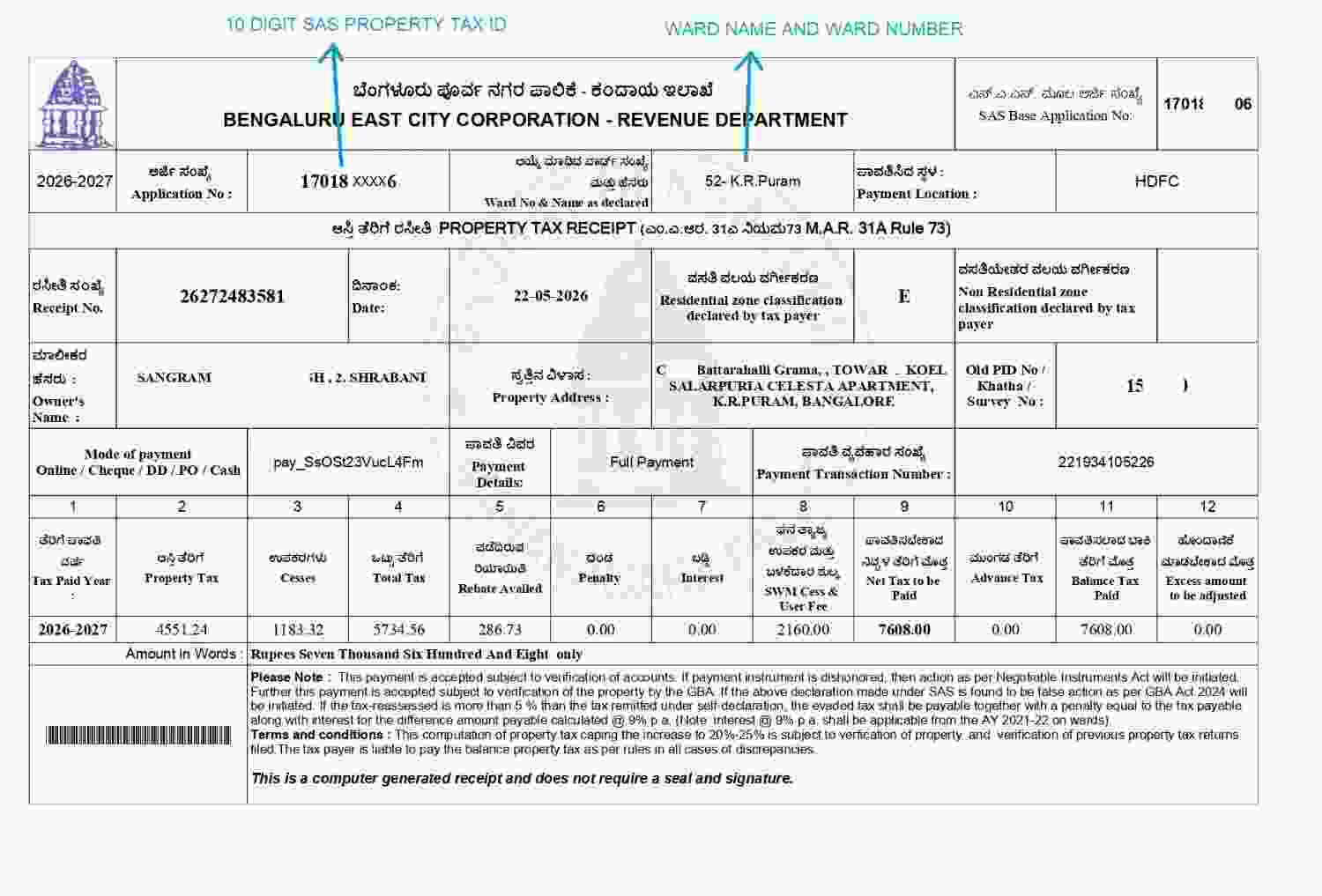
Select “SAS Property Tax ID”, enter your 10-digit property tax number, and click “Search”.
Refer to the screenshot below.
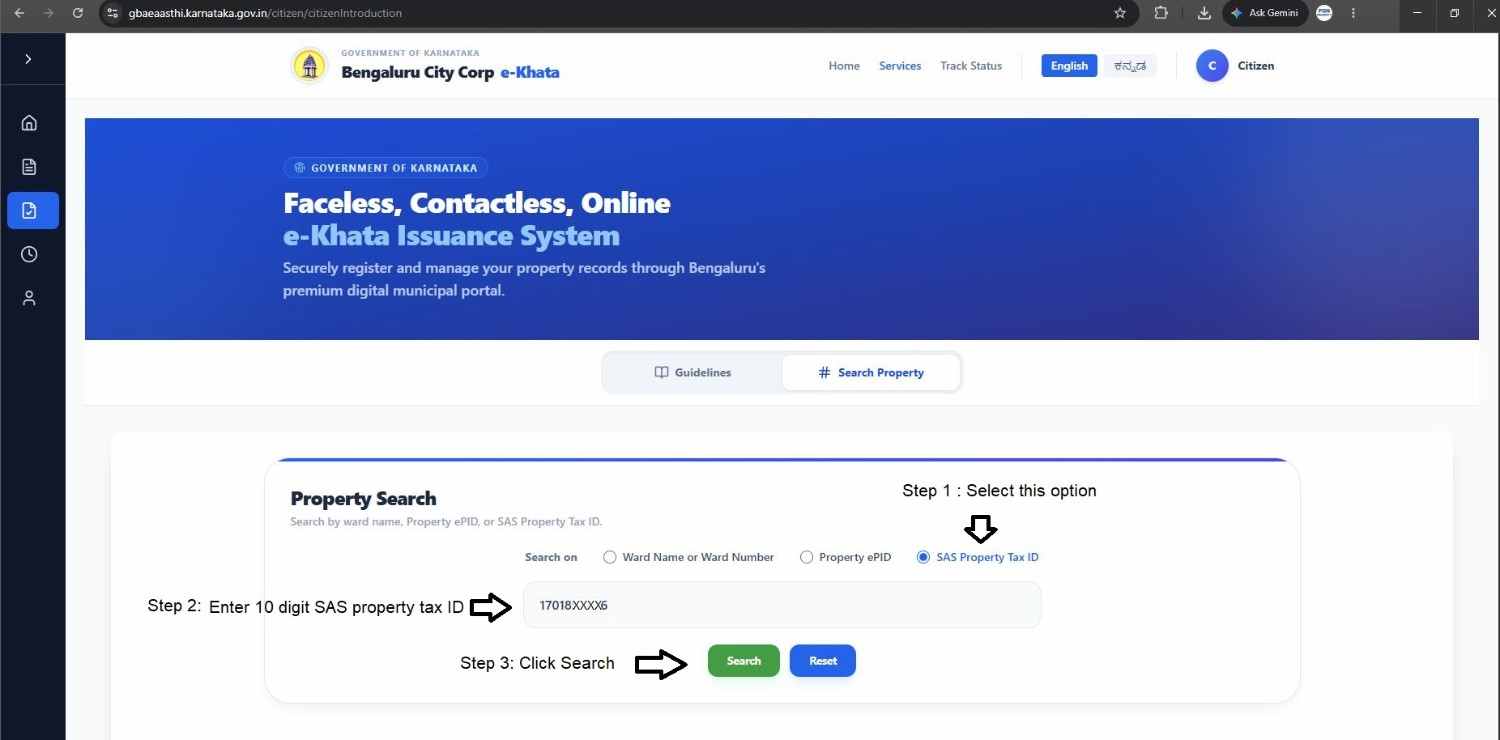
The portal will display the available property details, including:
- ePID Number
- Owner Name
- Property Address
Refer to the screenshot below.
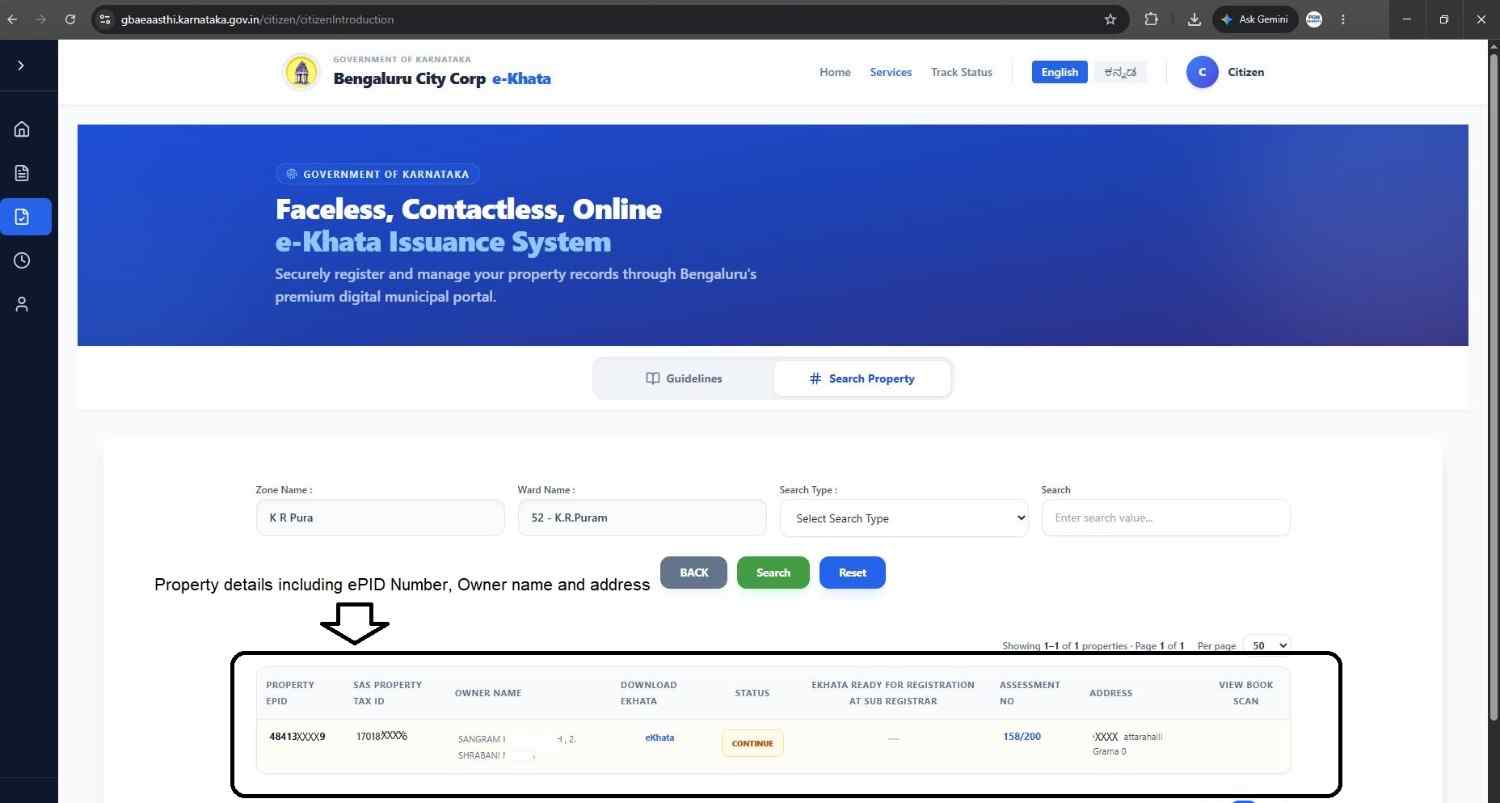
Under the “STATUS” column, click “APPLY”.
In my case, the portal displays “CONTINUE” because I had already started filling out the application earlier.
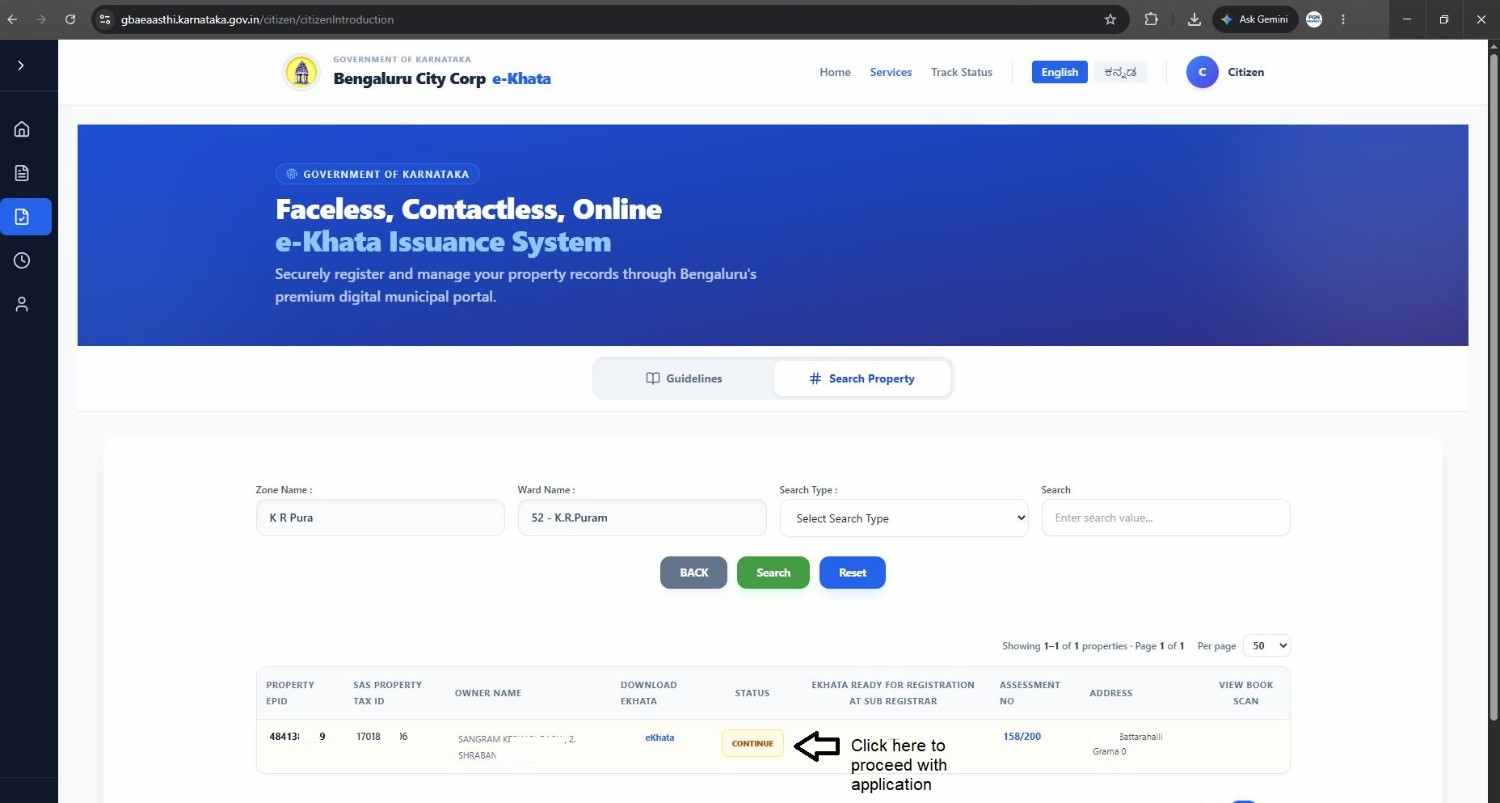
Step 3: GBA Data
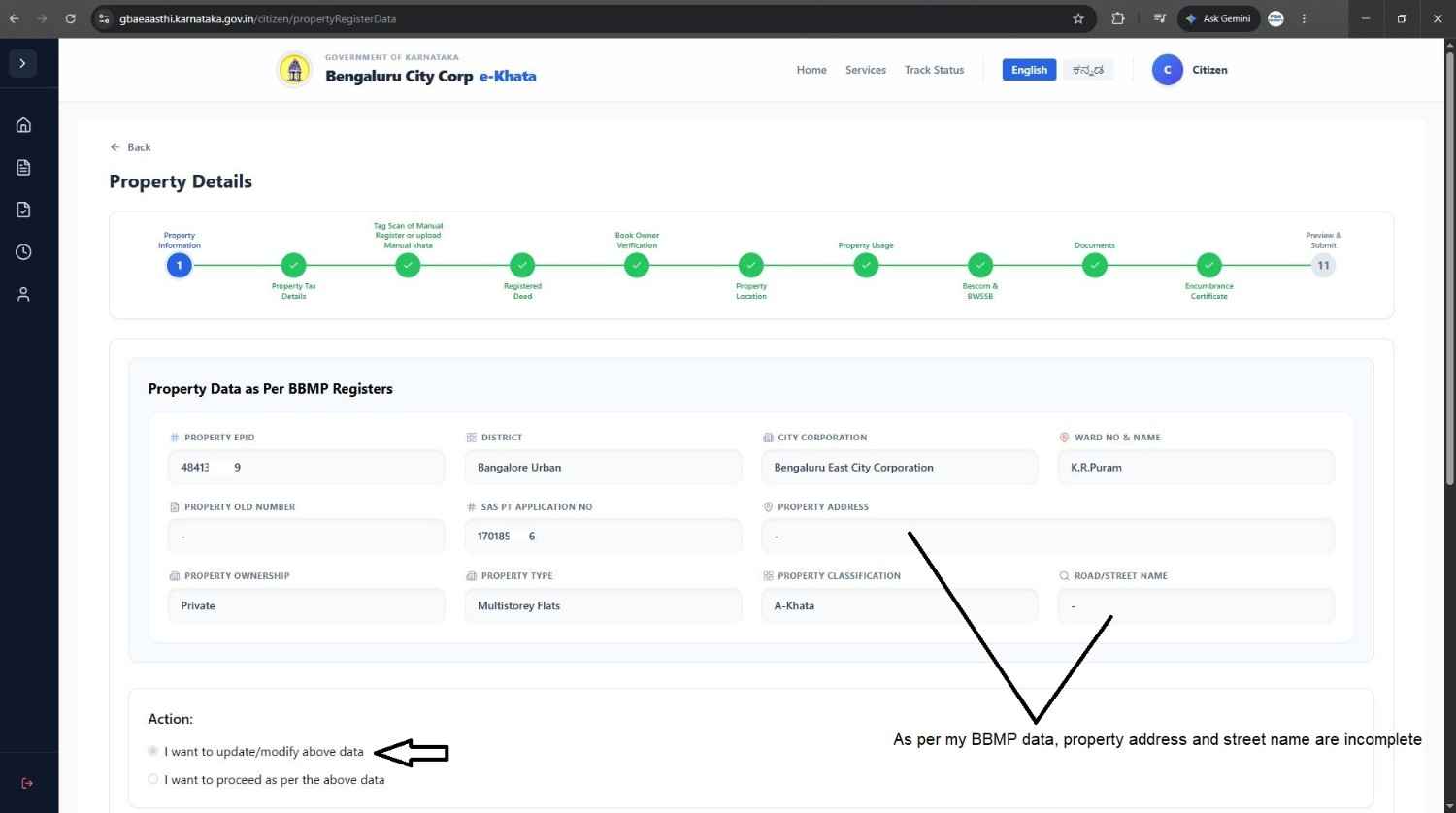
After selecting the property, the portal displays the existing GBA property data.
In my case, some details, including the property address and street name, were incomplete.
To make corrections, select:
“I want to Update/Modify above data”
Refer to the screenshot below.
I updated the property address and street name, which are highlighted in red in the screenshot below.
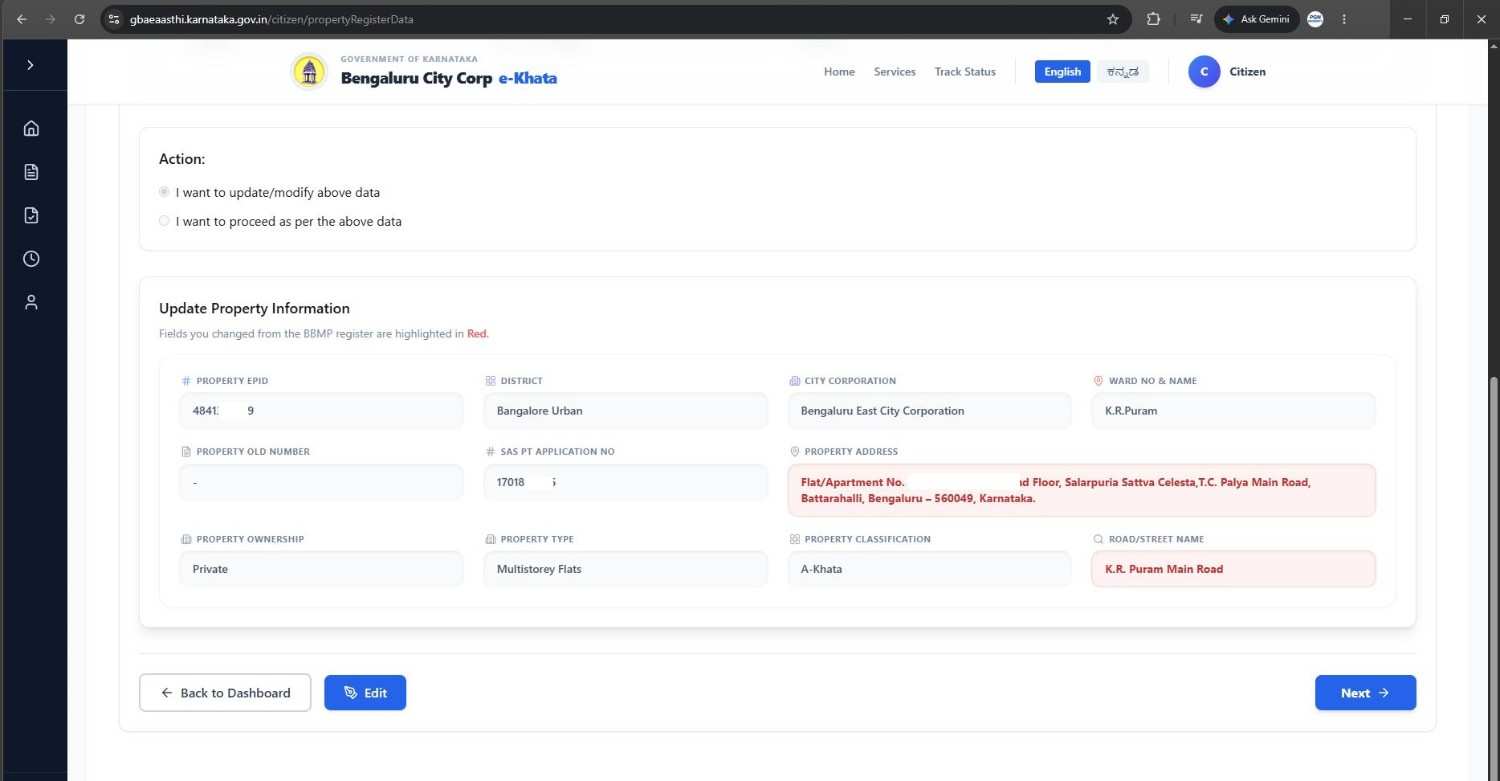
After making the necessary corrections, click “Next”.
Step 4: Property Tax Record
The portal will display the available property tax records.
Review the information carefully, If all the details are correct. Refer to the screenshot below.
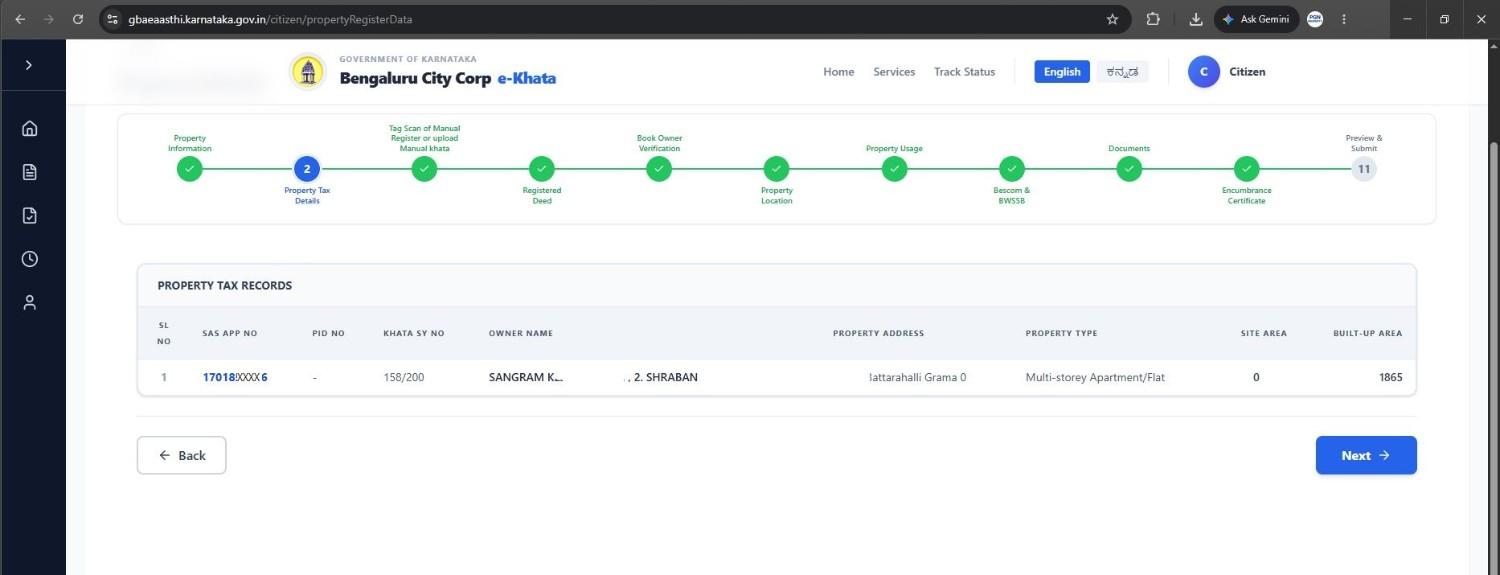
Click “Next” to continue.
Step 5: Manual Khata
The next section relates to the Manual Khata record.
In my case, I have a manual A-Khata, refer to below image
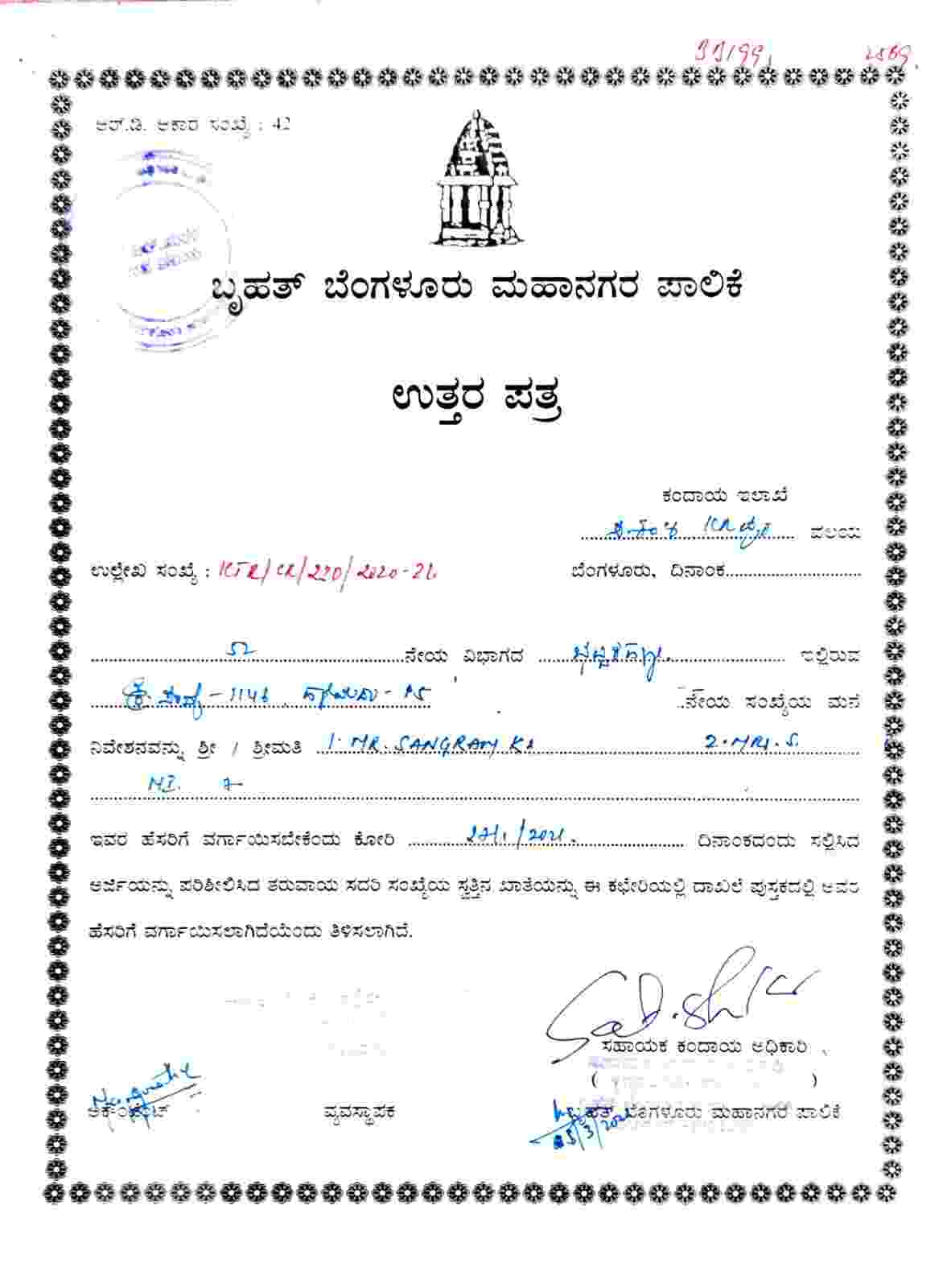
Therefore, I selected:
“Yes, I have manual khata”
I then uploaded my Khata Certificate and Khata Extract.
Refer to the screenshot below.
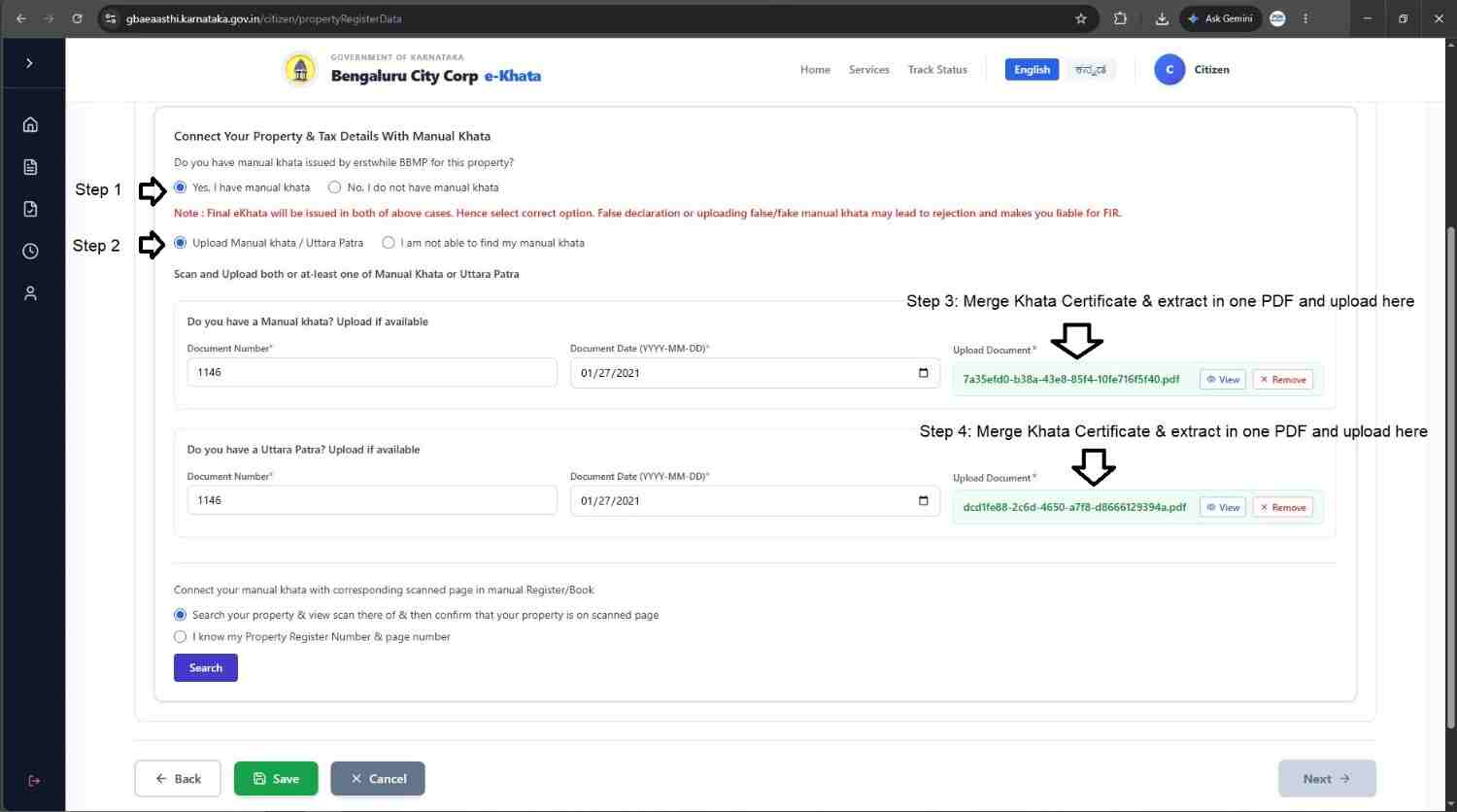
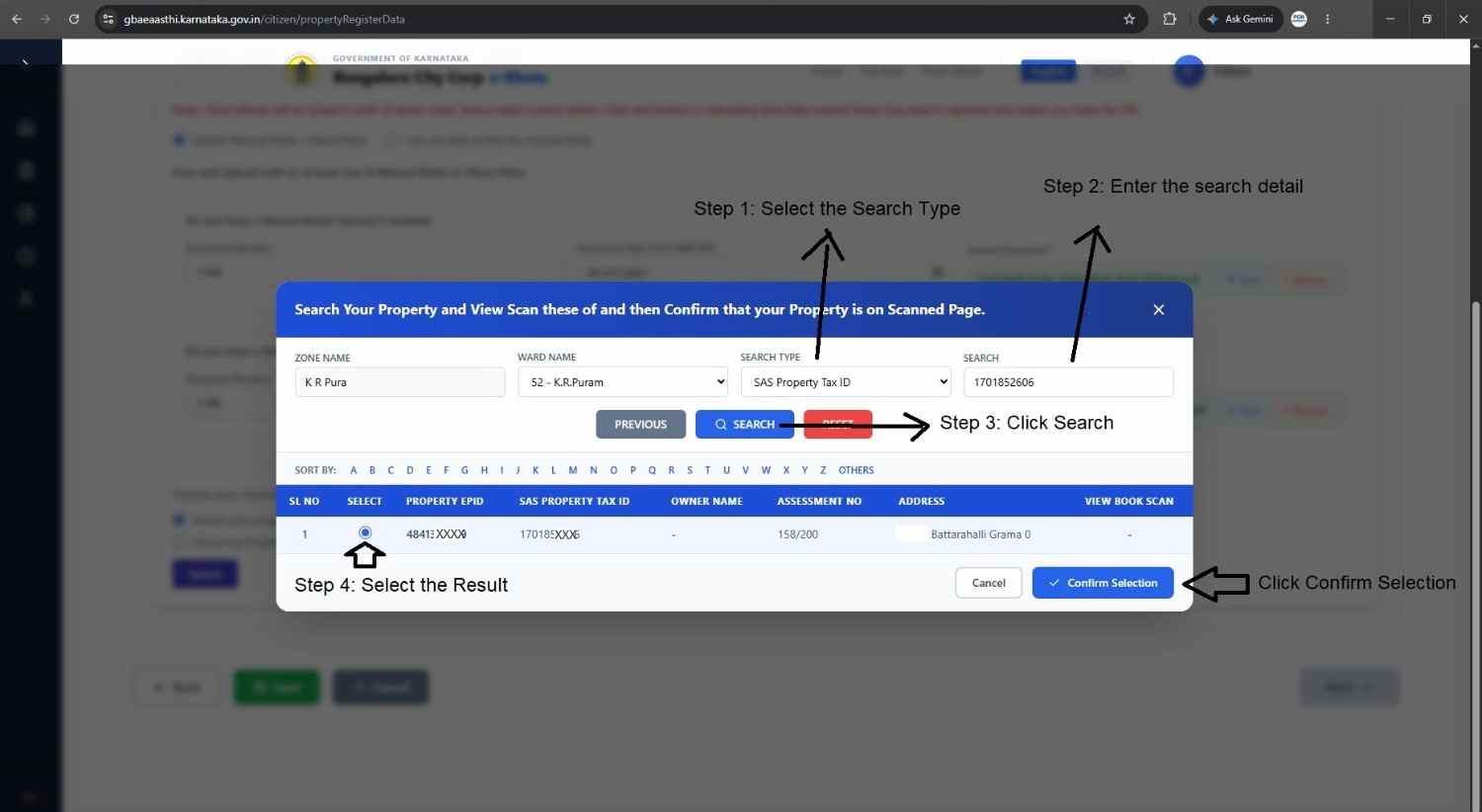
The portal also provides an option to search the scanned manual Khata records.
Select:
“Search your property & view scan thereof & then confirm that your property is on scanned page”
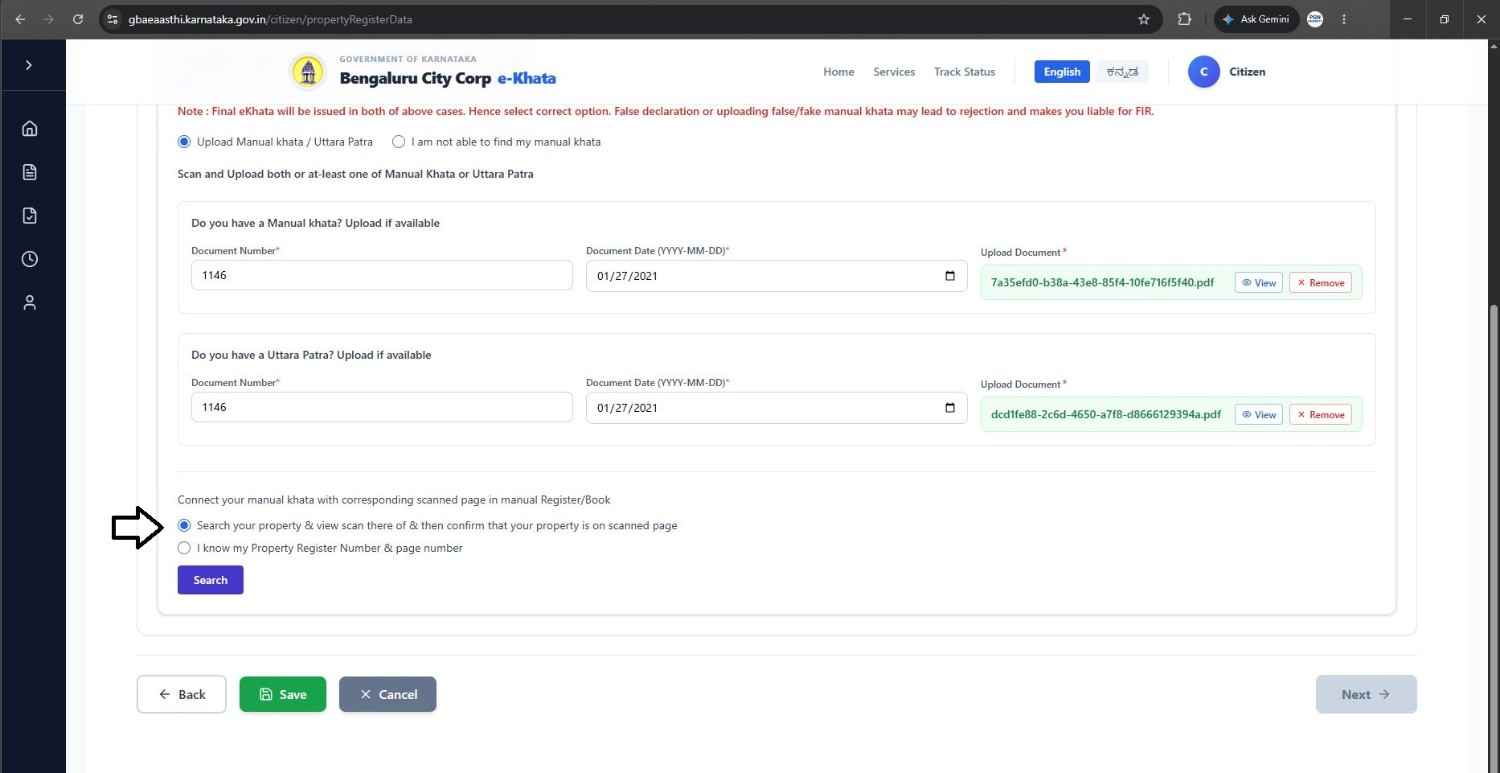
Click “Search”.
The manual Khata record can be searched using different details, such as:
- SAS Property Tax ID
- Owner Name
- ePID Number
- Property Tax details
In my case, I searched using the Property Tax ID.
Refer to the screenshot below.
After viewing the search result, provide the appropriate citizen feedback based on what you see.
In my case, I selected:
“Yes, my property is on this page but not digitized”
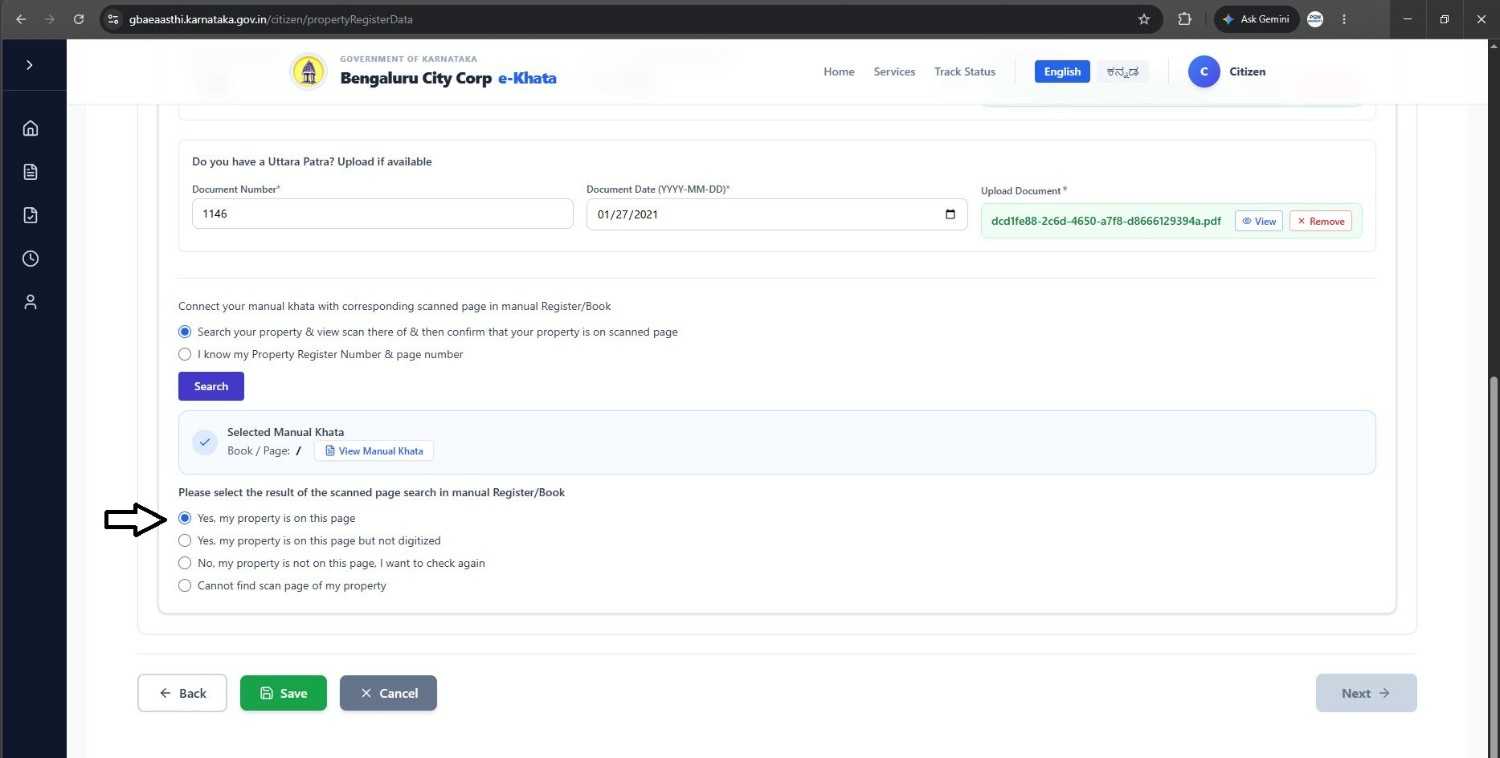
Select the appropriate option based on your property record.
Click “Save” and then click “Next”.
Step 6: Registered Deed
The next section is related to the registered property deed.
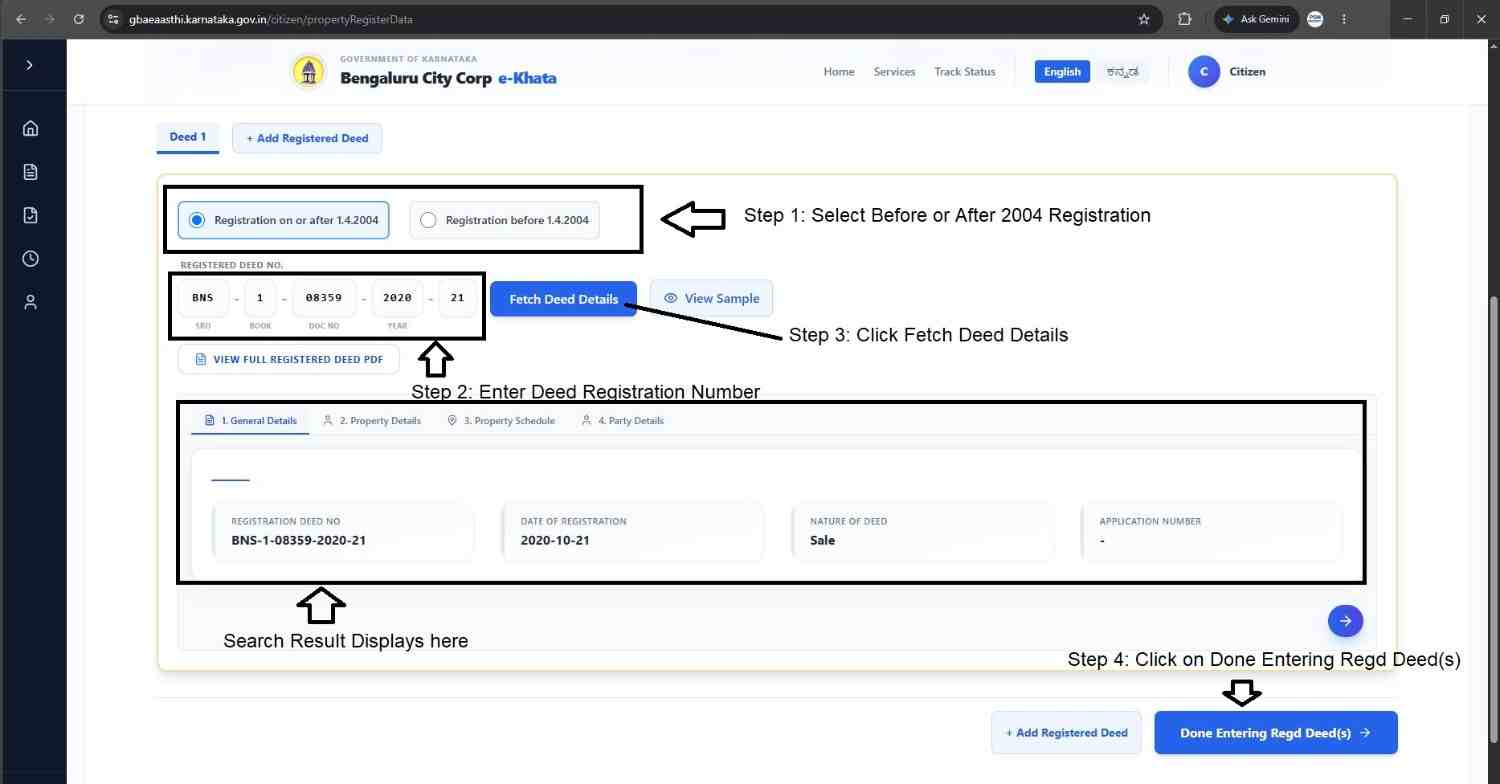
You must select the appropriate option depending on the date of registration of your deed:
- Registration before 1.4.2004
- Registration on or after 1.4.2004
In my case, the Sale Deed was registered after 1 April 2004, so I selected:
“Registration on or after 1.4.2004”
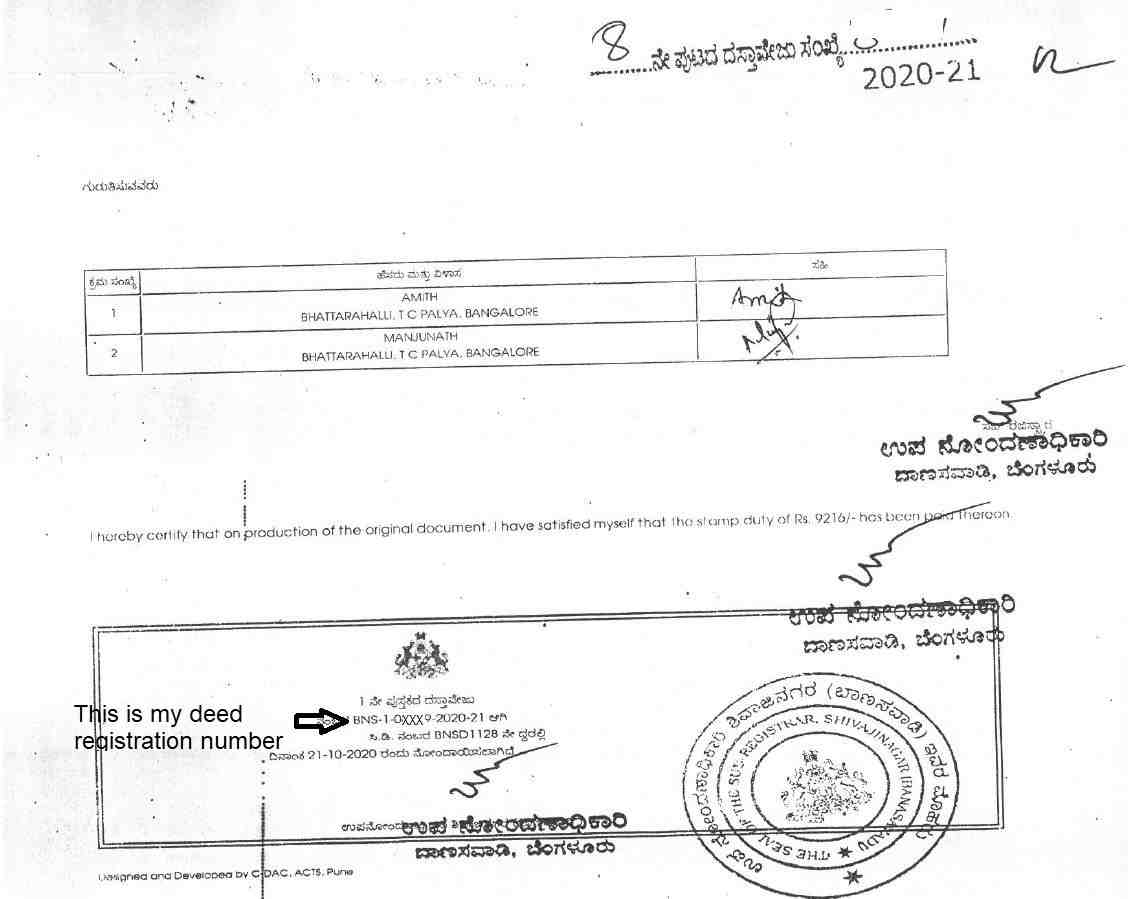
The Registration Deed Number can be found in your registered Sale Deed.
For illustration, my deed registration number is:
BNS-1-0XXX9-2020-21
I have highlighted the registration number in the Sale Deed screenshot below.
Enter the deed registration number and click:
“Fetch Deed Details”
Refer to the screenshot below.
Select the Unit of Measurement
The portal will ask you to select the unit of measurement:
- Square Feet, or
- Square Meter
Select the unit that corresponds to the measurements stated in your registered deed.
Refer to the screenshot below.
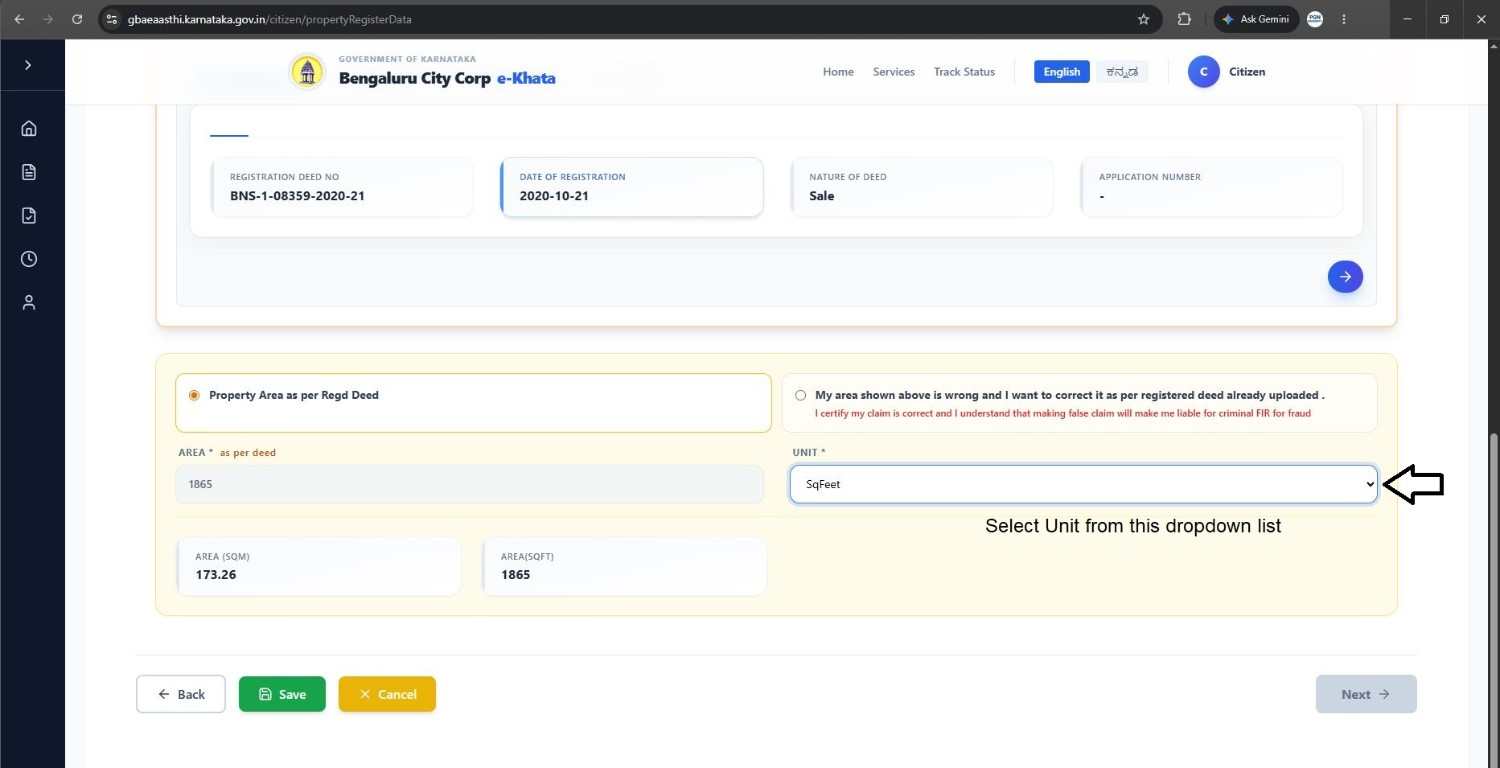
After completing the details, click “Save” and then “Next”.
Step 7: Ownership Verification
In this section, you need to verify the ownership details and provide citizen feedback where required.
In my case, two owner names were clubbed together in the property record. Therefore, I selected:
“Multiple names clubbed”
Refer to the screenshot below.
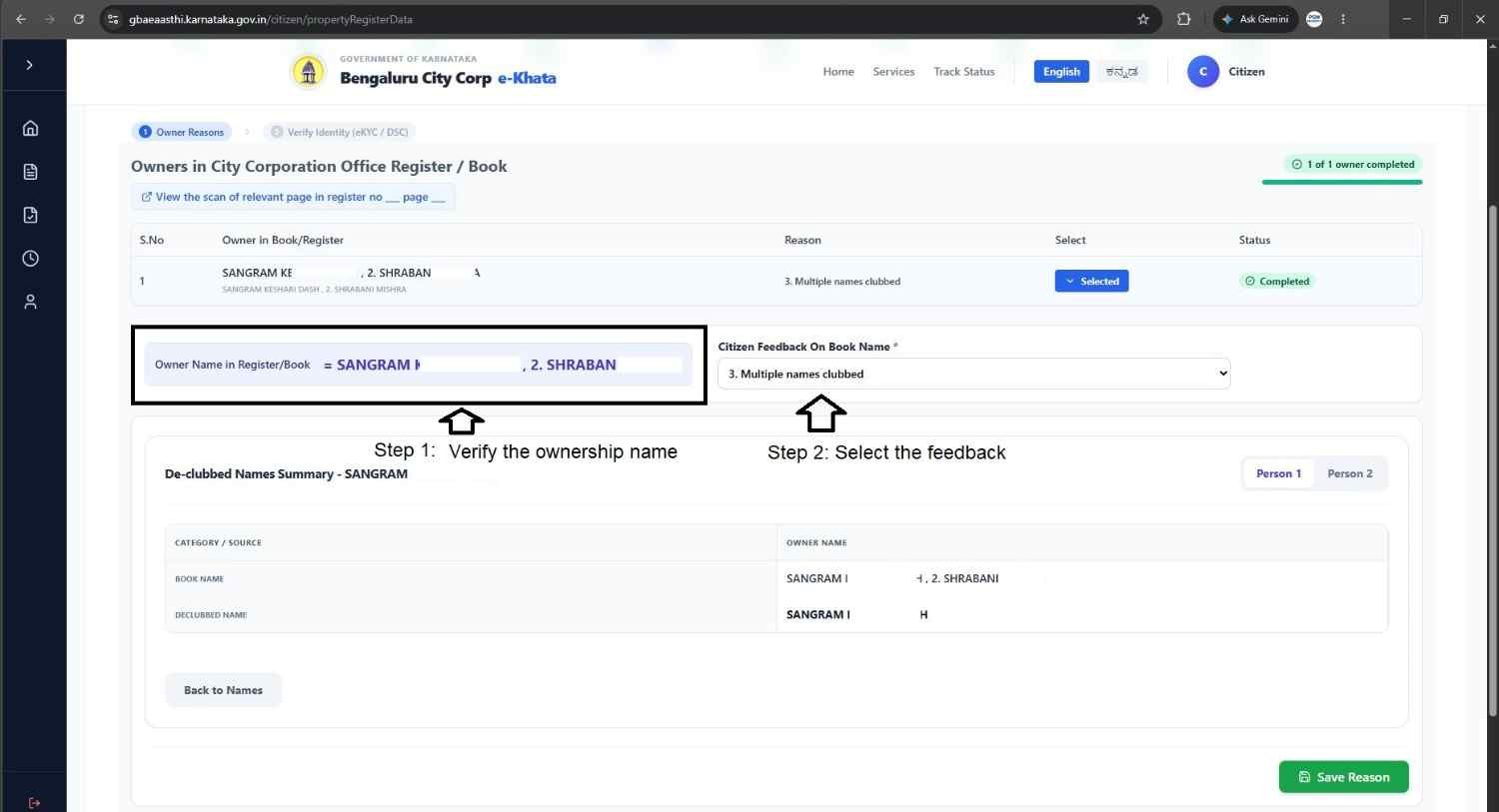
Click “Save Reason”.
Add Additional Owner
The portal also provides an option to add another owner.
Select:
- Yes, if an additional owner needs to be added, or
- No, if no additional owner is applicable.
In my case, there was no additional owner to be added, so I selected “No”.
Refer to the screenshot below.
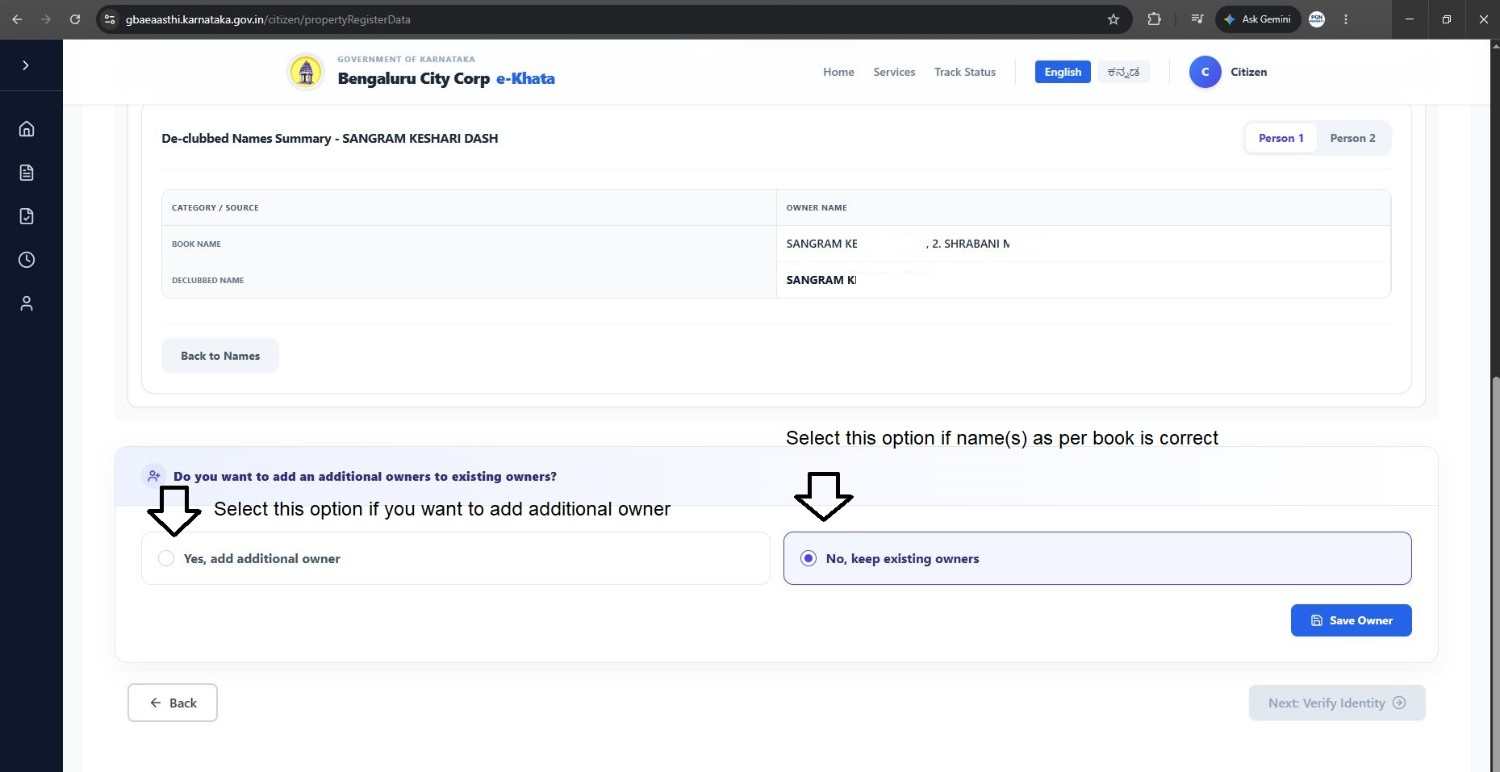
Next, click:
“Next: Verify Identity”
Step 8: Verify Identity
The next step is to verify the applicant's identity.
The portal provides options for:
- Mobile number verification through OTP
- eKYC using Aadhaar, where applicable
For NRI who do not have Aadhaar, the portal provide an alternative identity-document option, as a Passport Number
In my case, I verified the mobile number using OTP and completed eKYC using my Aadhaar number.
Refer to the screenshot below.
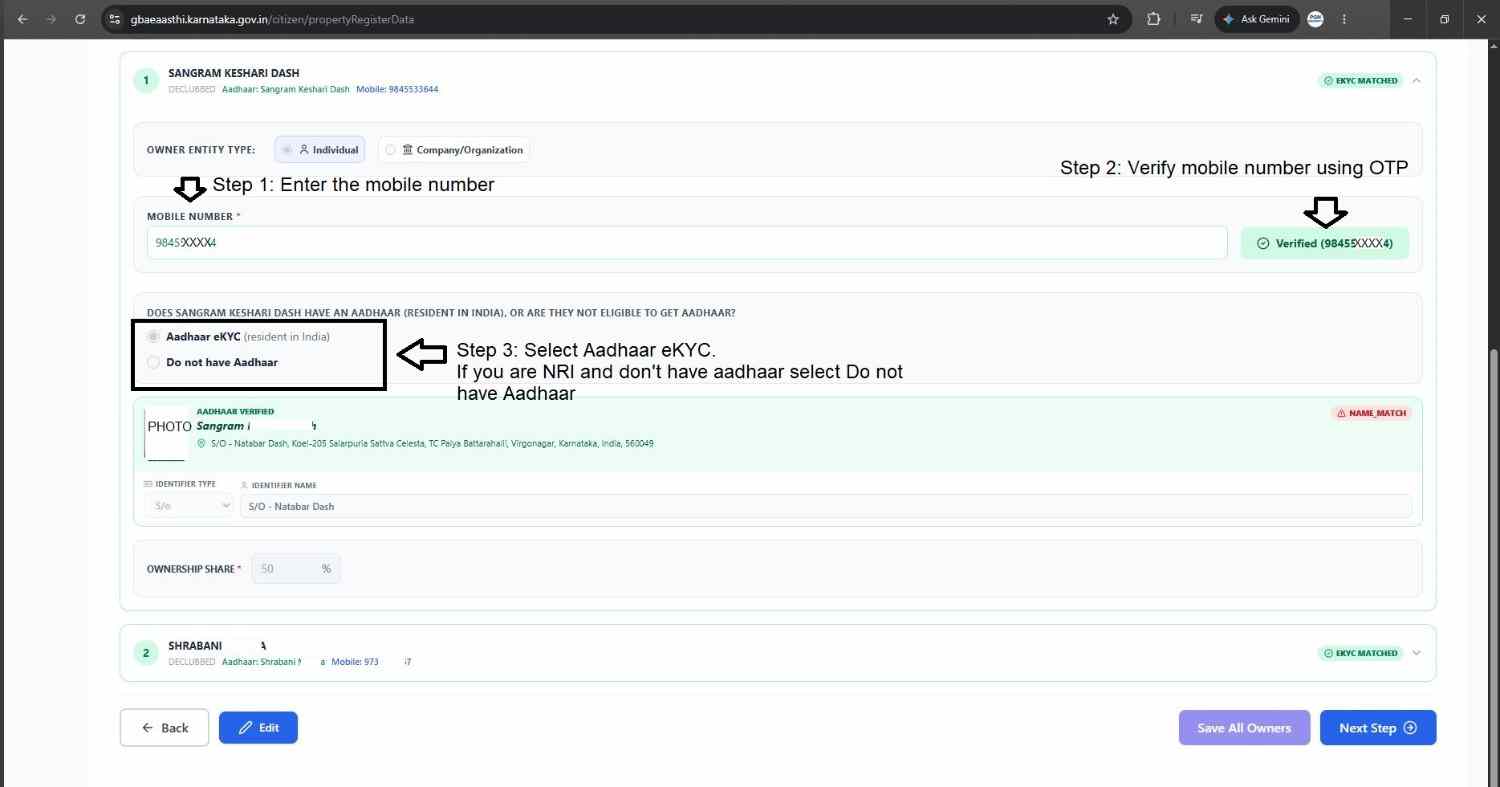
After completing the verification, click “Next Step”.
Step 9: Property Location
In this section, you need to provide the location of the property.
In my case, I entered my apartment name in the search bar and selected the appropriate location from the search results.
Refer to the screenshot below.
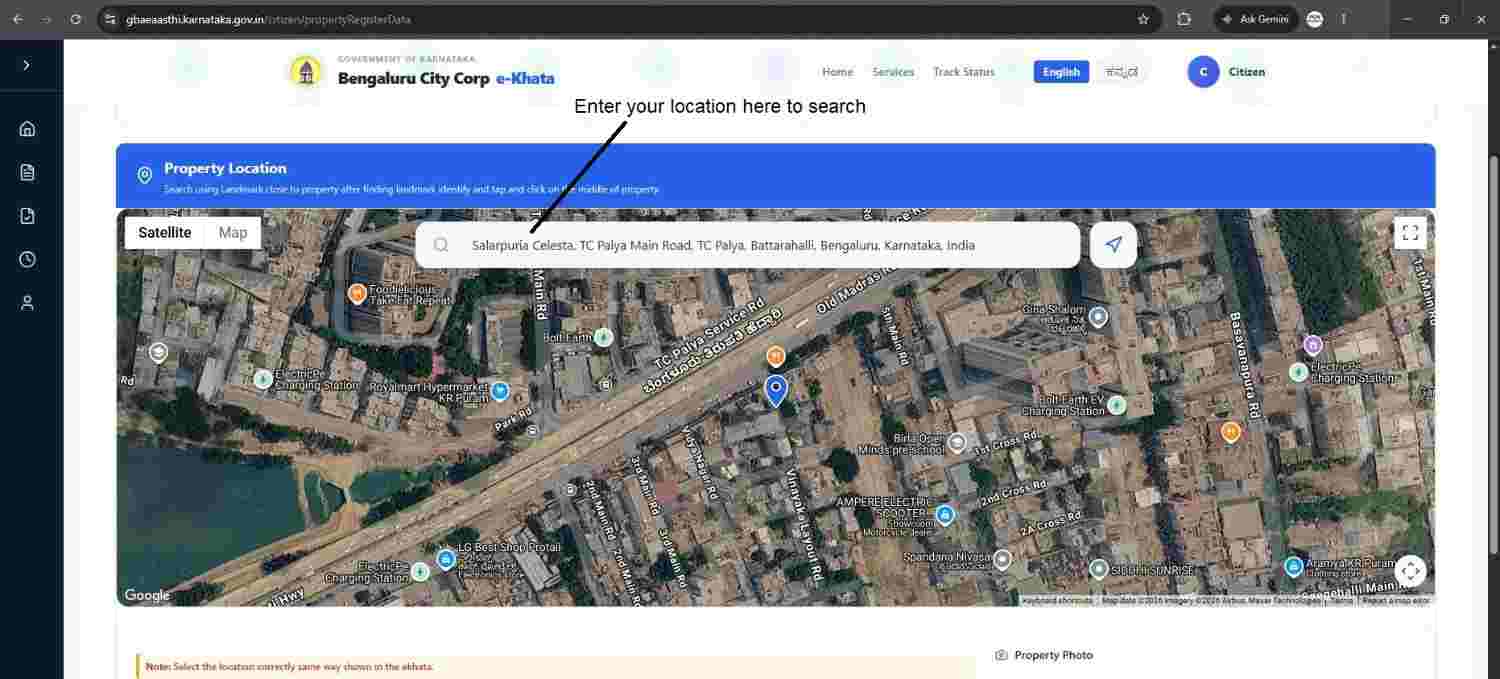
You will also need to:
- Upload the building/property photograph
- Enter the property address
Refer to the screenshot below.
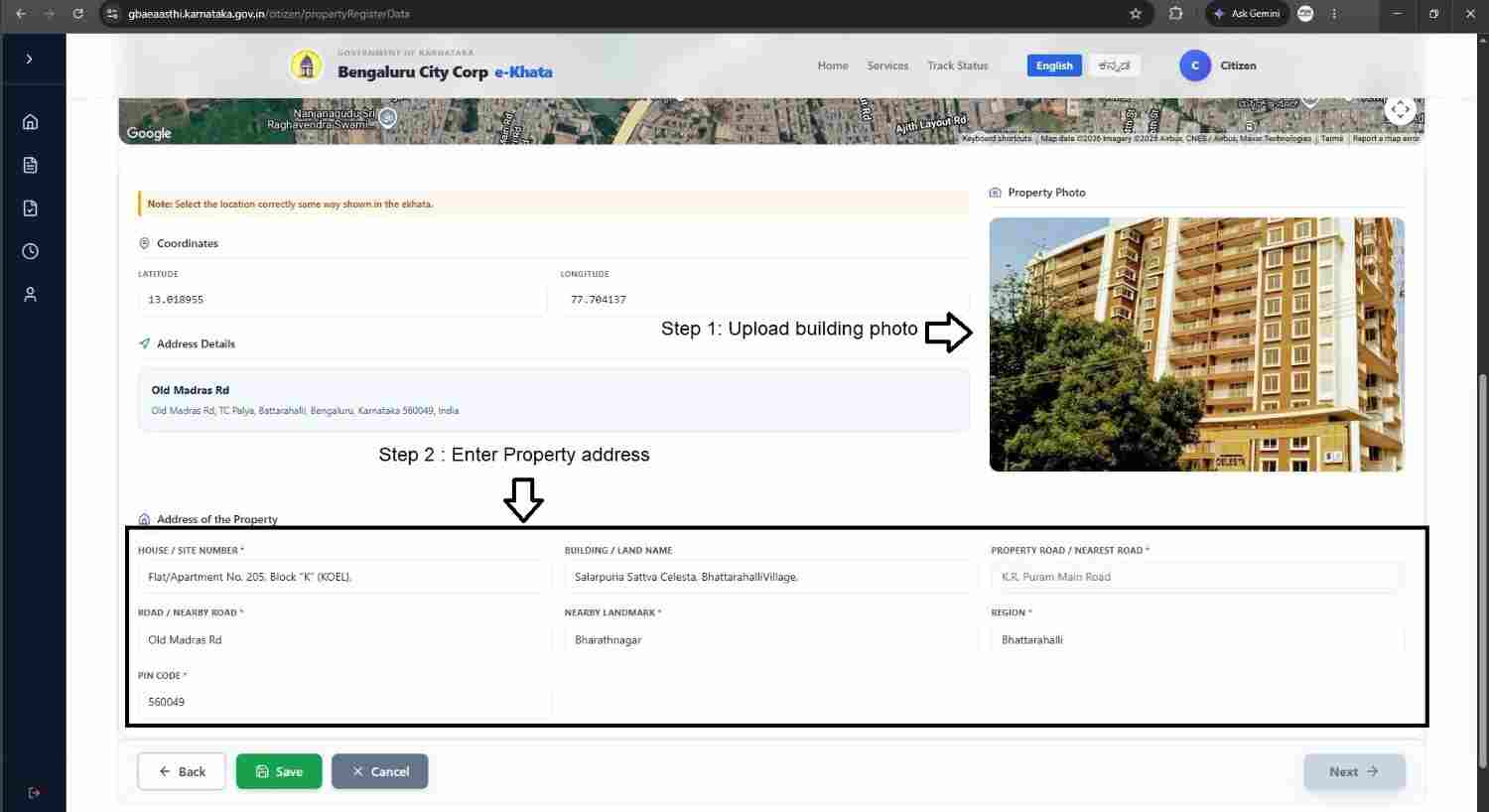
After entering the required details, click “Save”.
Step 10: Property Usage
The Property Usage section requires details about the property.
Depending on the property type, you need to enter details such as:
- Property measurements
- Property Number
- Floor
- Block
- Year of commencement
- Parking details
- UDS (Undivided Share)
Enter the details based on your property records and supporting documents.
Refer to the completed example below.
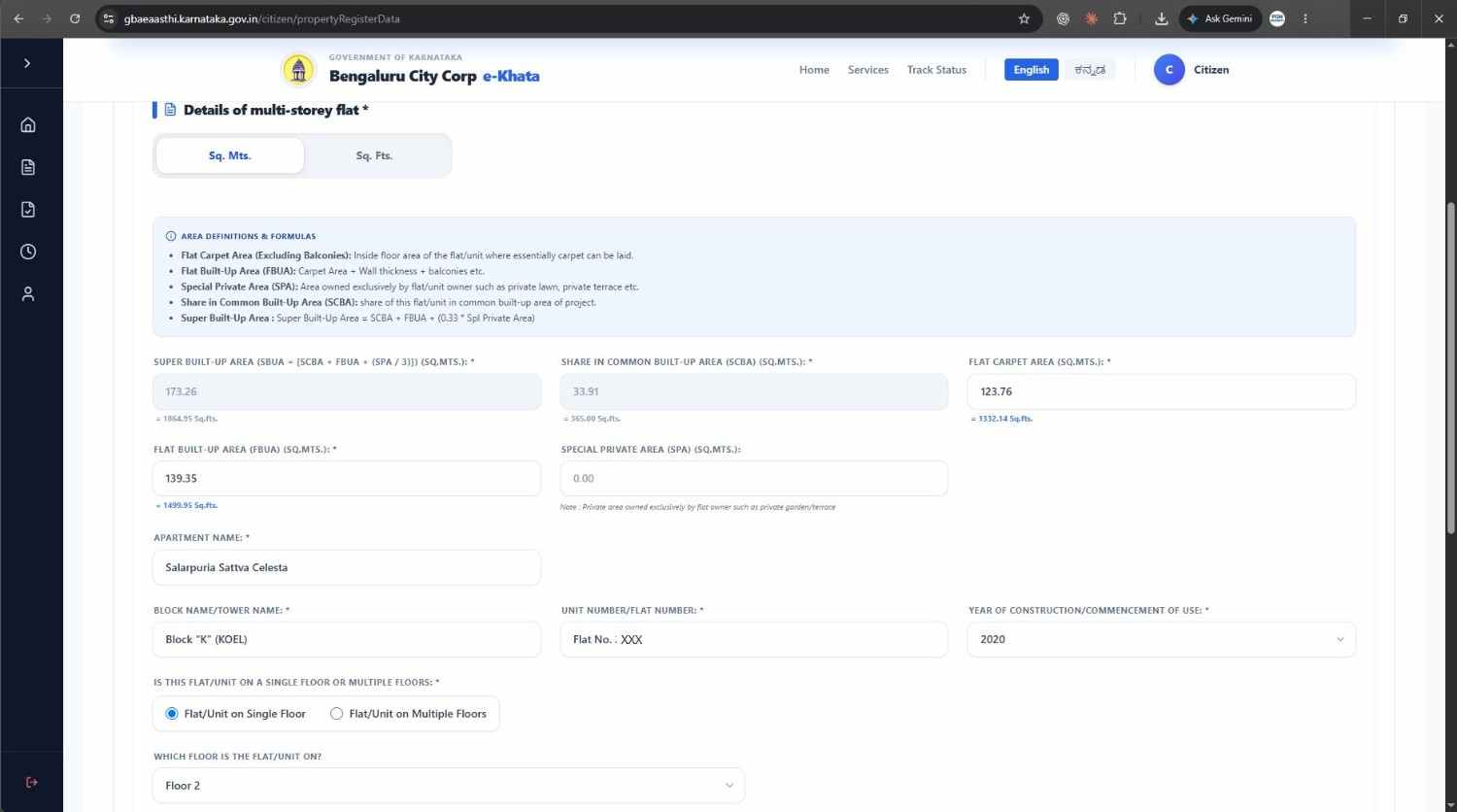
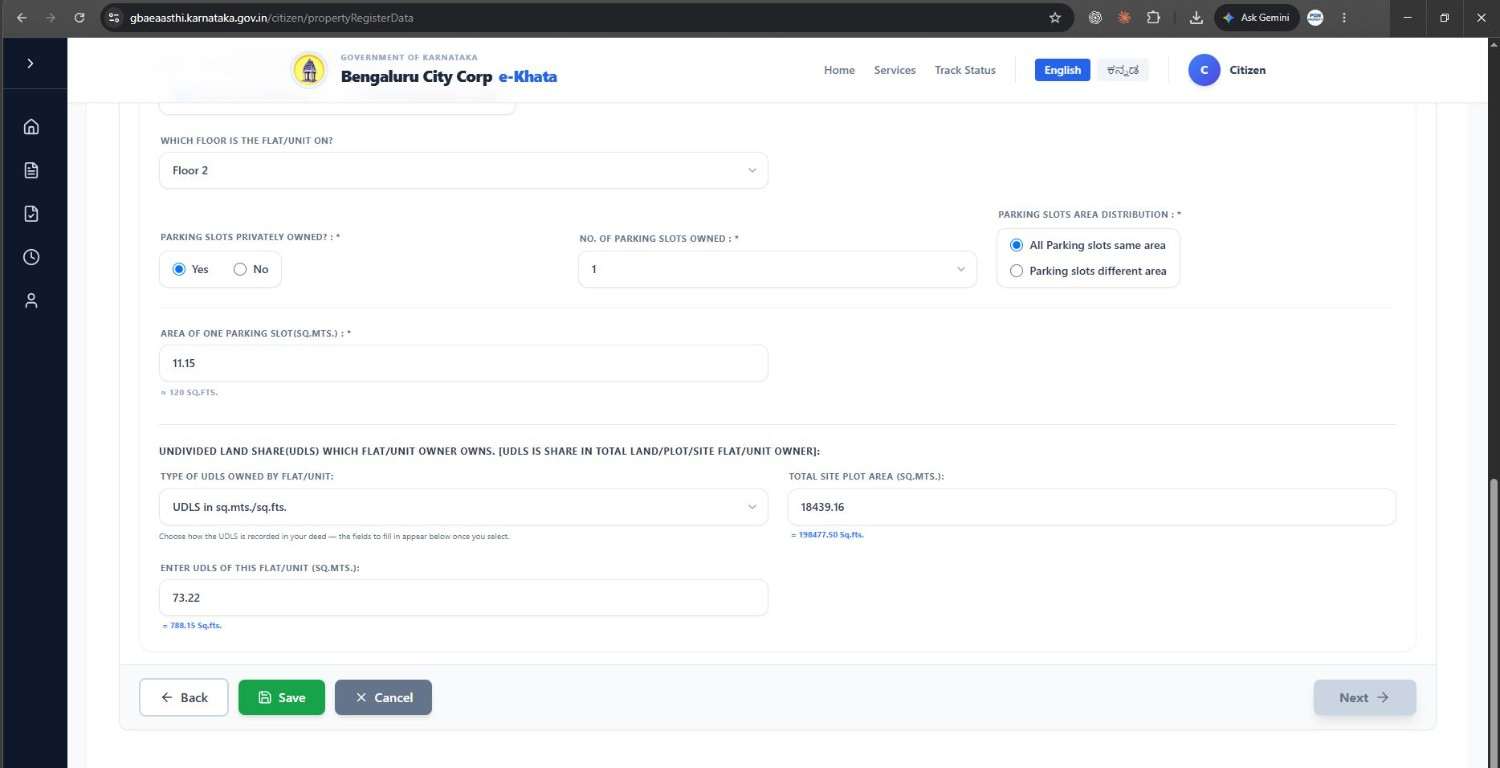
After entering the required information, click “Save”.
Step 11: BESCOM & BWSSB Details
For properties where utility connections are applicable, enter the relevant BESCOM and BWSSB customer ID numbers.
Enter the customer ID and use the option to fetch the details.
Refer to the screenshot below.
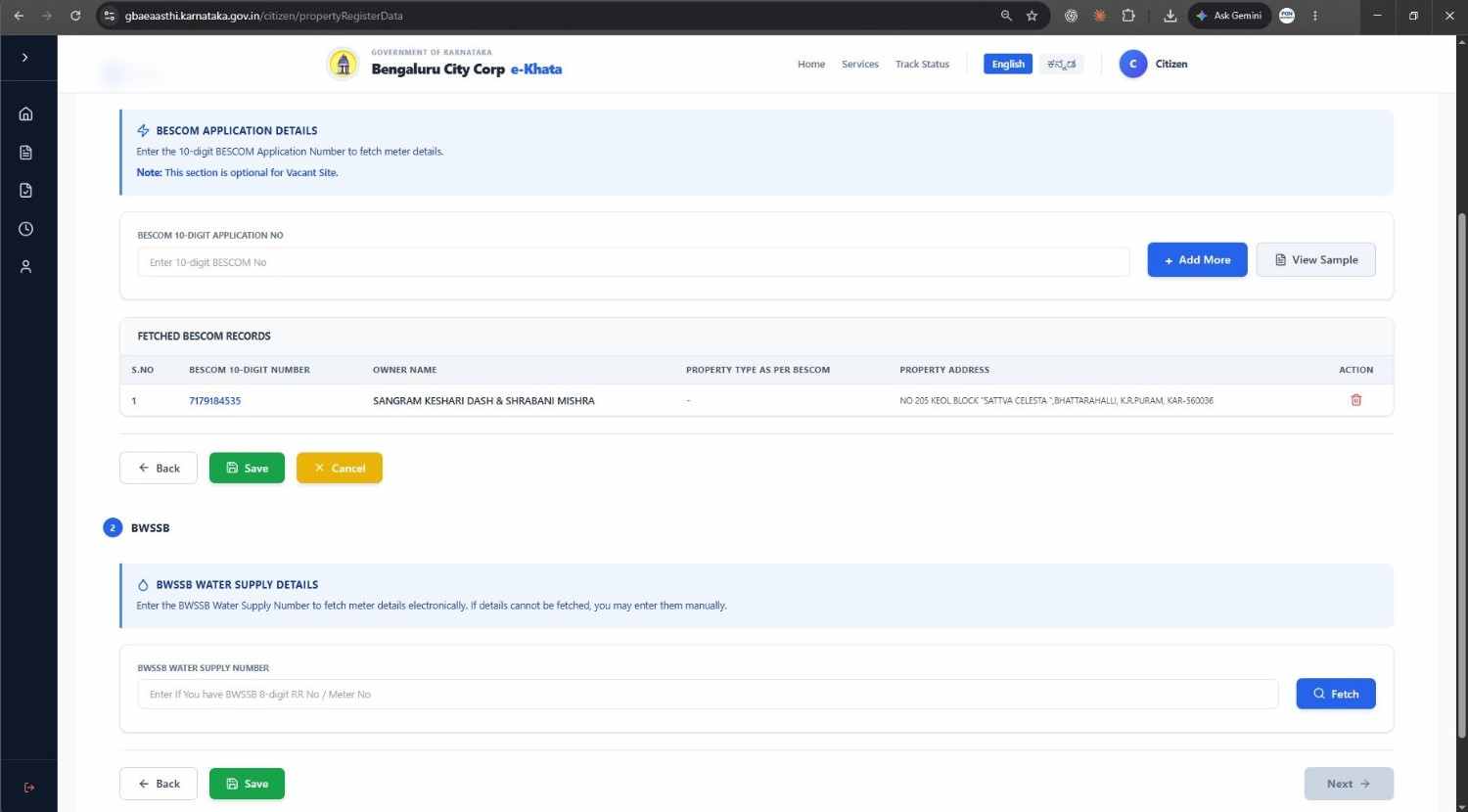
After verifying the information, click “Save” and then “Next”.
For vacant plots where these utility connections are not applicable, this section may not apply.
Step 12: Supporting Documents
If your property is eligible for A-Khata, upload the required supporting documents in this section.
Make sure that the documents are clear and readable before uploading them.
Refer to the screenshot below.
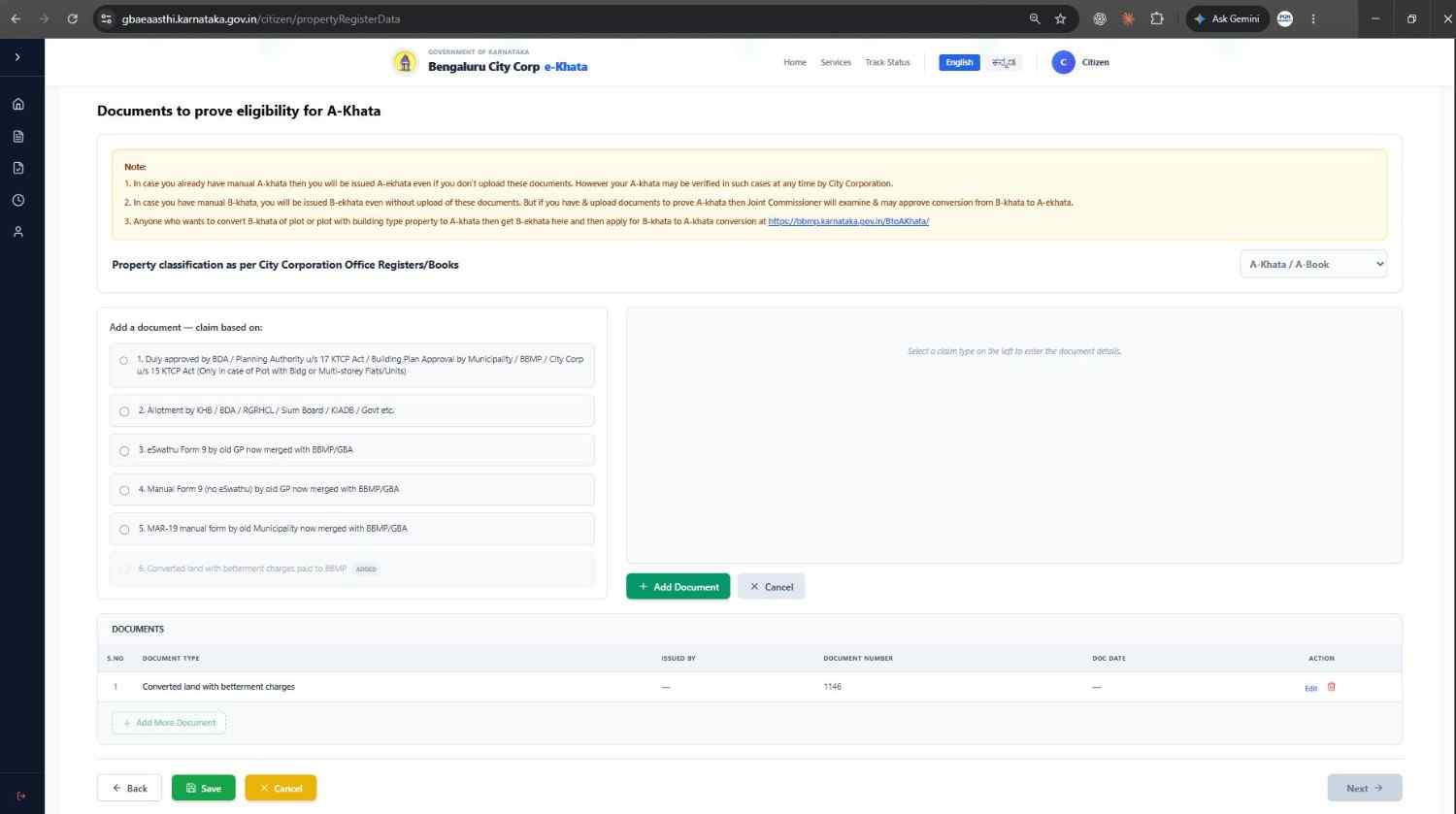
Click “Save” and then “Next”.
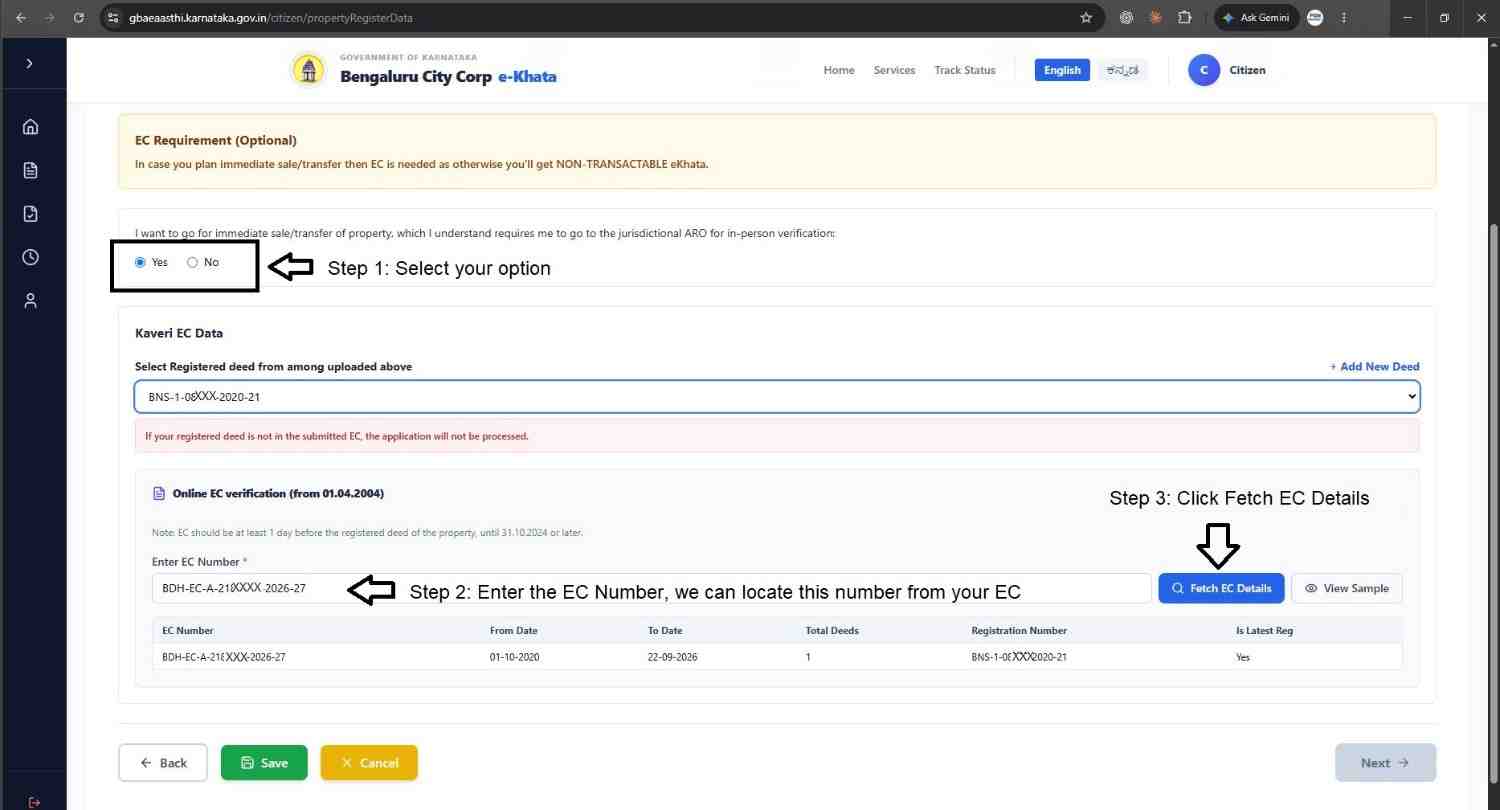
Step 13: Upload Encumbrance Certificate (EC)
The next section asks whether the eKhata is being applied for an immediate property sale or transfer.
If you are planning an immediate sale or transfer, select:
“Yes”
and upload the required Encumbrance Certificate (EC).
If an immediate transfer is not applicable, select “No”, as appropriate for your application.
In my case, I was planning an immediate sale of the property, so I selected “Yes” and uploaded the EC.
Refer to the screenshot below.
Where can you find the EC Number?
The EC Number can be found in the Encumbrance Certificate.
We have highlighted the EC Number in the sample EC below for reference.
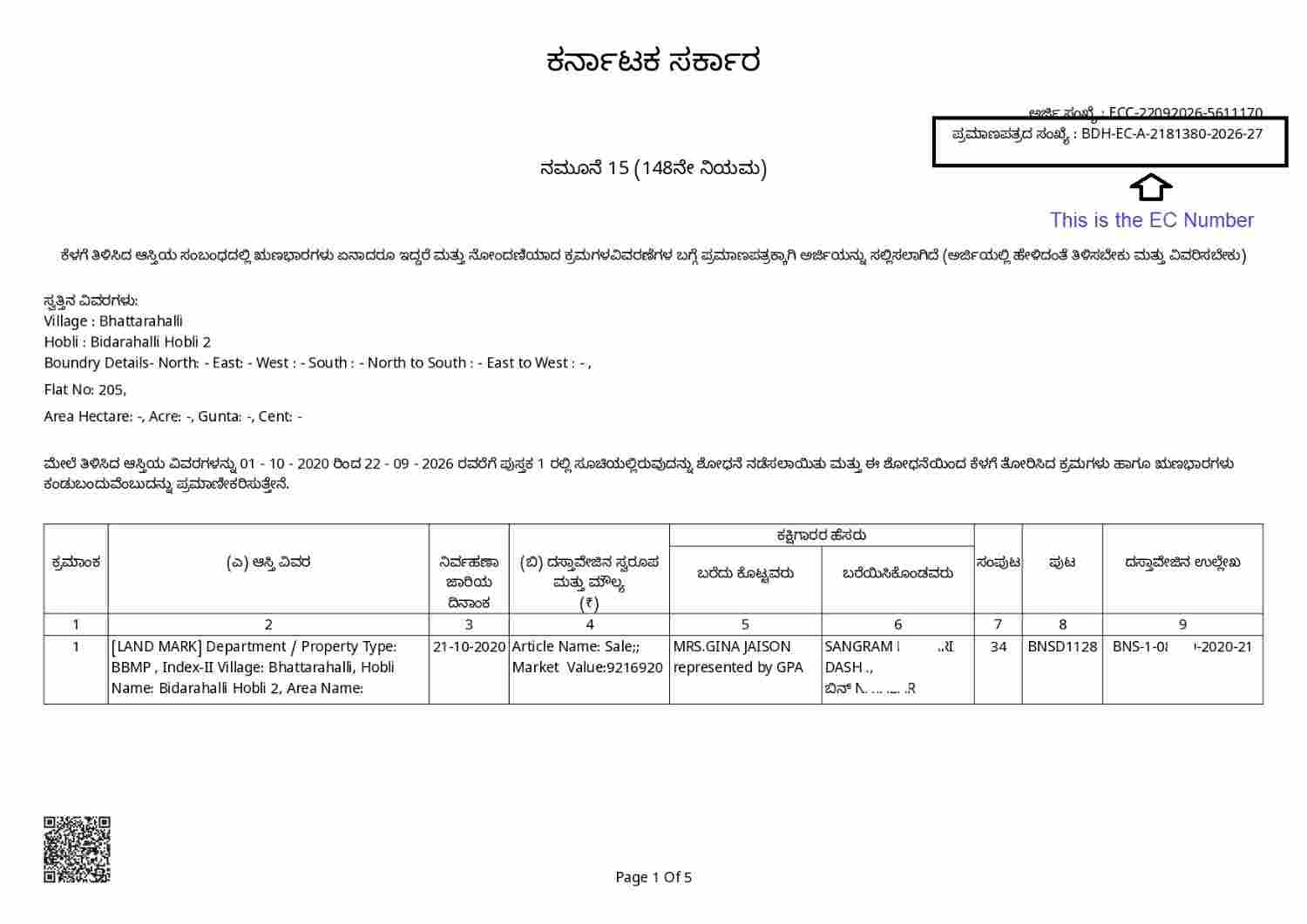
After uploading the document, click “Save”.
Step 14: Declaration, Review and Submit
After completing all the sections, select the required Declaration and carefully review the information entered in the application.
Check the following before submission:
- Owner details
- Property address
- Property measurements
- Registered deed details
- Khata information
- Utility details, where applicable
- Uploaded documents
- EC details, where applicable
Once you are satisfied that all the information is correct, submit the application.
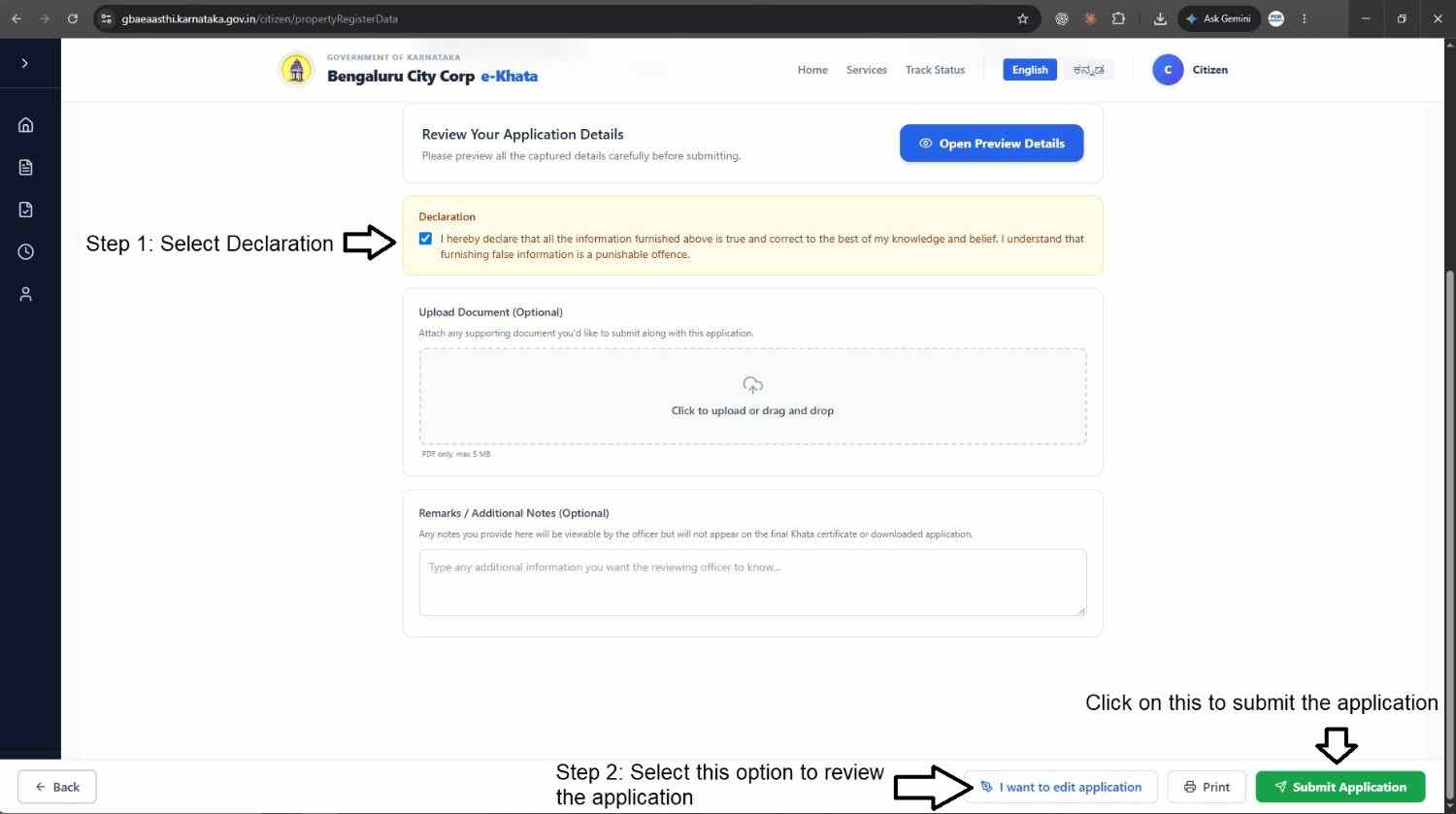
This completes the online application process for GBA eKhata through eAasthi 2.0.
How to Track GBA eKhata Application Status
After submitting the application, you can track its status online.
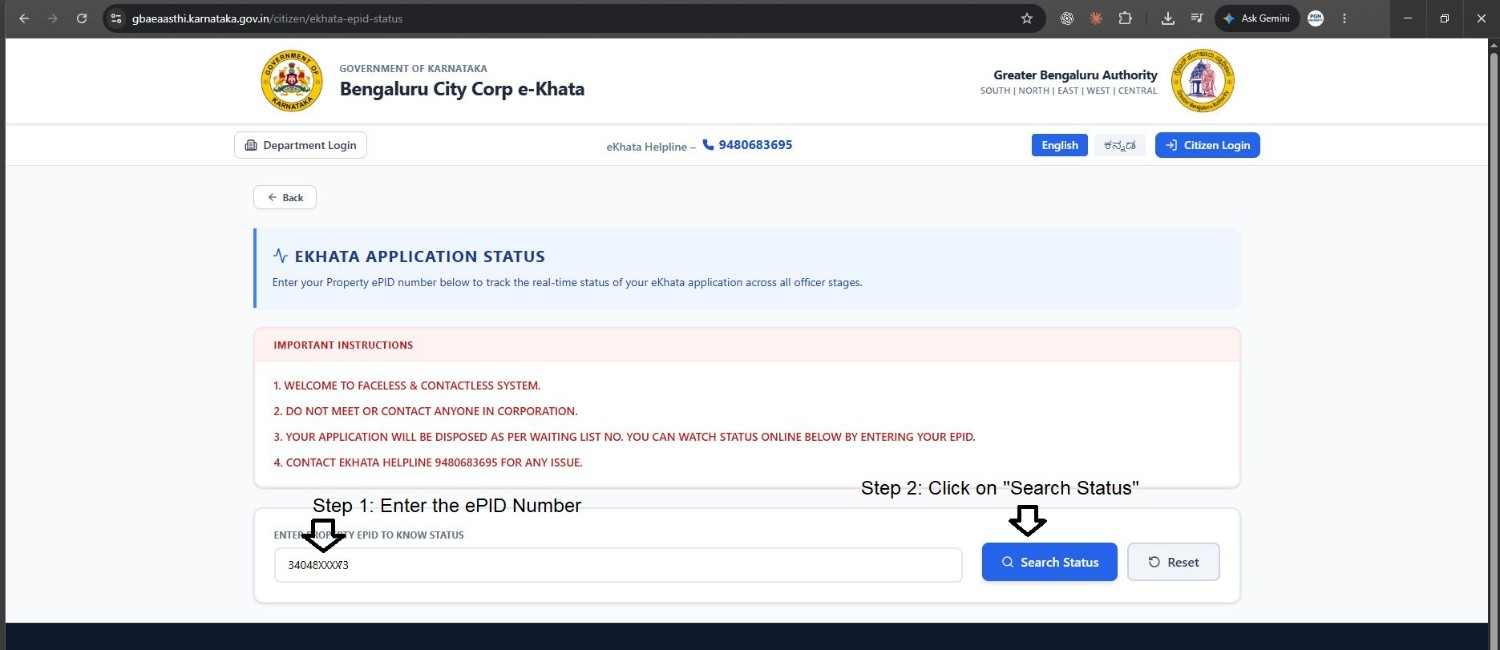
Visit the eKhata application status page:
https://gbaeaasthi.karnataka.gov.in/citizen/ekhata-epid-status
Enter your ePID and click “Search Status”.
Refer to the screenshot below.
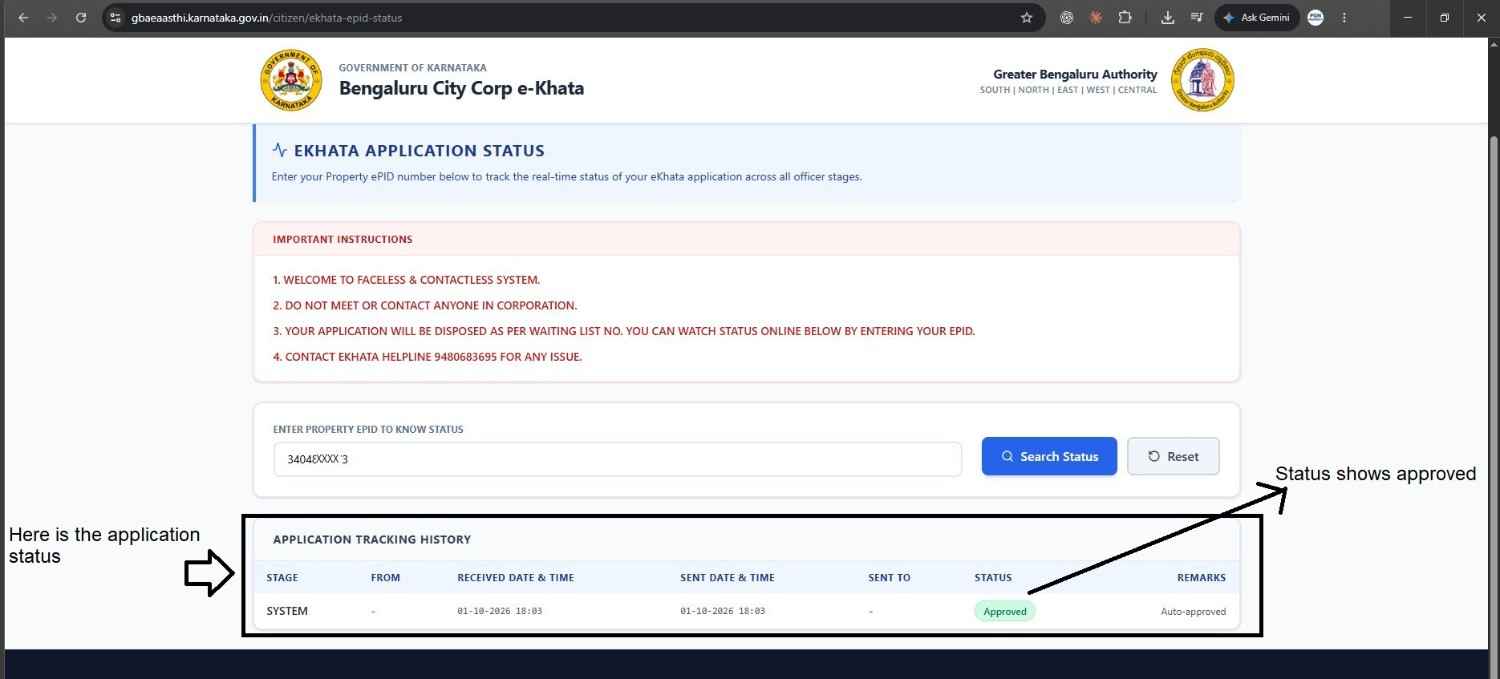
The portal will display the current application status.
Refer to the screenshot below for an example.
How to Download GBA eKhata
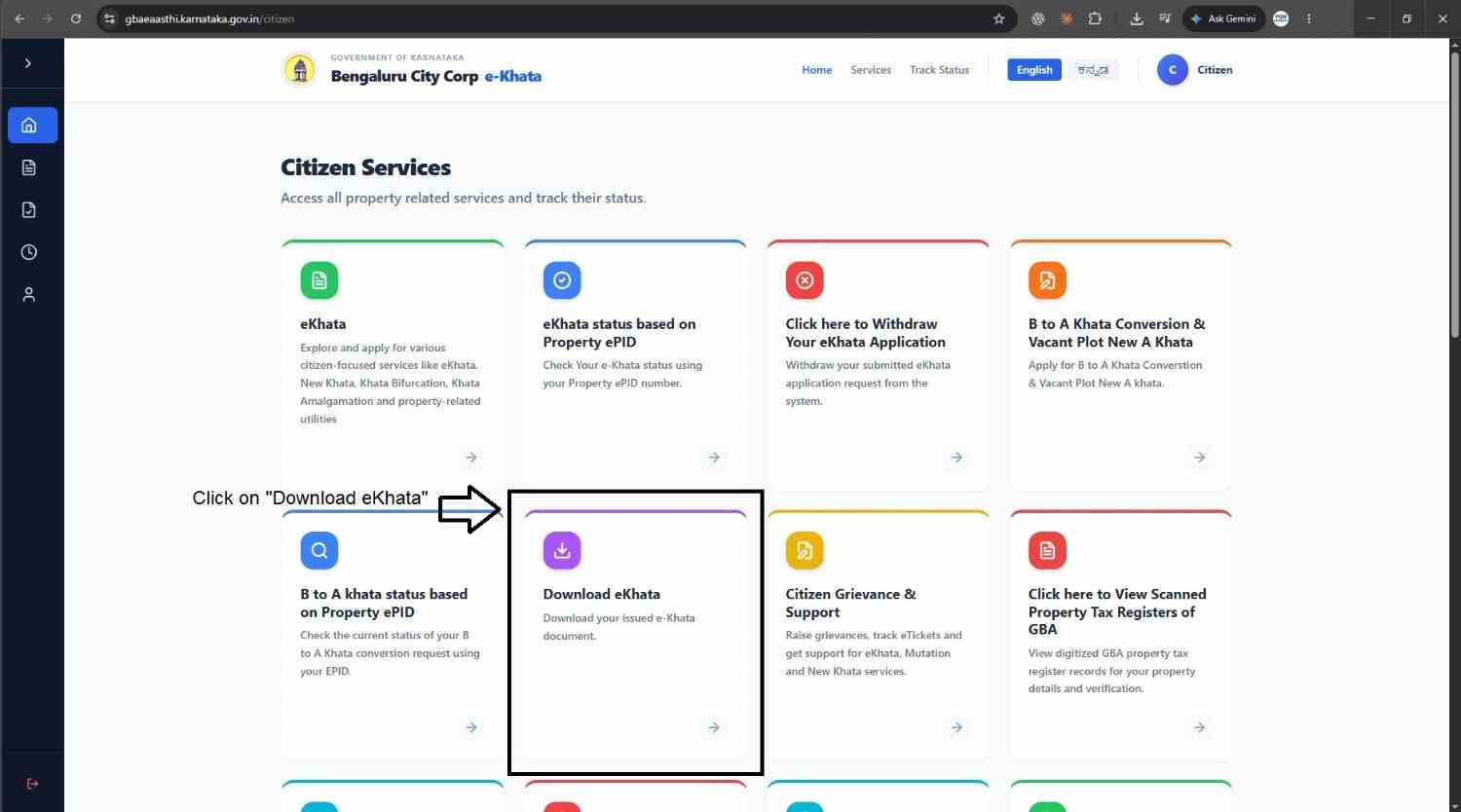
Once the eKhata is available, you can download it from the eAasthi portal.
Go to the eAasthi home page and click:
“Download eKhata”
Refer to the screenshot below.
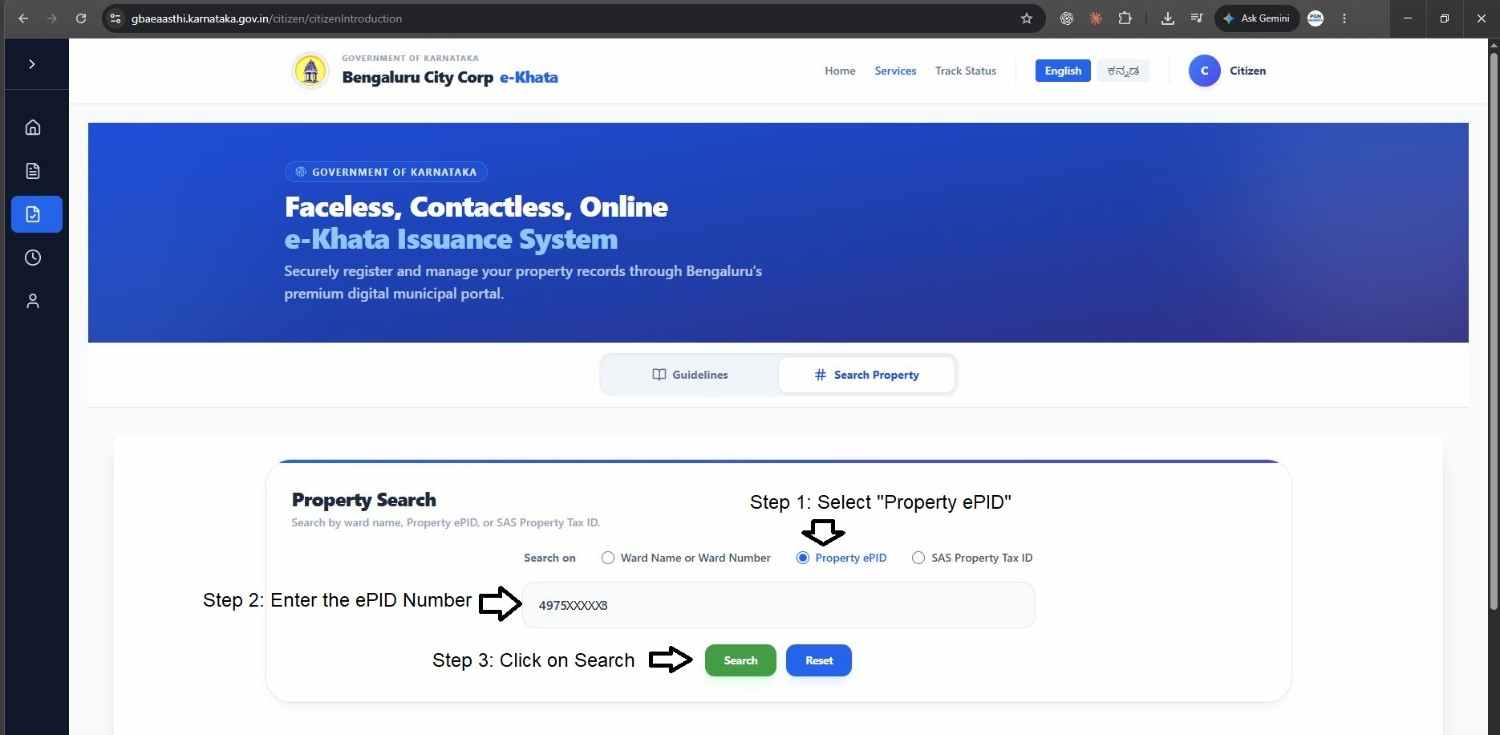
Select:
“Property ePID”
Enter your ePID Number in the search box.
Refer to the screenshot below.
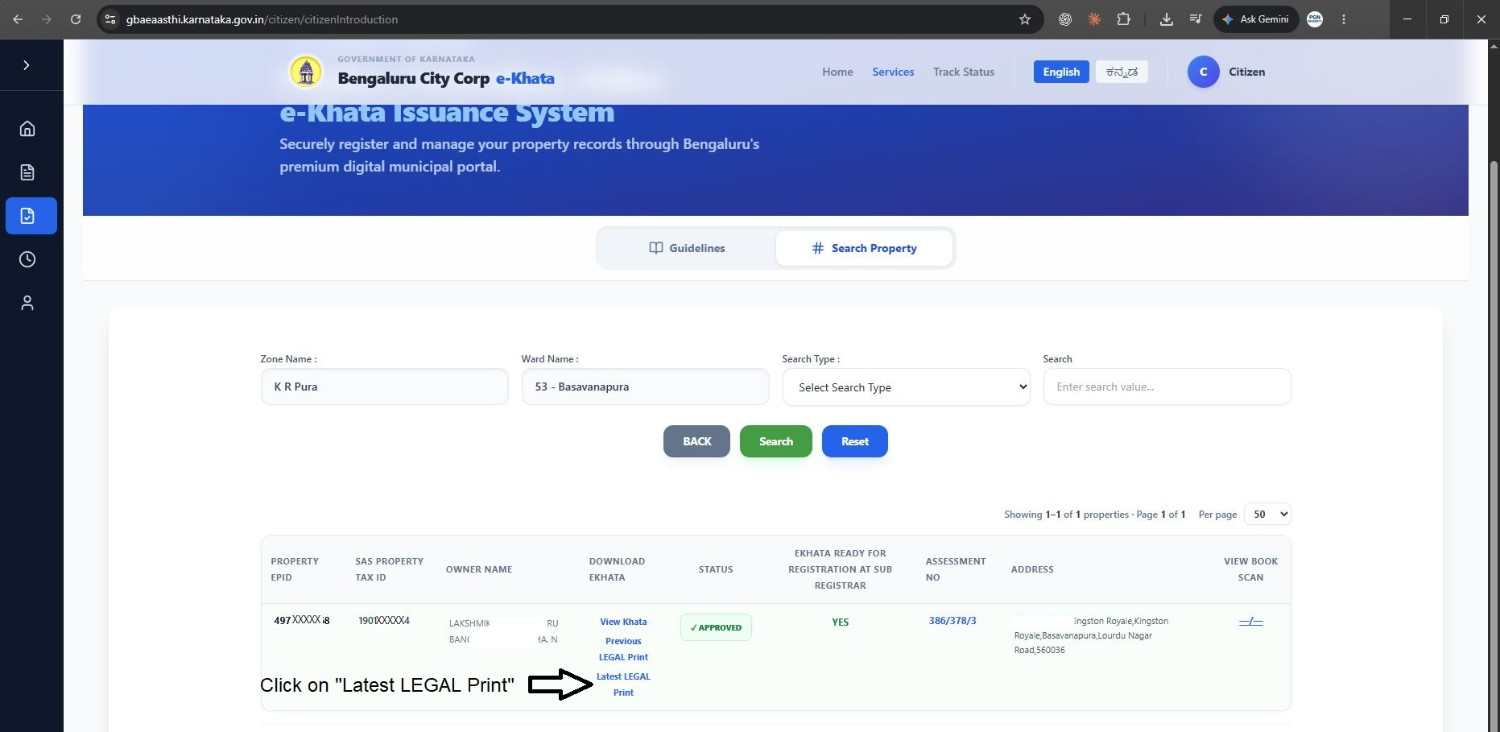
Under the “DOWNLOAD EKHATA” section, select:
“Latest LEGAL Print”
Refer to the screenshot below.
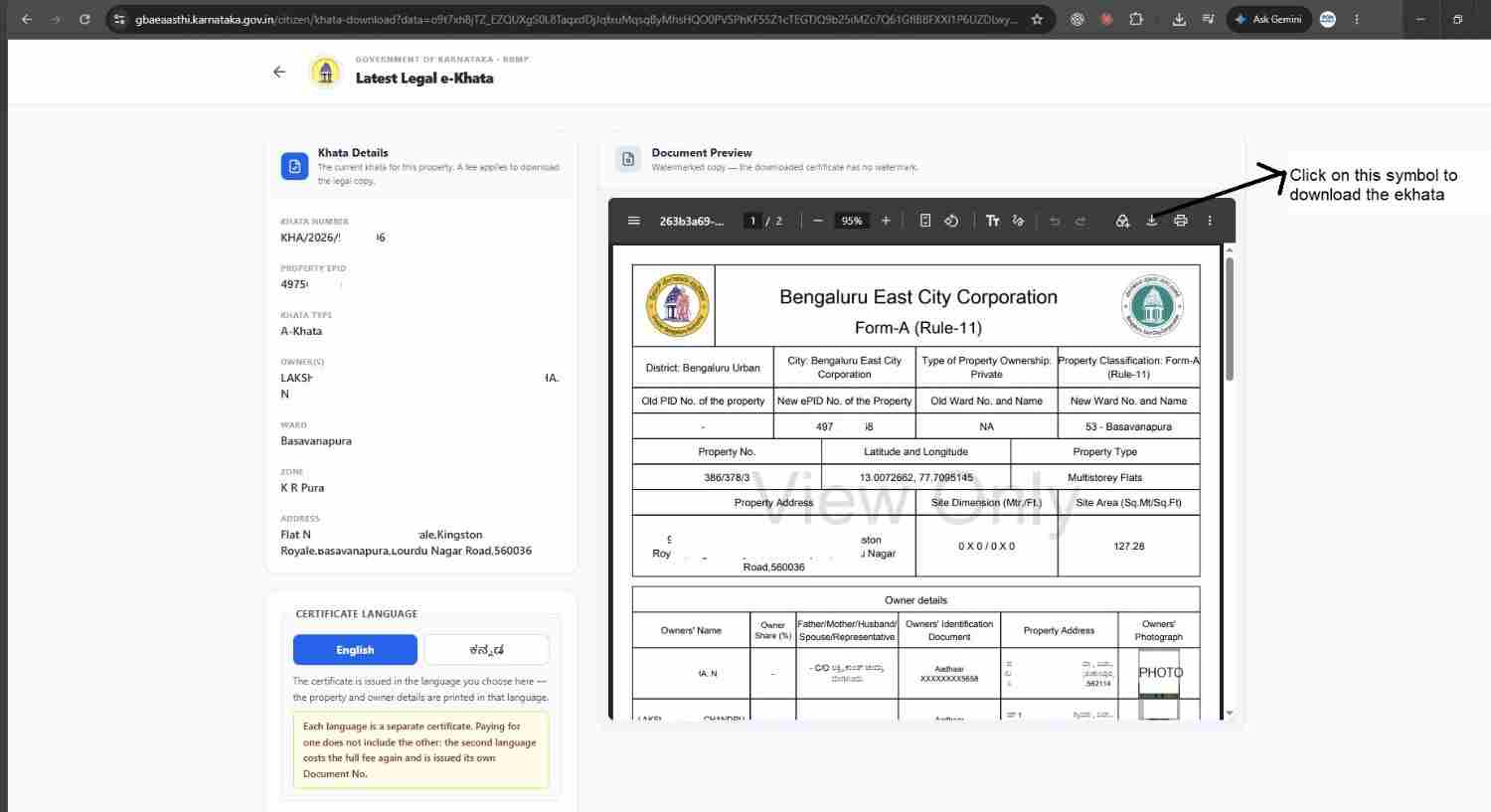
The eKhata document will be displayed.
Click the Download icon to download the eKhata.
Refer to the screenshot below.
Downloading the Signed Copy
If you require a signed copy of the eKhata, you may have the option to pay the applicable download fee and download the signed document.
In my case, the fee displayed was approximately Rs. 175.
The applicable fee may vary, so check the amount displayed on the portal at the time of download.
Conclusion
The eAasthi 2.0 portal allows property owners to apply for GBA eKhata online and complete the process digitally.
This completes the process of applying for GBA eKhata, tracking the application status, and downloading the eKhata through eAasthi 2.0.
Apart from the documents listed on the eAasthi portal, additional documents may also be required depending on your property and the purpose of the application.
In particular, if you want to provide that your property is eligible for A-Khata, you must upload the relevant supporting documents as part of the application.
Also, if you are applying for eKhata for an immediate property transfer, you may need to provide an Encumbrance Certificate, or EC, as part of the application.
Need an assistance for eKhata, please write to us
PGN Property
email: pgnproperties@gmail.com
Contact No. +91-9742479020