
Every document registered at the Sub-Registrar’s Office in Karnataka is stored digitally and made accessible to the public through the Kaveri Online Services portal. This enables individuals to easily track and retrieve registered documents from the comfort of their homes, without the need to physically visit government offices.
UNDERSTANDING THE REGISTRATION NUMBER
Before we delve into the step-by-step procedure to obtain a certified copy through Kaveri Online Services, it is essential to understand the structure of the registration number, a unique identifier for each registered document.
Here is an example:
VRT-1-XXXXX-2021–22
Explanation of the components:
- VRT – Abbreviation of the Sub-Registrar Office name (e.g., Varthur).
- 1 – Book number (Book 1 is used for documents accessible to the public).
- XXXXX – Five-digit document number.
- 2021–22 – Year of registration.
(Refer to the highlighted portion in the image below for reference.)

STEP-BY-STEP GUIDE TO OBTAIN CERTIFIED COPY ON KAVERI ONLINE SERVICES
Step 1: Visit the Kaveri Online Services Portal
Go to the official website: https://kaveri.karnataka.gov.in/landing-page
The home page will appear as shown below.

Step 2: Register on the Portal
- To access the services, you need to create an account.
- Click on “Register” (Refer to the highlighted section in the image below).

- Fill in your name, address, mobile number, and email ID on the registration page. Refer to image below

- You will receive your password via email (sample shown below).

Step 3: Login
- Use your registered username, password, and OTP (sent to your mobile) to log in.
- The login page is illustrated below for reference.

Step 4: Start a New Application
- Once logged in, click on “Start a New Application”.

- Choose “CERTIFIED COPY – (ONLINE CC)” from the available options.

Read the Prerequisite for CC and click on Continue, refer to image below

Step 5: Fill in the Required Details
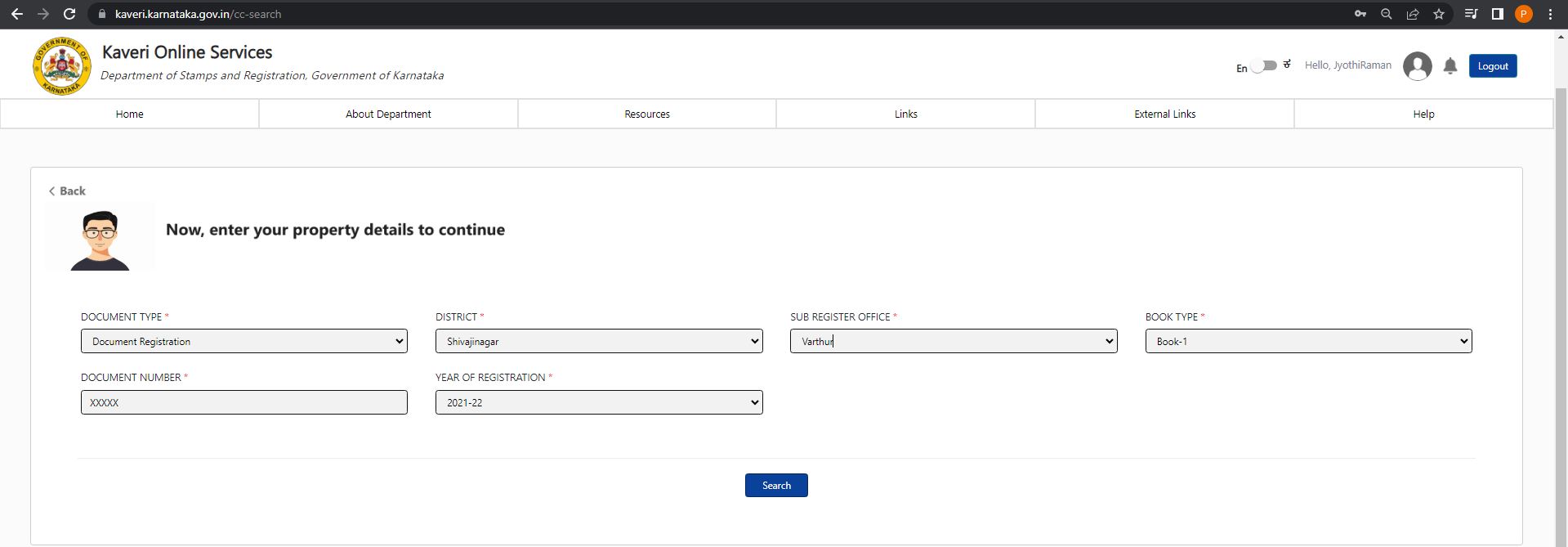
Based on the registration number, select the following from the dropdown menus:
- Document Type: Document Registration
- District: Shivajinagar (for Varthur, which falls under Shivajinagar jurisdiction)
(Note: Bengaluru Urban is divided into five jurisdictions – Shivajinagar, Gandhinagar, Rajajinagar, Jayanagar, and Basavanagudi. For other locations, choose the relevant district.) - Sub-Registrar Office: Varthur
- Book Type: Book 1
- Document Number: XXXXX (five-digit number from your registration number)
- Year of Registration: 2021–22
(Refer to the filled form image below.)
Step 6: Search and Download Information Copy
- Click “Search”.

The search result displays, refer to below sale deed

- Once the document appears in the search result, click on the download icon to obtain an information copy (PDF with watermark).
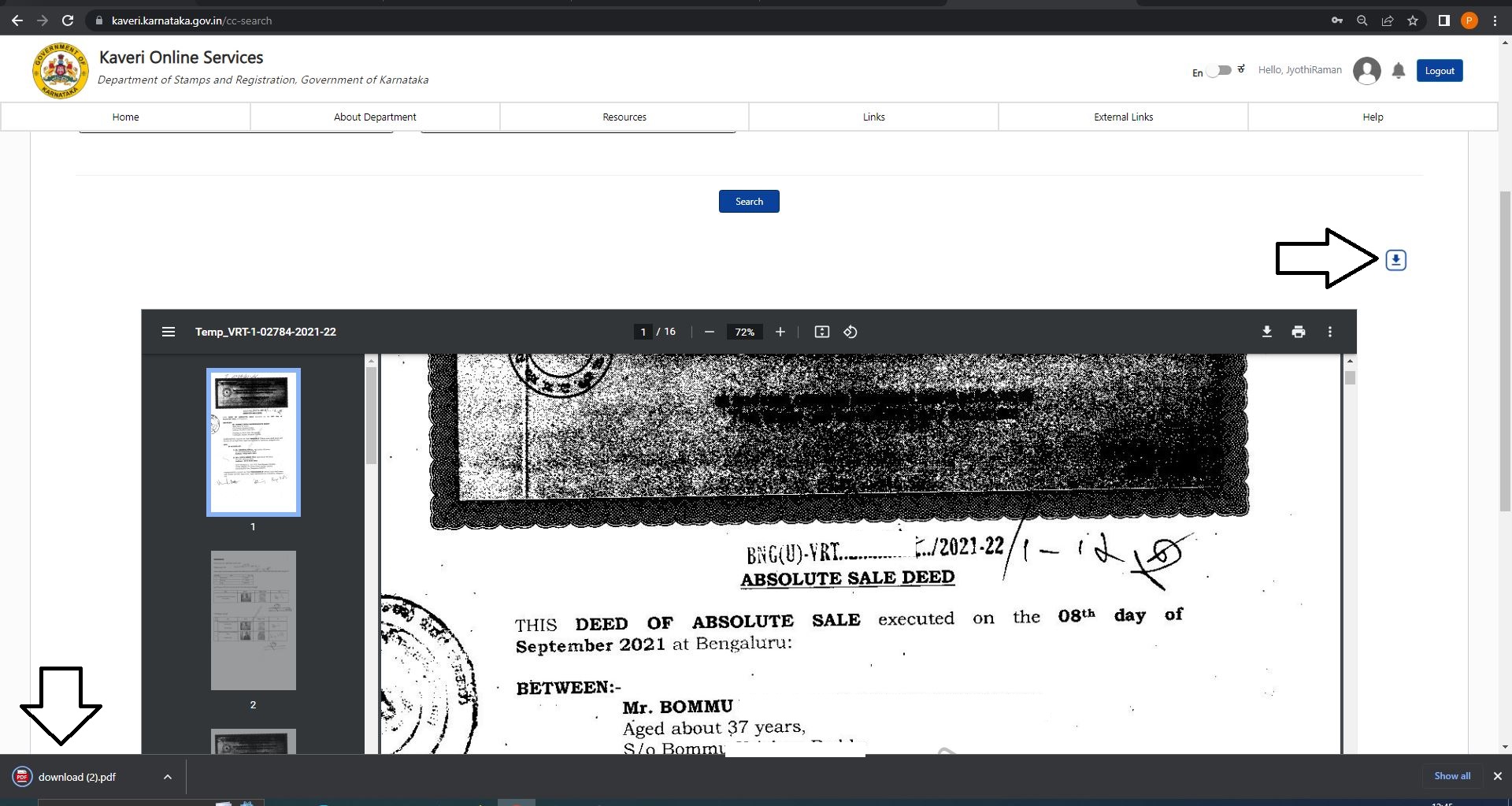
(Note: The information copy is not a certified copy and contains a watermark.)
How to Apply for a Certified Copy
If you require an official certified copy, proceed with the following steps:
Step 7: Submit Application for Certified Copy
- Scroll to the bottom of the page.
- Check the declaration boxes and click “Proceed”.

- Make the payment. The fee depends on the number of pages. (Example: A 16-page sale deed costs ₹210.)

A sample payment challan is shown below.

Step 8: E-Sign the Application
Click “Return to Application”, then select “E-Sign

- On the next page, click “Click to E-Sign”.
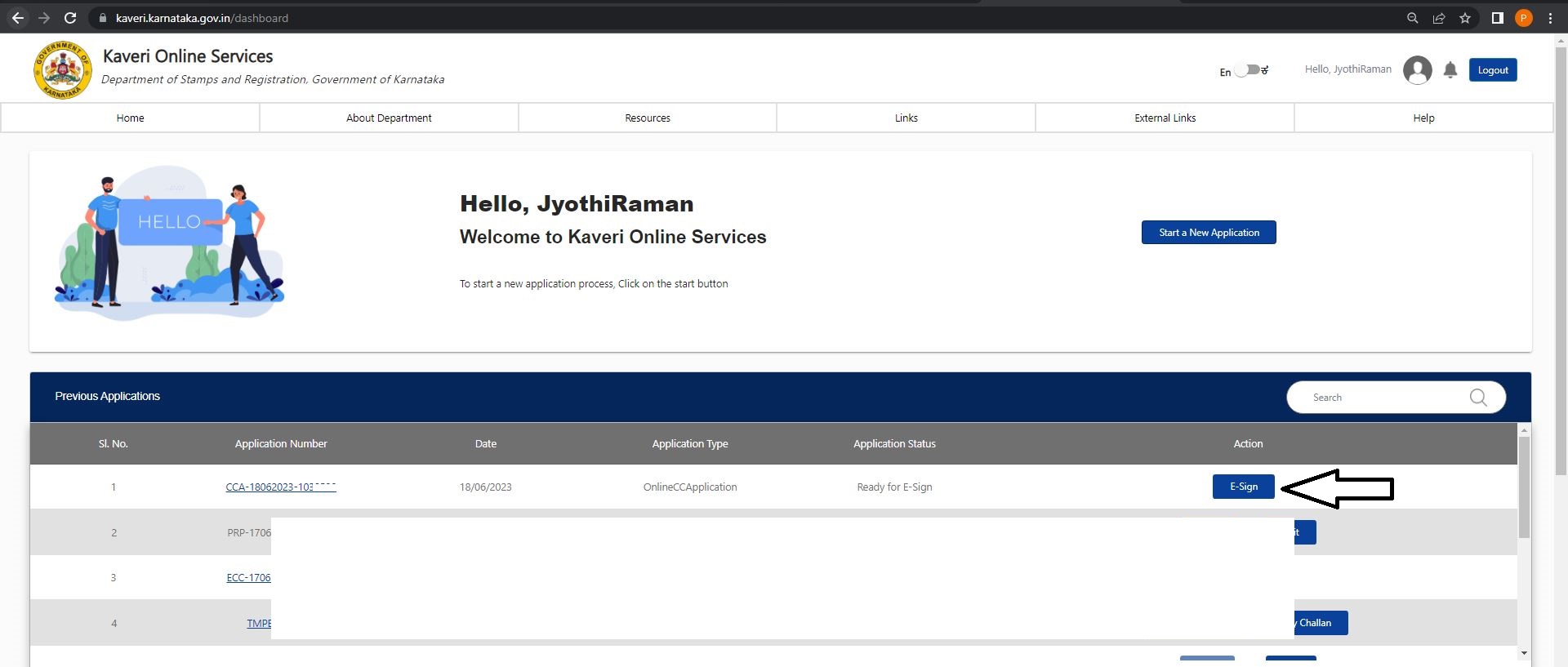
In the next page, Click on Click to E-Sign, Refer to arrow mark in below image

Provide your Aadhaar number and complete E-Sign, refer to below image

We submitted the application successfully, refer to below image

Step 9: Application Status
Once submitted, the status will show “Pending at SRO”.

After 2 days , the application status changed to Application Digitally Signed by SRO. Refer to below image
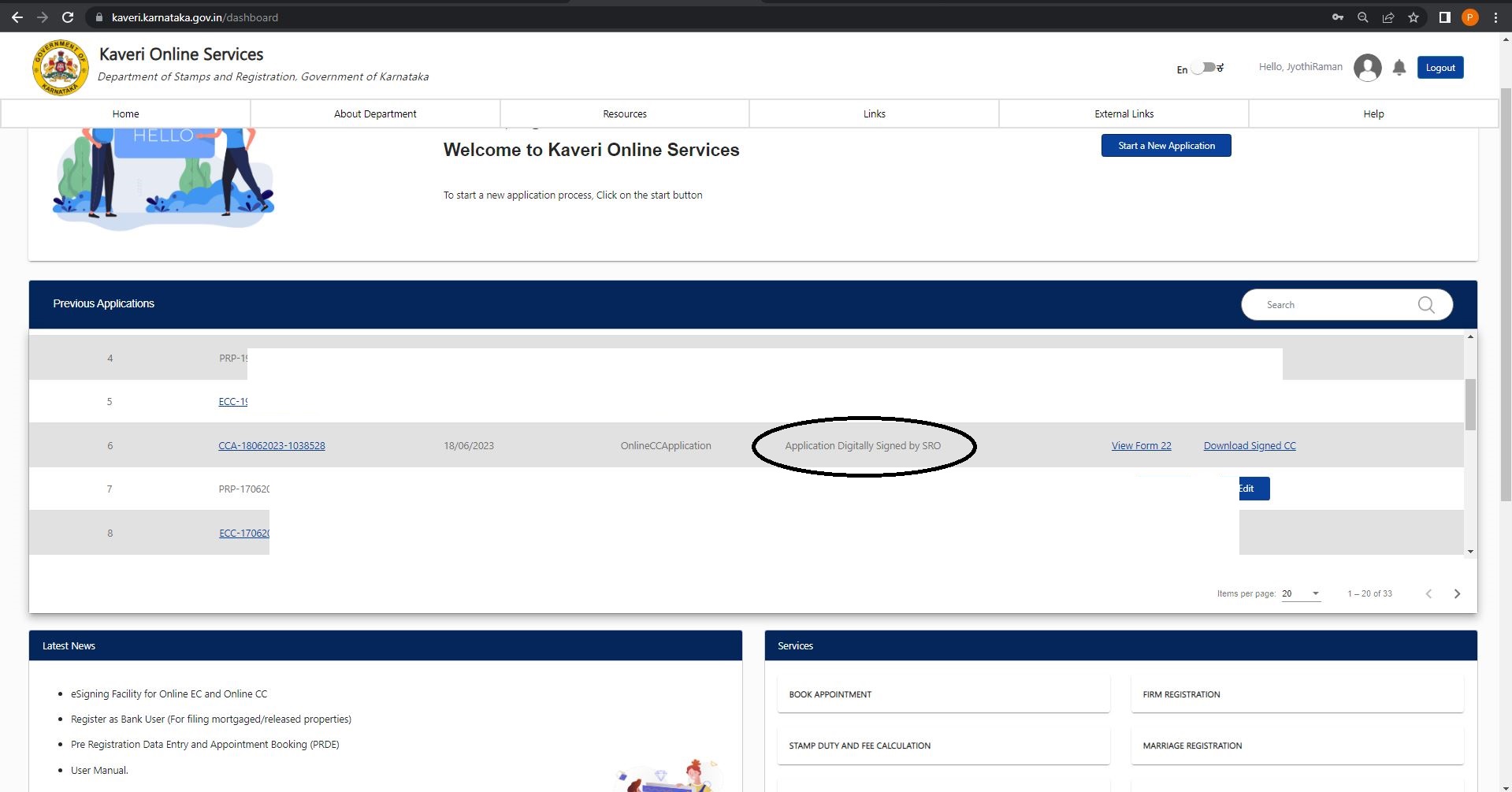
Step 10: Download the Certified Copy
- Click on “Download Signed CC” to download the certified sale deed in PDF format.

- The certified copy does not have a watermark and includes a digital signature from the Sub-Registrar Office.
A sample of the digitally signed certified copy is shown below.

The below image is the digitally signed by sub-registrar office, this page is part of your signed CC

NEED ASSISTANCE?
If you need help retrieving your certified copy from Kaveri Online Services, we provide assistance, write to us at pgnproperties@gmail.com or WhatsApp us at +91 97424 79020.